
The LID Specifications data panel of the Subbasin Data dialog box allows the user to define general specifications for Low Impact Design (LID) elements within the selected subbasin. Note that this data panel is only enabled when EPA SWMM is selected as the hydrology analysis engine in the Scenario Manager dialog box. Otherwise, this data panel is disabled (i.e., grayed out). Refer to this article in our knowledge base to learn more about the hydrology analysis engine.
This article explains how to interact with the LID Specifications data panel of the Subbasin Data dialog box.
Follow the steps below to define the specifications for the LID elements:
- In the Subbasin Data dialog box, select the LID Specifications data panel from the Subbasin Specifications dropdown combo box.
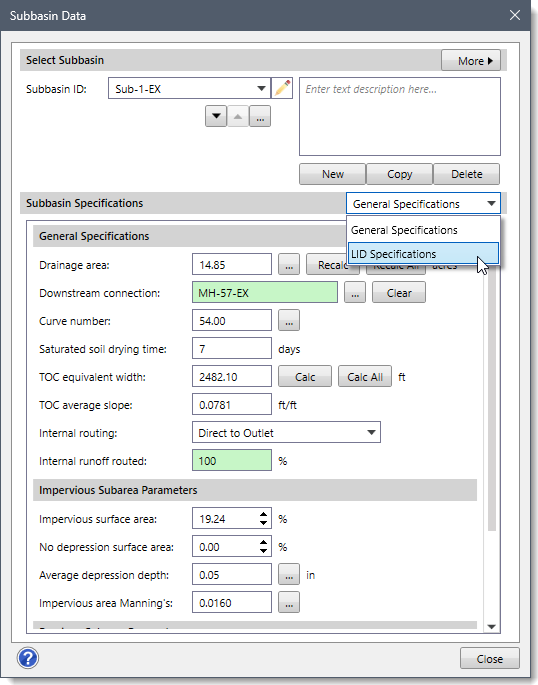
- The corresponding data panel with options for defining LID specifications will be displayed.

The following sections describe how to define specifications for LID elements and interact with the above data panel.
Defined LID Elements
The table under this section lists all the LID elements defined for the current subbasin.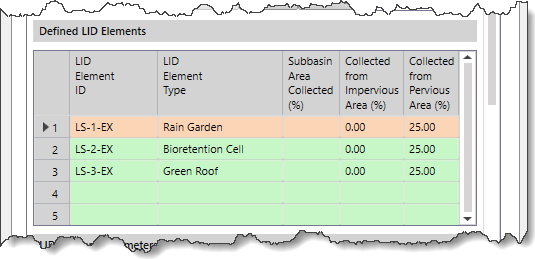
The following read-only columns are available in this table:
- LID Element ID
This read-only column lists the IDs of the defined LID elements.
- LID Element Type
This read-only column lists the LID element types for the added LID elements.
- Subbasin Area Collected
This read-only column lists the total subbasin area being processed by the defined LID element.
- Collected from Impervious Area
This read-only column lists the percentage of the impervious portion of the subbasin non-LID area whose runoff is processed by the LID element.
- Collected from Pervious Area
This read-only column lists the percentage of the pervious portion of the subbasin non-LID area whose runoff is processed by the LID element.
LID Element Parameters
This section allows the user to define the LID element parameters for the selected LID element.
Note that these parameters change based upon the selected LID element listed in the table under the Defined LID Elements section. The following LID element parameters are available in this section:
- Entire subbasin area processed by LID
This checkbox option denotes that the entire subbasin drainage area is processed by the LID element.
- Subbasin area processed by each LID unit
This entry field defines the area processed by each LID unit. Click the [Pick] button to select a polygon from the Map View that represents the subbasin’s LID unit. Click the […] button to measure the area processed by subbasin’s LID unit from the Map View.
- Number of LID units
This spin control entry field defines how many LID units are defined for the subbasin.
- Total subbasin area processed by LID
This read-only entry field defines the total subbasin area being processed by the defined LID units.
This value is computed using the following equation:
(Subbasin Area Processed by Each LID Unit) x (Number of LID Units)
- Surface width processed by each LID unit
This entry field defines the subbasin surface width processed by the defined LID unit. Click the [Pick] button to measure the subbasin surface width processed by each LID unit from the Map View. Note that this entry field and the [Pick] button are only enabled for the following LID element types:
- Bioswale
- Green Roof
- Infiltration Trench
- Permeable Pavement
- Rooftop Capture
- LID unit initial saturation
For most of the LID element types, this spin control entry field defines the degree to which their storage zone is initially filled with water.
However, for Bioretention Cell, Green Roof, and Rain Garden LID element types, this spin control entry field defines the degree to which the LID unit’s soil is initially filled with water. A value of 0% saturation corresponds to the wilting point moisture content, whereas a value of 100% saturation corresponds to a moisture content equal to the soil porosity. The storage zone beneath the soil zone of the LID unit is assumed to be completely dry.
- Impervious area processed by LID
This spin control entry field defines the percentage of the impervious portion of the subbasin non-LID area whose runoff is processed by the LID unit. Note that this entry will be displayed as disabled (i.e., grayed out) when the Entire subbasin area processed by LID checkbox is checked.
- Pervious area processed by LID
This spin control entry field defines the percentage of the pervious portion of the subbasin non-LID area whose runoff is processed by the LID unit. Note that this entry will be displayed as disabled (i.e., grayed out) when the Entire subbasin area processed by LID checkbox is checked.
- LID unit drain flow connection
This checkbox entry allows the LID outflow to be routed to a different location than the outlet of the current subbasin. By default, the element ID displayed in the Downstream connection entry in the General Specifications data panel of the Subbasin Data dialog box will be shown in this entry.
The user can click the […] button to select the LID unit drain flow connection from the Map View.
The user can click the [Clear] button to remove the LID unit drain flow connection.
- Route LID outflow to pervious area
This checkbox option causes all the outflow from the LID unit to be routed onto the pervious area of the current subbasin. Note that if the drain outflow was specified to be routed to a different location than the subbasin outlet, then only surface outflow will be routed to the pervious area of the current subbasin.
LID Results
After successfully computing the analysis, the table under this section will provide a summary of the LID results for the defined LID elements in the selected subbasin.