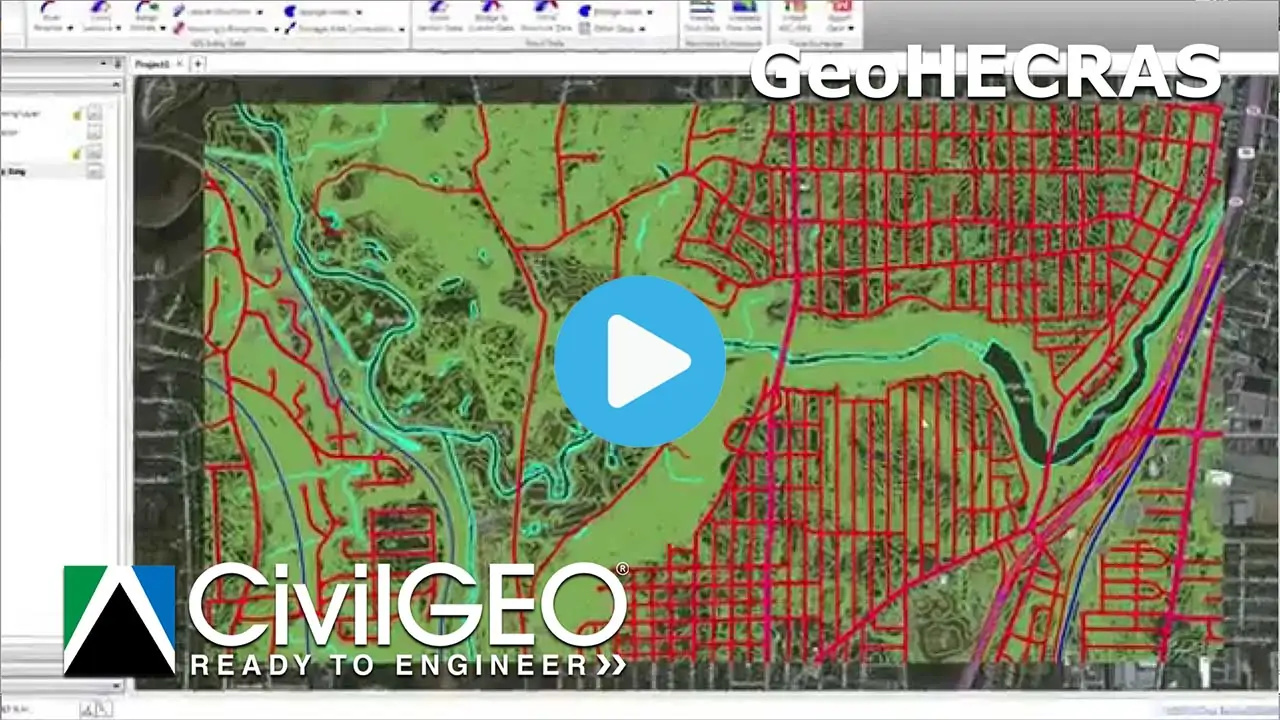
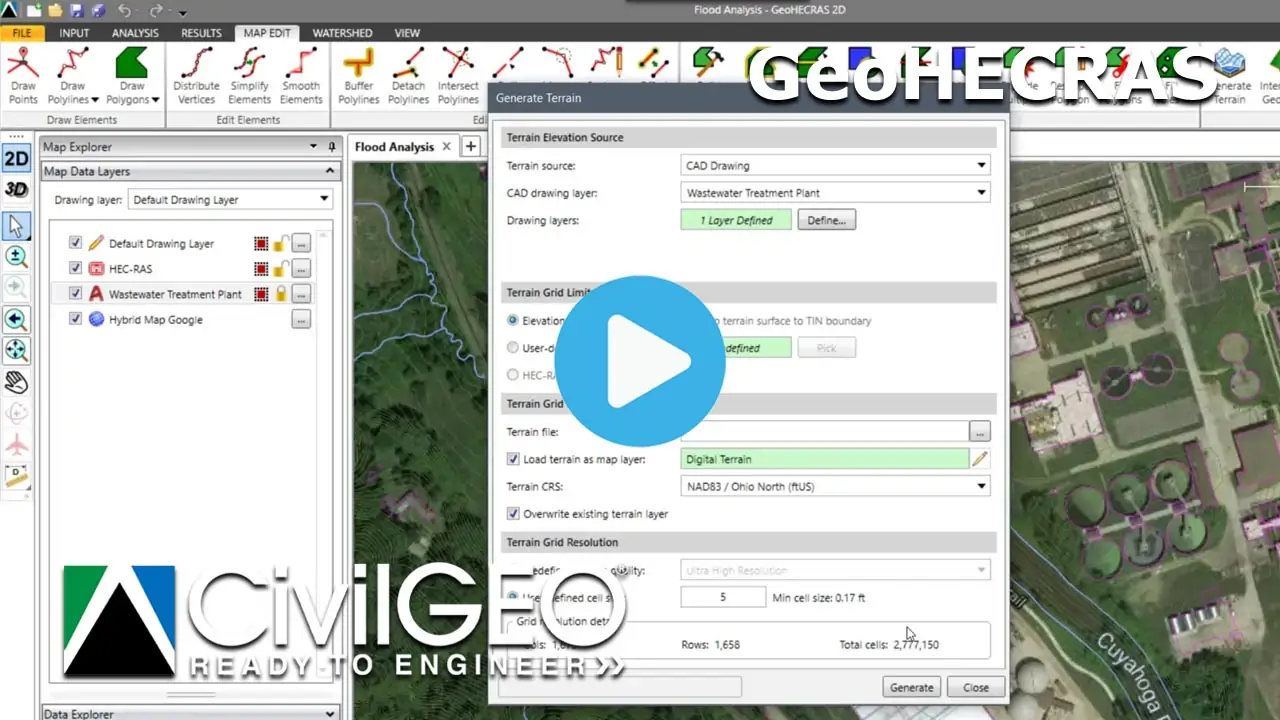
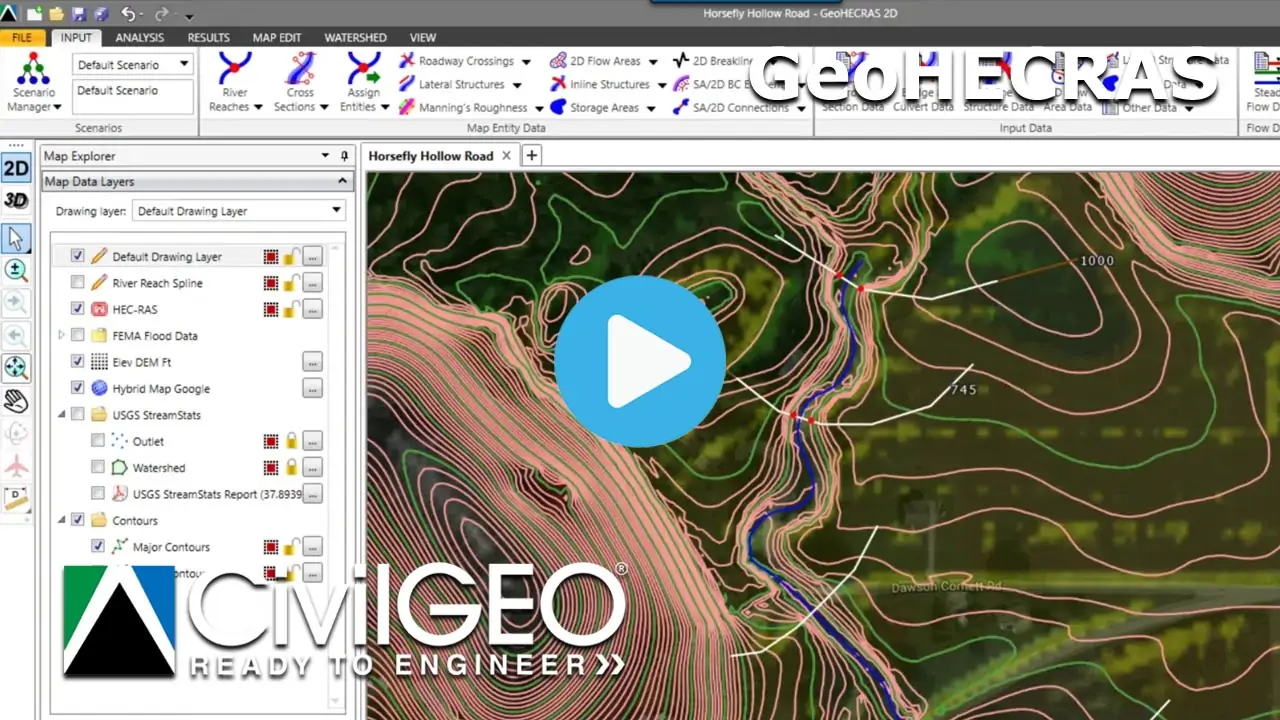
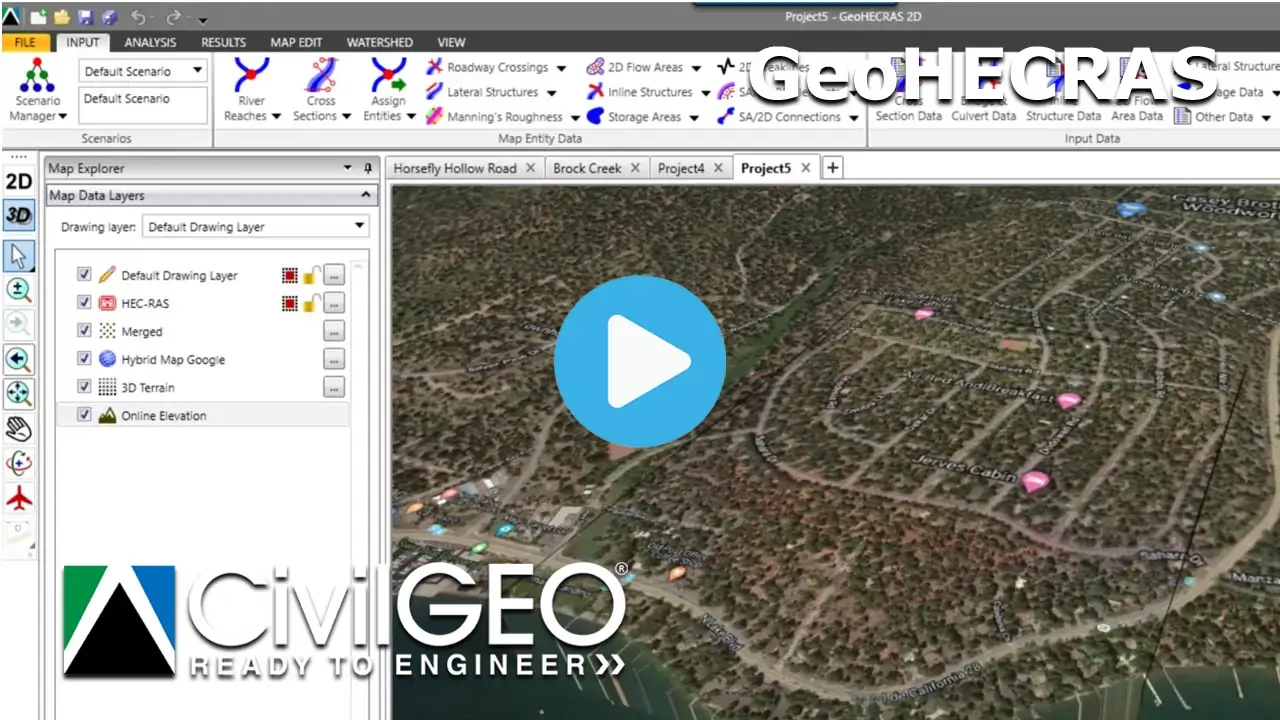
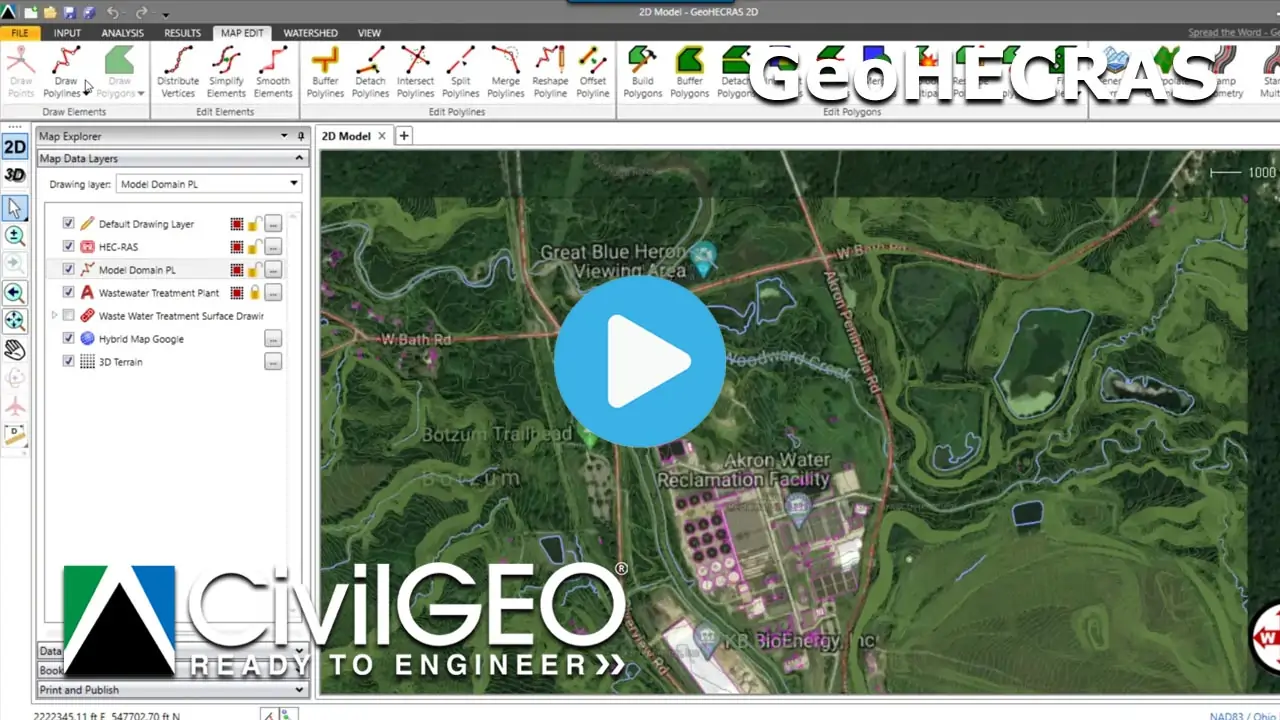
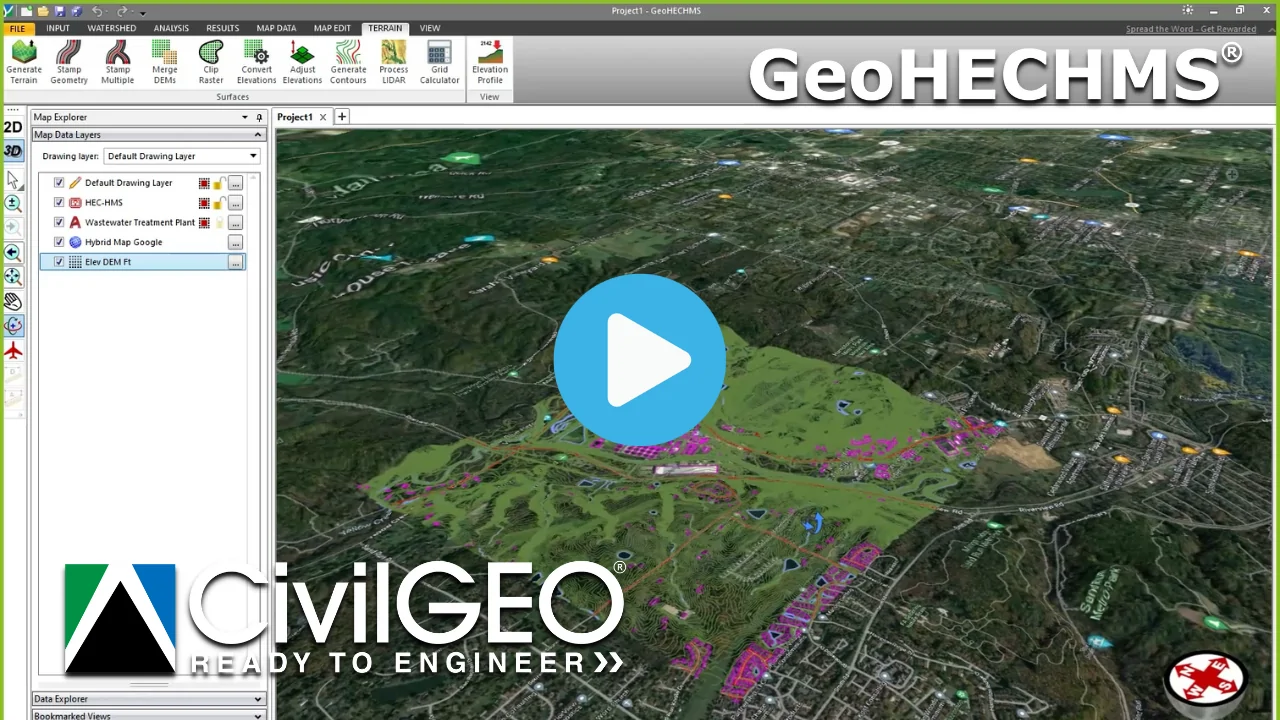
Step-by-step product tutorial videos help you quickly learn how to use our software. Our videos show you how to accomplish a task or solve a problem so you can get back to work.

Watch the Tutorials

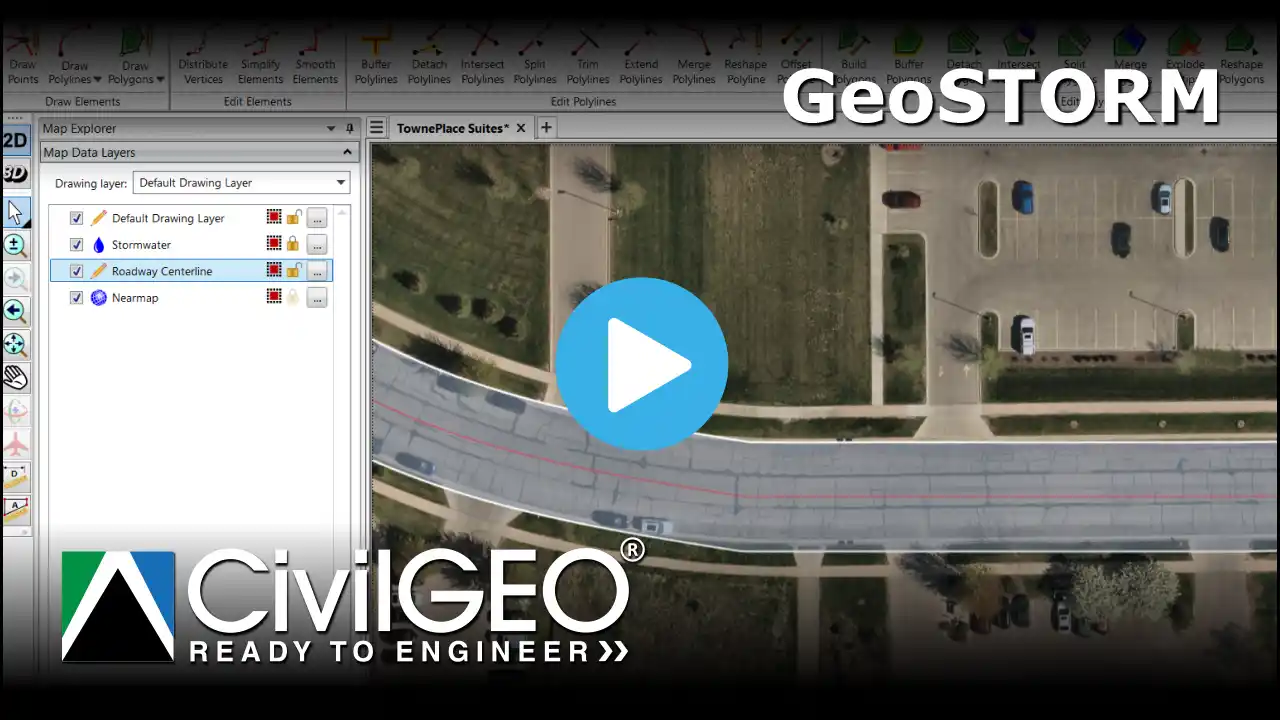
Using Trim Polylines Command

Learn how to use the Trim Polylines command to trim selected polylines by intersecting them with another polyline. This tutorial demonstrates how to draw or pick trimming boundary, select target polylines, and automatically trim them to fit neatly within defined areas for accurate modeling.

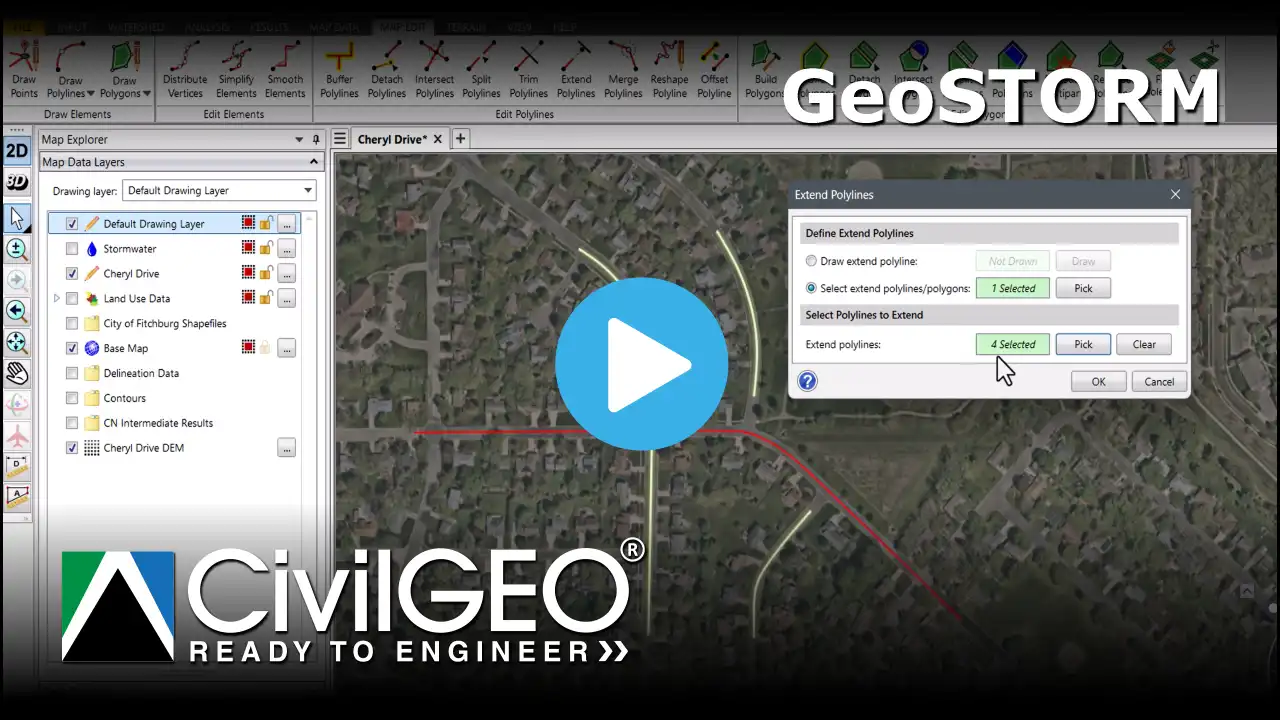
Using Extend Polylines Command

Learn how to use the Extend Polylines command to extend selected polylines until they intersect with another polyline or polygon. This tutorial shows how to define extension boundaries, select target polylines, and extend them to close gaps, connect geometry, or ensure accurate boundary alignment.

Using Buffer Polylines Command

Learn how to use the Buffer Polylines command to create polygons around selected polylines at a specified distance. This tutorial demonstrates how to select polylines, define buffer distance and shape options, and store results in either the default drawing layer or a GIS shapefile for use in analysis and mapping.

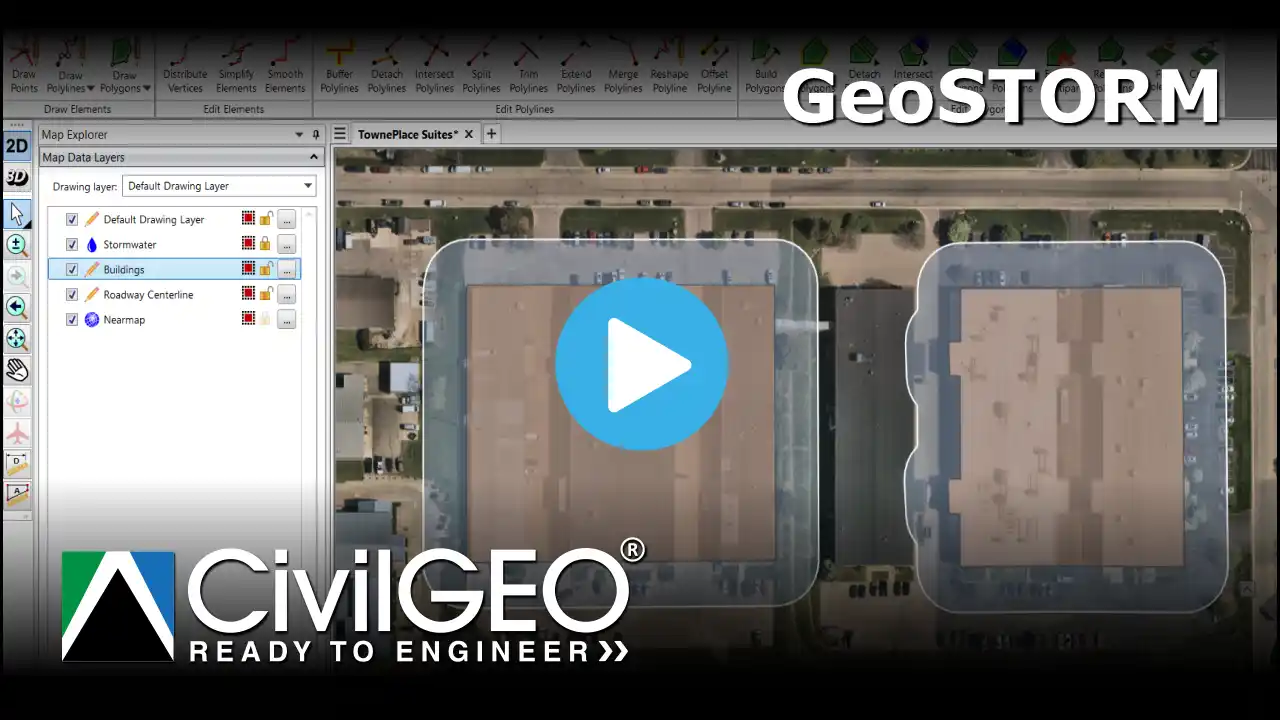
Using Buffer Polygons Command

Learn how to use the Buffer Polygons command to generate new polygons at a specified distance around existing polygon features. This tutorial demonstrates how to select polygons, set positive or negative buffer distances, choose corner styles, and store results in either the default drawing layer or a GIS shapefile.

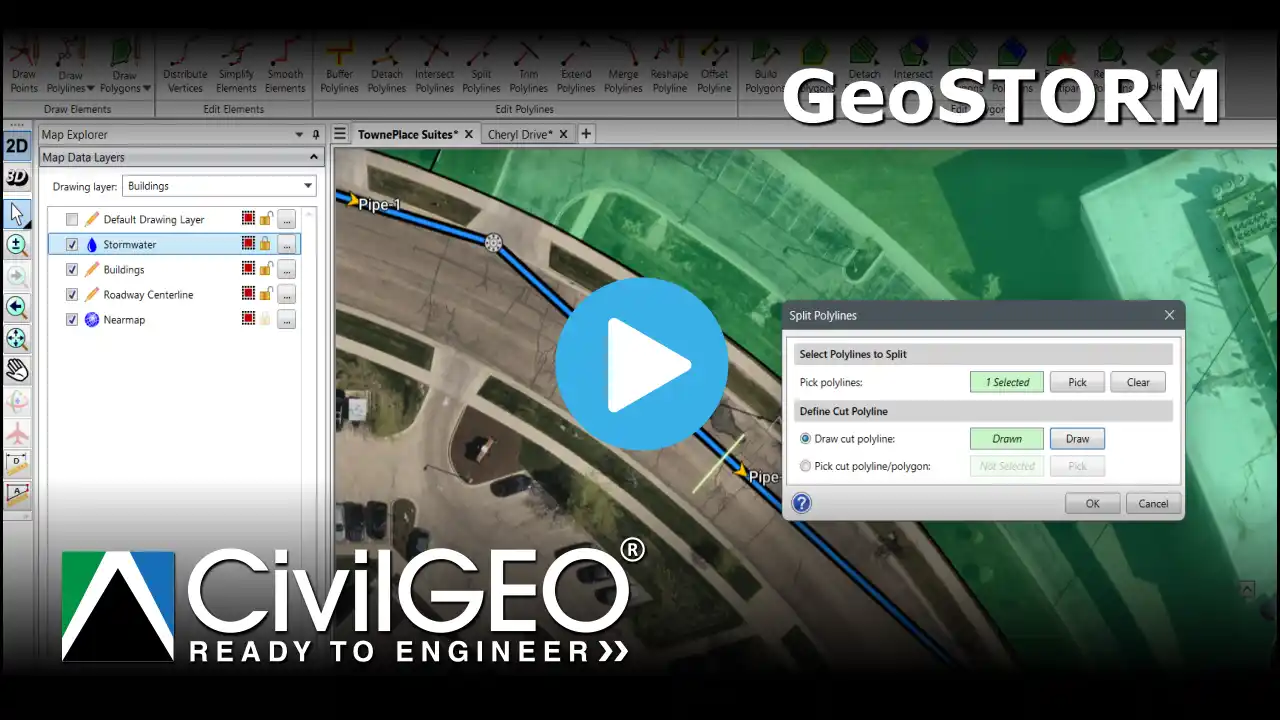
Using Split Polylines Command

Learn how to use the Split Polylines command to divide a polyline into two or more separate line segments. This tutorial demonstrates how to draw or pick a cut point, split the polyline, and generate new segments that can be used independently in your model.

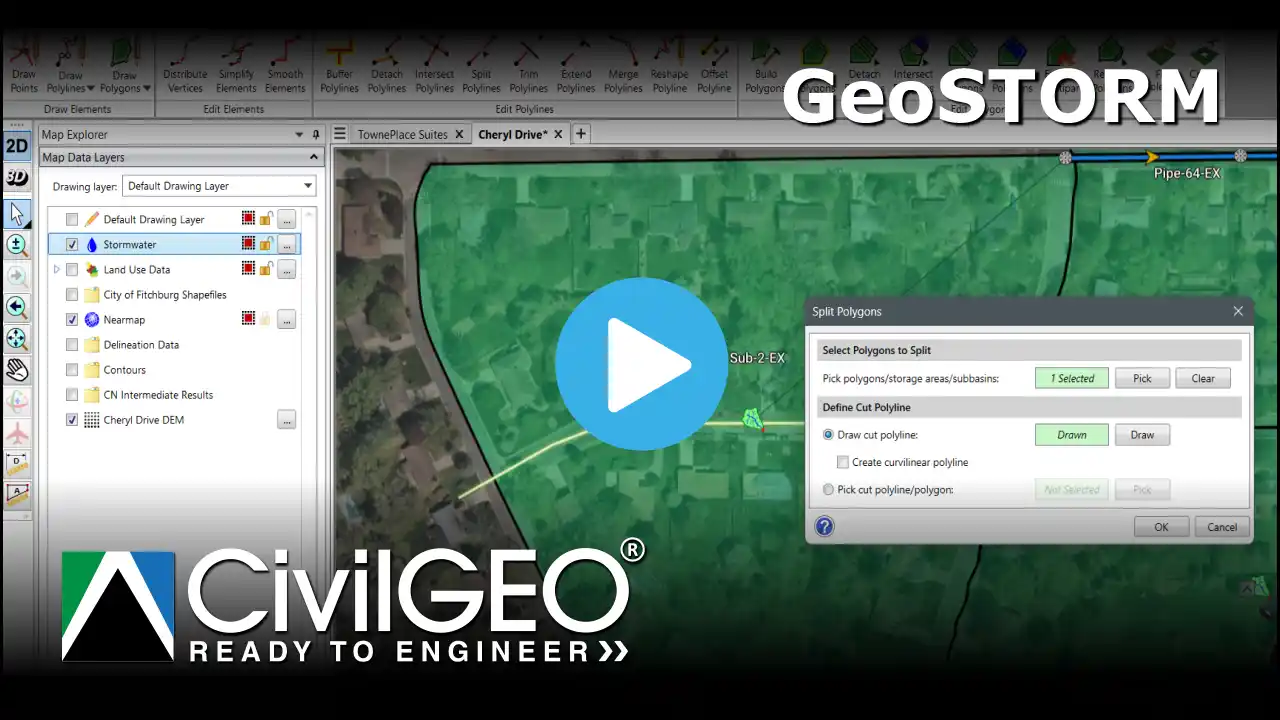
Using Split Polygons Command

Learn how to use the Split Polygons command to divide polygons such as subbasins, storage areas, and 2D flow areas into smaller regions using a cut polyline. This tutorial demonstrates how to draw or pick a cut line, split the selected polygons, and create multiple subareas for refined modeling.

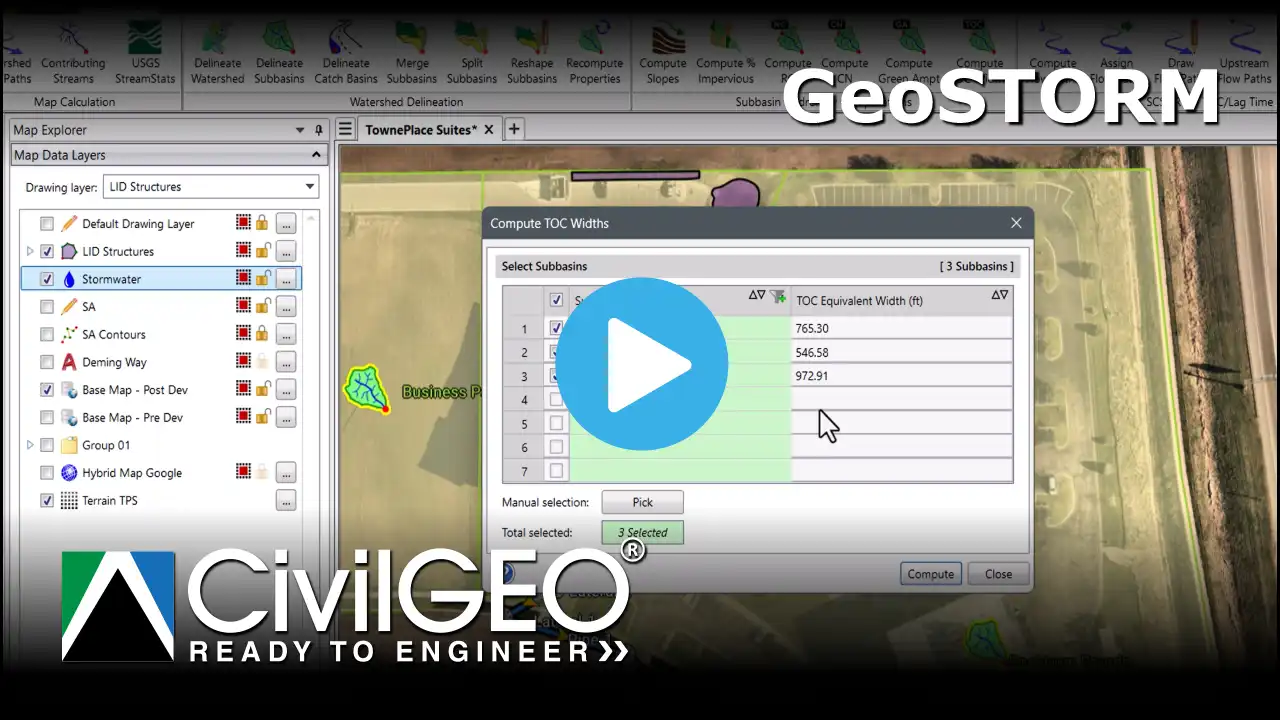
Computing TOC Widths

Learn how to use the Compute TOC Widths command in GeoSTORM to calculate EPA SWMM TOC equivalent widths for subbasins. This tutorial demonstrates how to select subbasins, compute TOC values based on the longest flow path, and view results directly in the dialog box. These widths are used in kinematic wave TOC calculations for sheet flow and shallow concentrated flow.

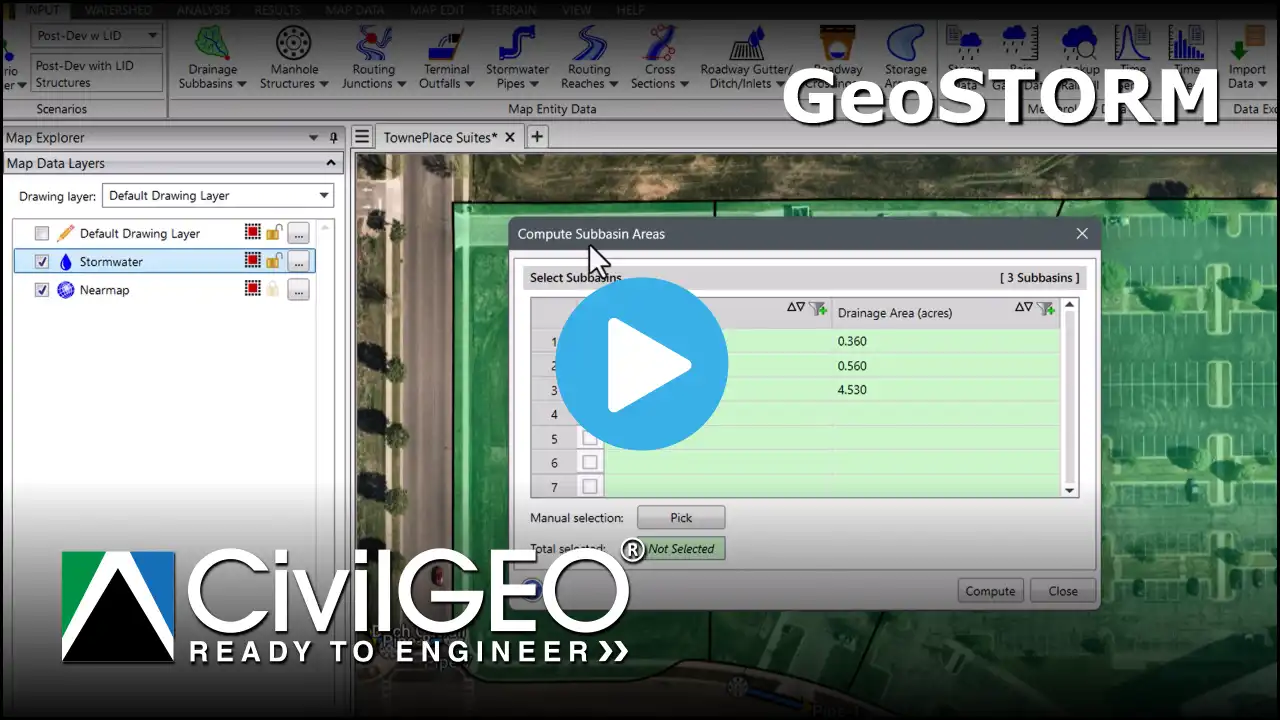
Computing Subbasin Areas

Learn how to use the Compute Subbasin Areas command in GeoSTORM to recalculate drainage areas after polygon edits. This tutorial demonstrates how to select subbasins, compute their areas, and update values so the polygons accurately represent true drainage extents for reliable hydrologic analysis.

Assigning Node Elevations

Learn how to automatically assign rim and invert elevations to nodes such as manholes, junctions, and outfalls. This tutorial demonstrates how to select nodes, choose an elevation source, define manhole depths, and quickly generate assign elevations from terrain data.

Defining Storm Data for Rational, Modified Rational & DeKalb Hydrology Method

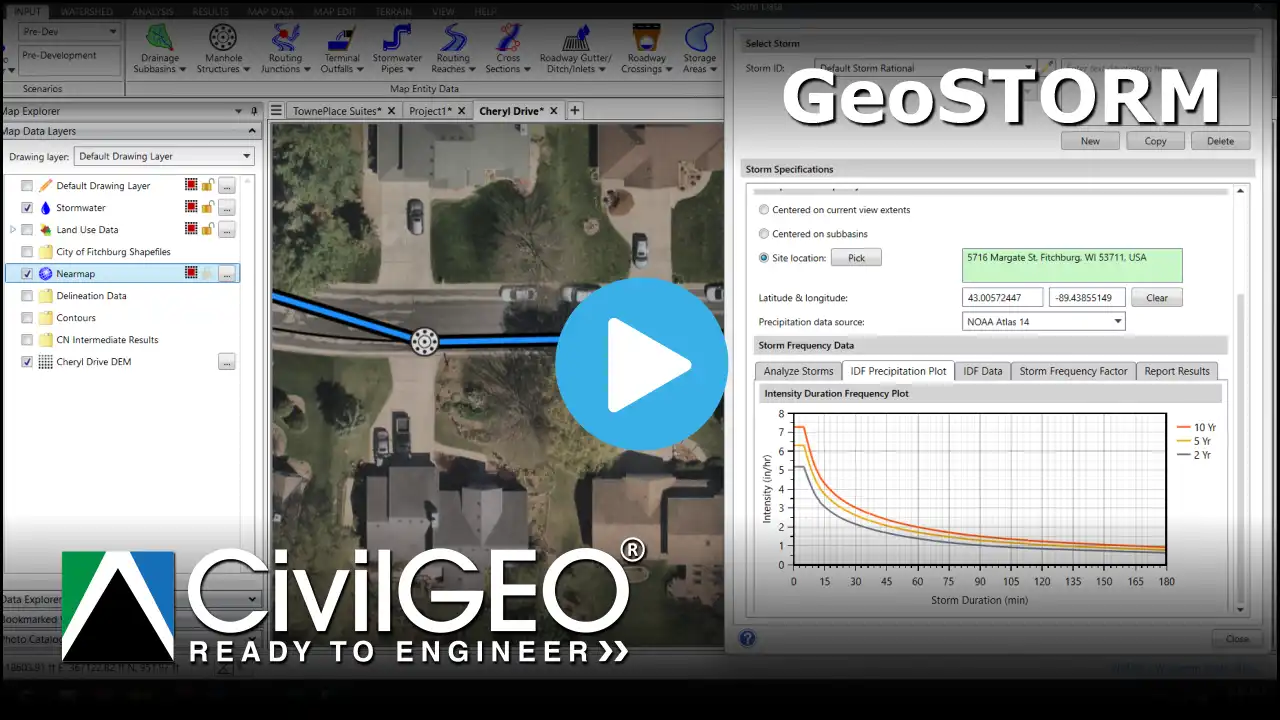
Learn how to define storm data in GeoSTORM when using the Rational, Modified Rational, or DeKalb Rational hydrology methods. This tutorial explains how to determine the rainfall intensity data and apply it your model for accurate rainfall-runoff modeling.

Defining Storm Data for EPA SWMM Hydrology Method

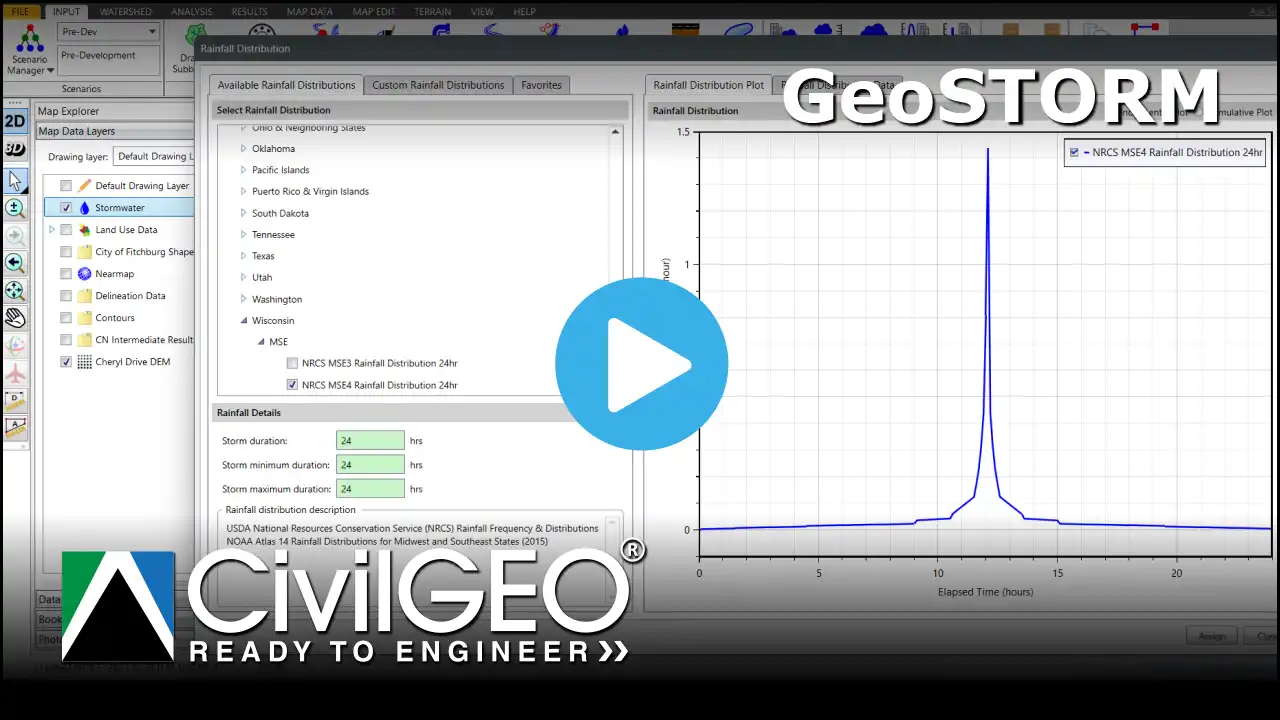
Learn how to define storm data when using the EPA SWMM as the hydrology analysis engine within the Storm Data dialog box. This tutorial shows how to select rainfall distributions and assign precipitation depths, or assign rain gages to the subbasin.

Defining Storm Data for SCS TR-20/TR-55 Hydrology Method

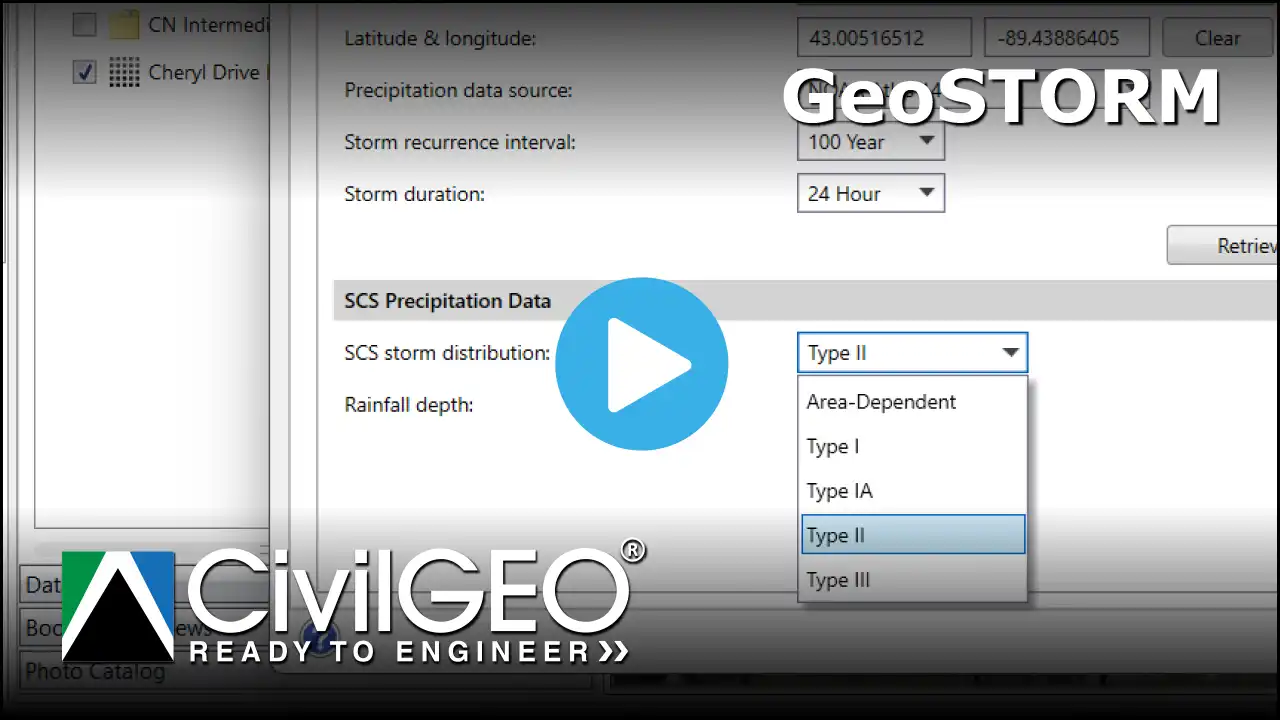
Learn how to define storm data in GeoSTORM when using the SCS TR-20/TR-55 hydrology methods. This tutorial explains how to choose rainfall distributions, specify storm durations, and apply precipitation depths to your subbasins for accurate hydrologic modeling.

Viewing and Editing Using Table Edit Command

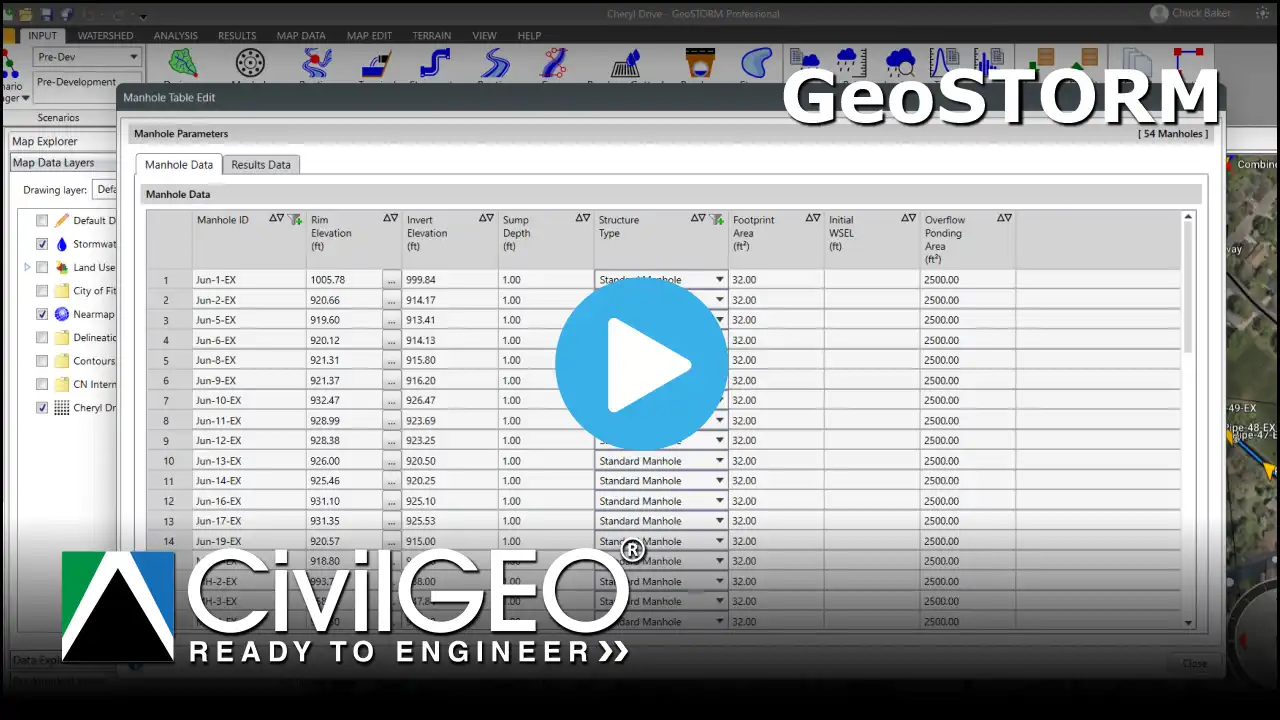
Learn how to use the Table Edit command in GeoSTORM to view and modify model data in a tabular format. This tutorial shows how to filter records, edit values directly, and update multiple model elements at once using an efficient table-based workflow.

Defining Subbasin LID Structures

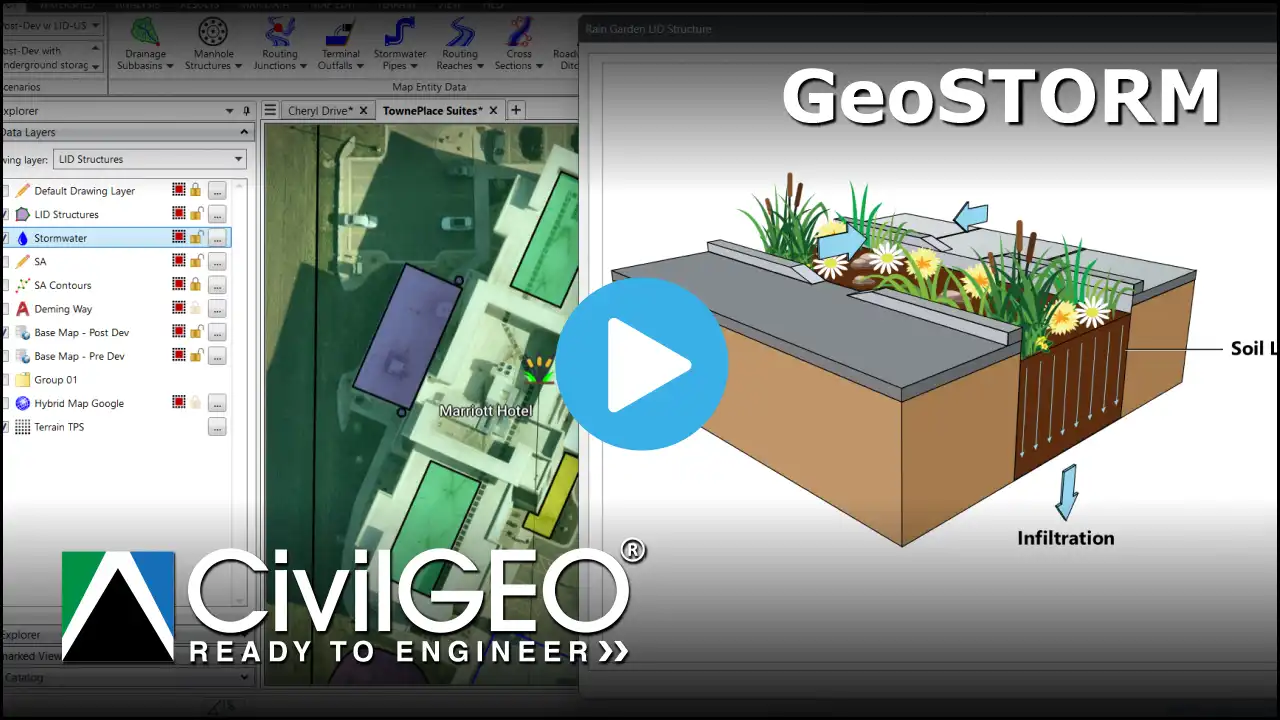
Learn how to use the Subbasin LID Structures command in GeoSTORM to add and configure Low Impact Design elements. This tutorial demonstrates how to select LID types, define layer and discharge specifications, and assign LID structures to subbasins using the LID Specifications panel.

Assigning Pipe Invert Elevations

Learn how to use the Assign Pipe Invert Elevations command in GeoSTORM to quickly compute and assign pipe inverts. This tutorial shows how to select pipes, extract elevations, apply constraints, and visualize results with the Pipe Profile view for accurate stormwater system modeling.

Computing Green Ampt Parameters

Learn how to use the Compute Green-Ampt command in GeoSTORM to compute infiltration parameters for subbasins using NLCD land-cover and NRCS soils data via web services, or by mapping values from your GIS shapefiles. This tutorial covers selecting subbasins, choosing the soil-moisture method, configuring NLCD/NRCS sources or GIS attributes, reviewing results, and applying the parameters to your model.

Computing Runoff Coefficients

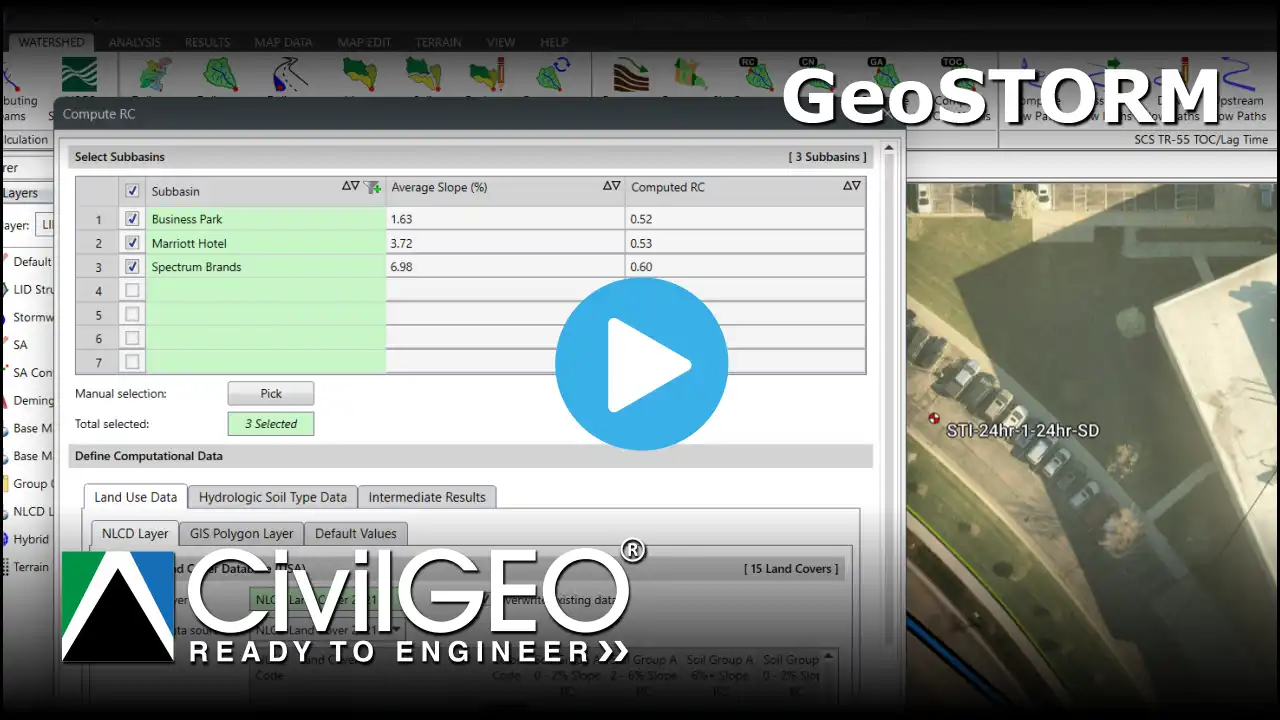
Learn how to use the Compute Runoff Coefficients command in GeoSTORM to determine composite runoff coefficients. This tutorial demonstrates how to combine land use, soil type, and slope information to calculate accurate runoff coefficients for use in Rational and Modified Rational hydrology methods.

Assigning Model Elements

Learn how to use the assign commands to assign existing drawn objects into model elements. This tutorial demonstrates how to assign polygons or polylines as subbasins, set IDs manually or with auto-naming, and quickly turn your drawings into functional elements of your model.

Deleting Model Elements

Learn how to use the delete commands. This tutorial demonstrates the Delete Subbasins command as an example, showing how the model elements can be deleted in the software.

Recomputing Element Properties

Learn how to use the Recompute Properties command to update model element attributes after edits. This tutorial demonstrates how to recalculate subbasin, reach, and node properties to ensure your model reflects the most recent geometry and data changes.

Reversing Flow Direction

Learn how to use the Reverse Flow Direction command to adjust the orientation of river reaches and conduits. This tutorial demonstrates how to select flow paths, reverse their direction, and maintain correct upstream and downstream connectivity in your model.

Ask Simon

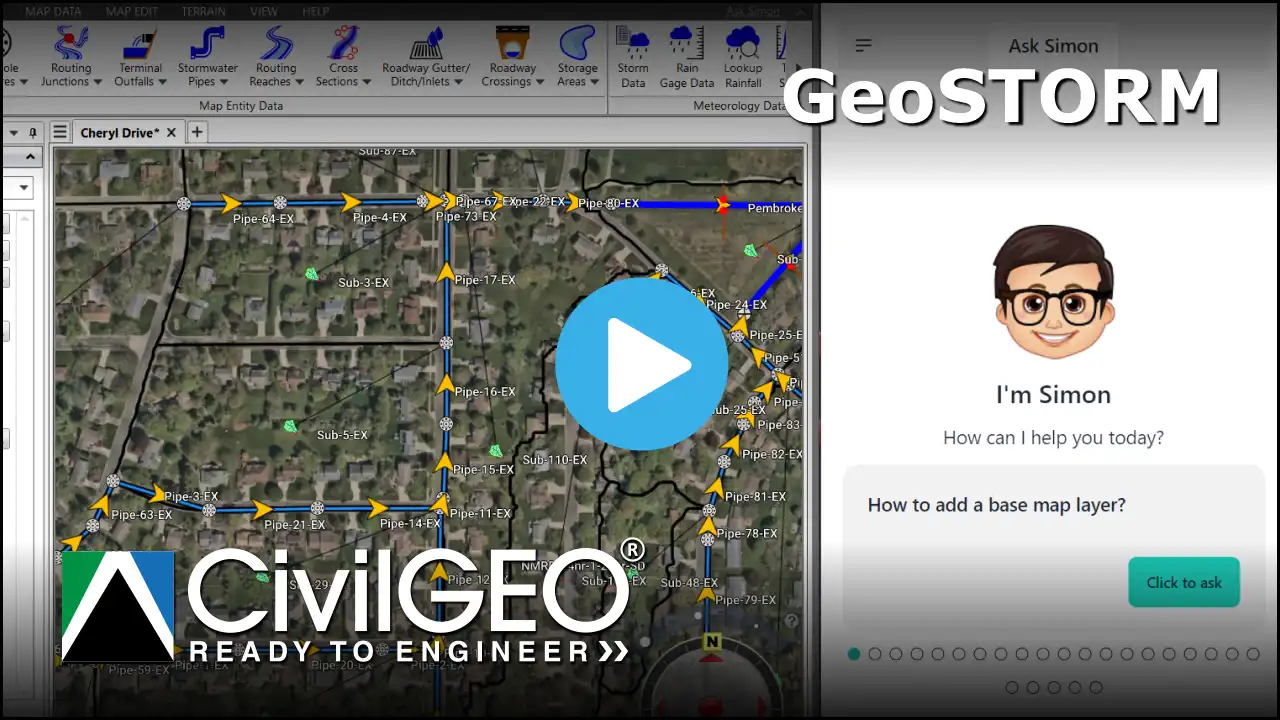
Learn how to use Ask Simon, CivilGEO’s AI-powered assistant, to get instant help with your engineering projects. This tutorial shows how to ask questions, use predefined queries, access 24/7 AI support within the software.

Creating a Stormwater Sewer Network

Learn how to create a stormwater sewer pipe network for your stormwater project using the Draw Pipes command. This tutorial video shows how to quickly define a pipe layout and ensure proper connections to manholes, inlets, outfalls and other drainage infrastructure elements in your stormwater project.

Generating Engineering Report

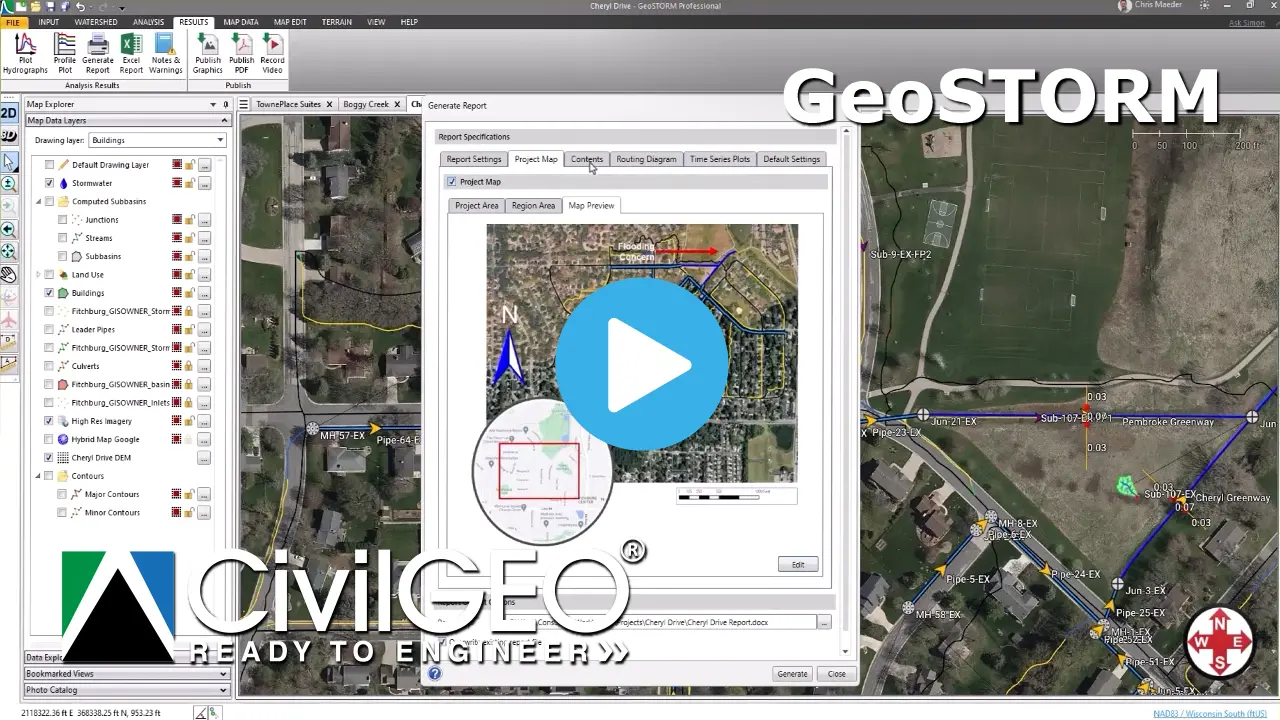
Learn how to have the software automatically produce an engineering report using the Generate Report command. This tutorial video shows how the software will compile model input data and output results—including subbasin data, pipe network results, etc.—into a comprehensive engineering report detailing the stormwater project.

Plotting Hydrographs

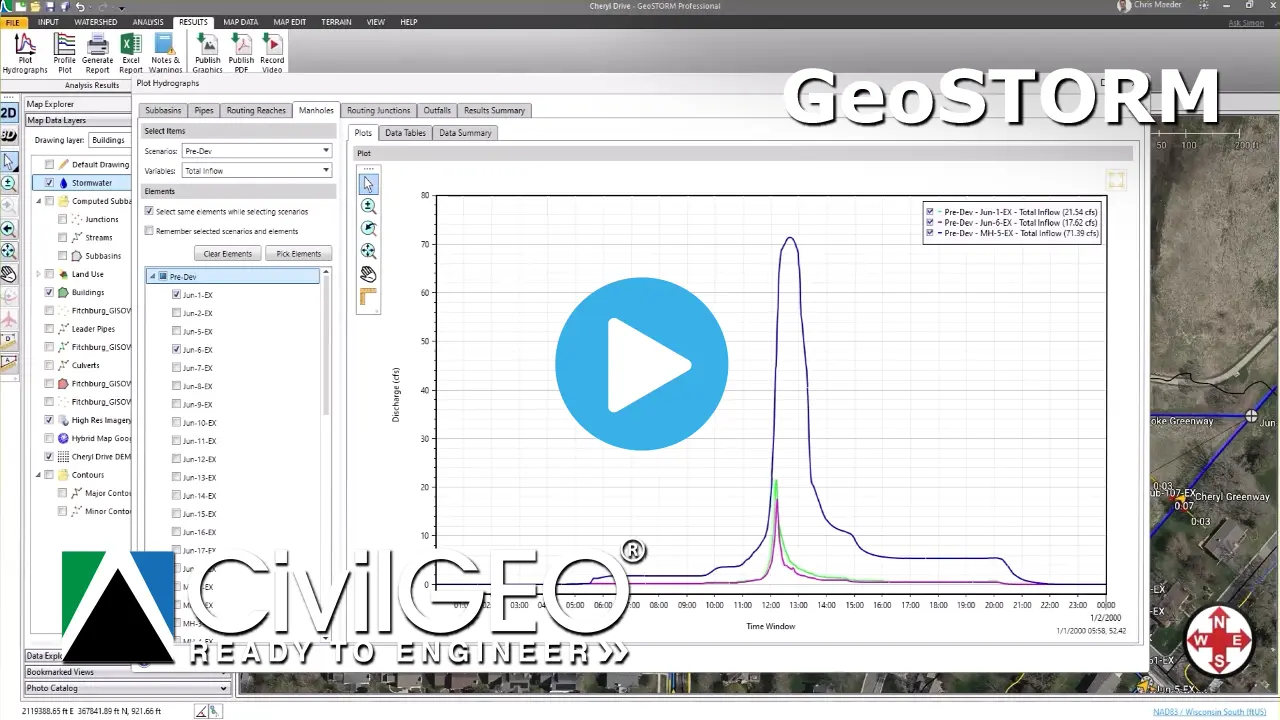
Learn how to visualize stormwater flow results using the Plot Hydrographs command. This tutorial video shows how to display various types of hydrographs, such as discharge, depth, velocity, stage, etc, for subbasins, pipes, junctions, and other elements of the stormwater project.

Defining Roadway Crossings

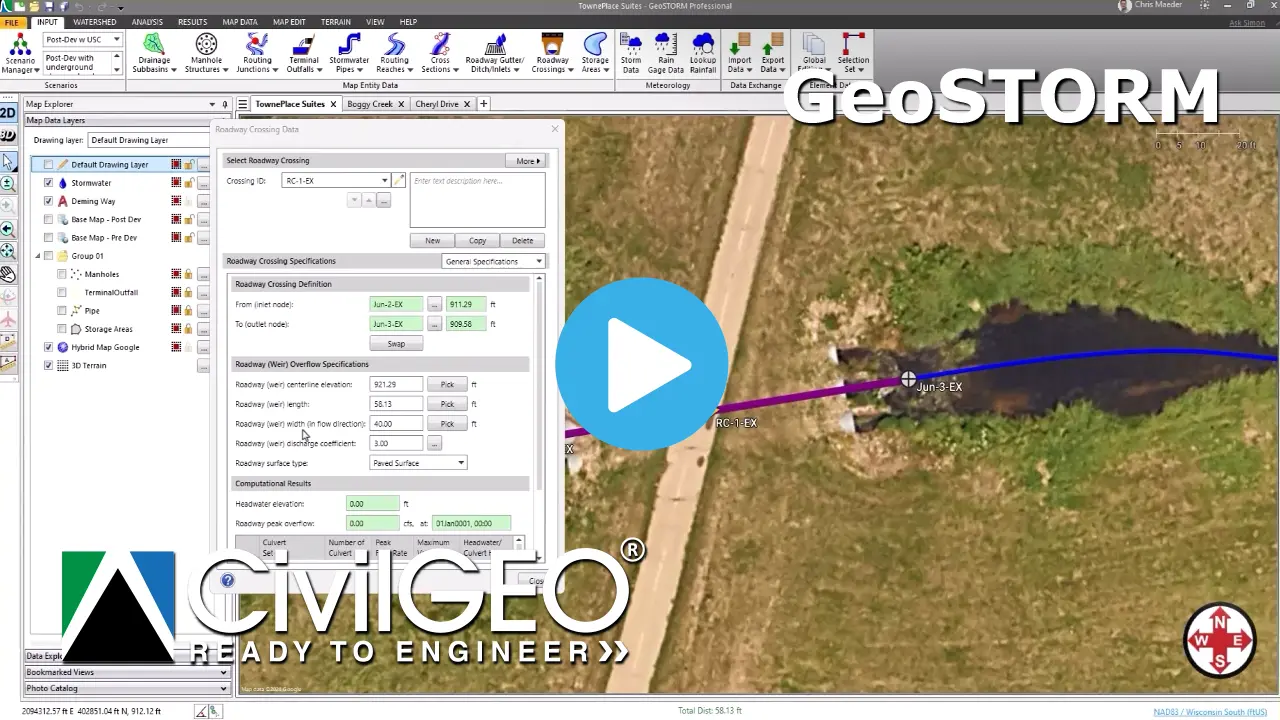
Learn how to define roadway crossings using the Roadway Crossing Data command. This tutorial video shows how to input roadway crossing data, roadway weir geometry, assign culverts, and display results to support accurate stormwater modeling at roadway crossings.

Understanding Profile Plot Output

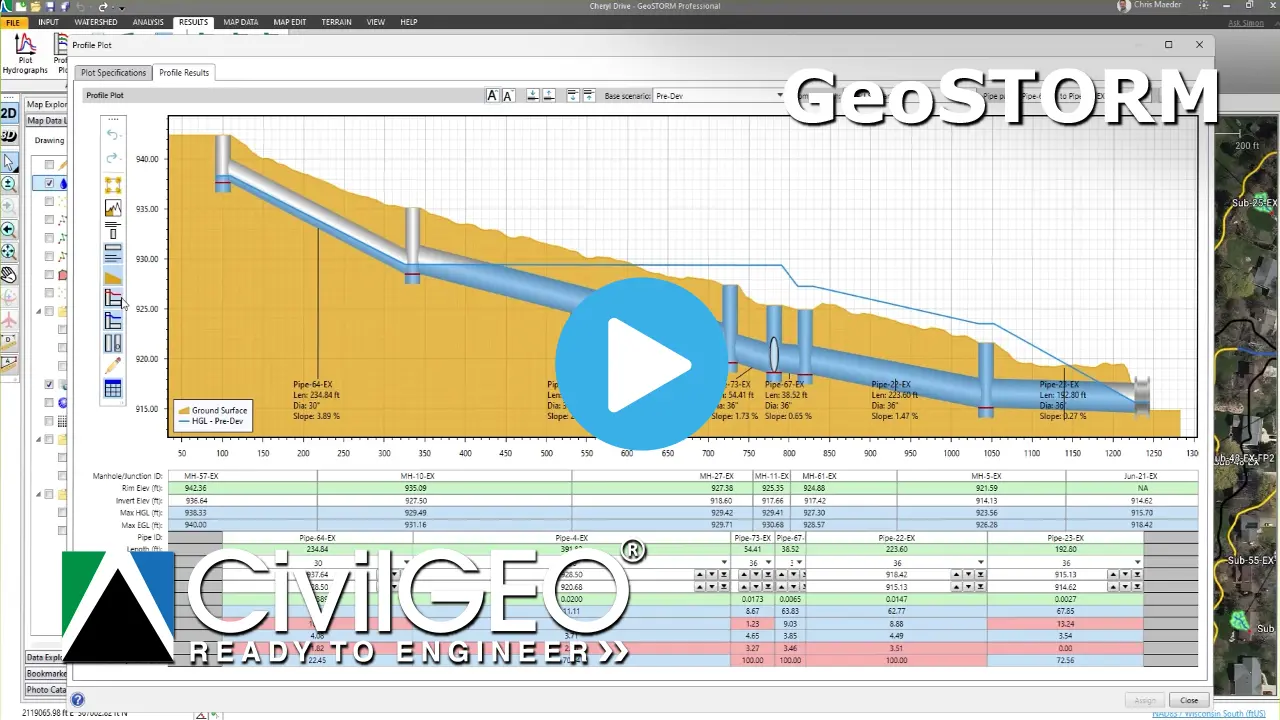
Learn how to display stormwater pipe and ditch profile (long section) plots. This tutorial video shows how to use the Profile Plot command and the advanced capabilities in being able to display HGL and EGL along stormwater pipe and ditch profiles, revise pipe diameters and inverts, export to AutoCAD, MicroStation, and other output sources for your stormwater project.

Editing Elements in Profile Plot

Learn how to interactively edit elements within the Profile Plot command. This tutorial video shows how to adjust manhole inverts, modify pipe elevations, and resize pipes directly from the profile plot and more.

Delineating subbasins using the Delineate Subbasins command to define drainage areas and hydrologic properties

Delineating Subbasins

Learn how to delineate subbasins for your stormwater project using the Delineate Subbasins command. This tutorial video shows how this command delineates upstream drainage subbasins from user-selected locations, detailing the subbasin boundaries, contributing streams, and other hydrologic properties.

Using Map Data commands to import, edit, and display geospatial layers like FEMA Flood Data for stormwater projects

Map Data Commands

Learn how to use the Map Data commands to efficiently manage and manipulate geospatial data. This tutorial video shows the commands to import, edit, and display map layers such as FEMA Flood Data. These commands help prepare your model with different mapping and background data for your projects.

Choosing and assigning a Coordinate Reference System (CRS) to align terrain, maps, and geospatial data accurately

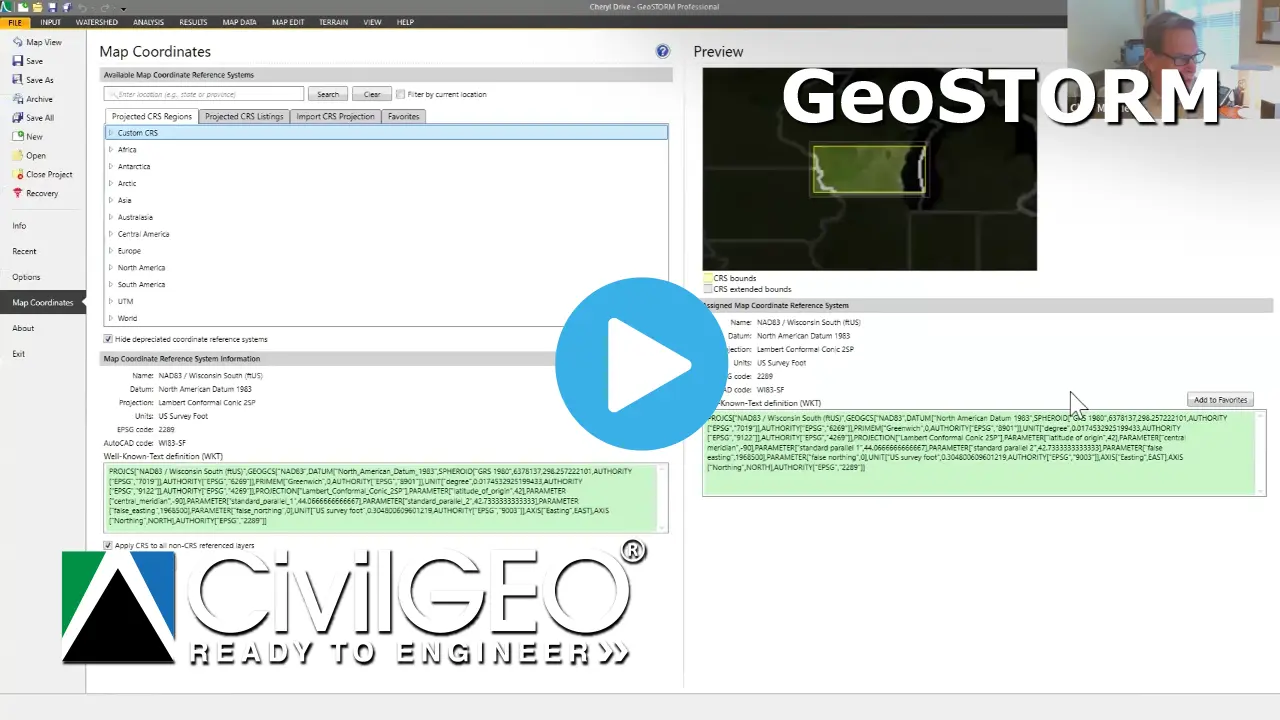
Choosing a Coordinate Reference System

Learn how to assign a Coordinate Reference System (CRS) using the Map Coordinates backstage page. This ensures accurate spatial alignment of your project with a projected coordinate system. This tutorial video shows how to select the correct CRS for your project data, maintaining consistency across terrain, background maps, and other geospatial layers that may be in different coordinate systems—either projected and geographic coordinate systems.

Computing flow paths to determine Time of Concentration (TOC) and Lag Time using terrain data for watershed analysis

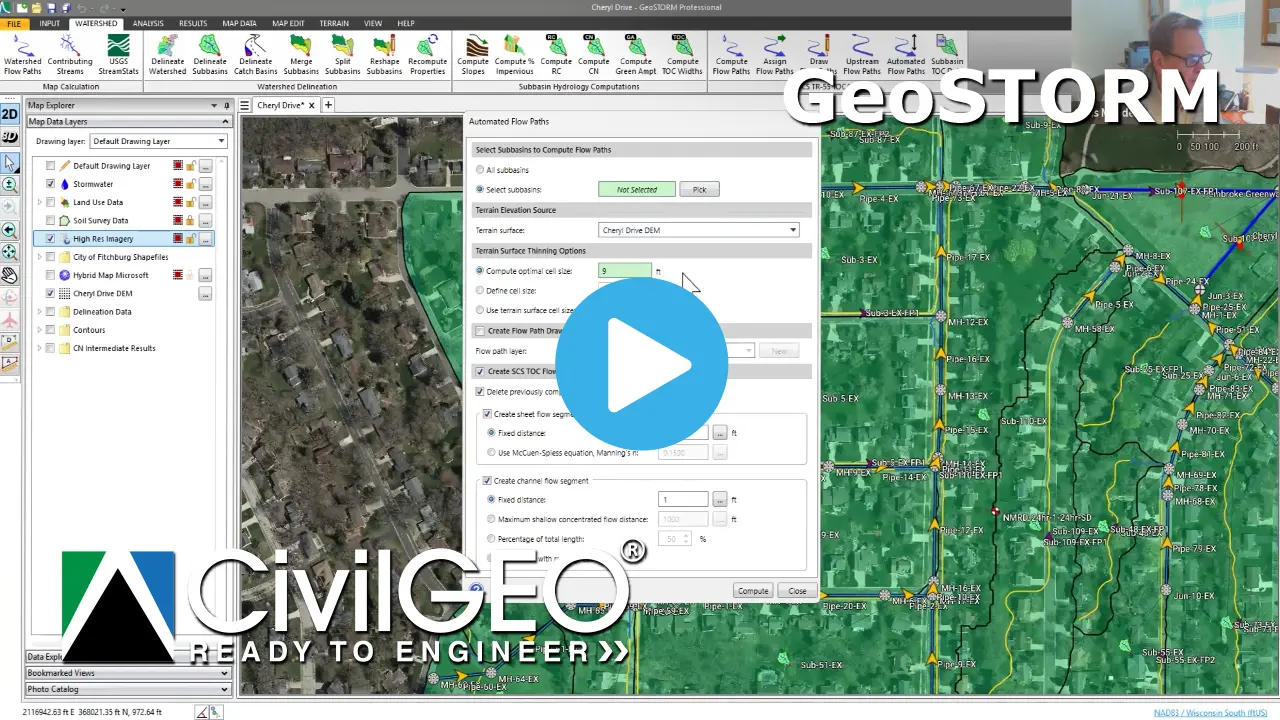
Computing Flow Paths

Learn how to compute Time of Concentration (TOC) and Lag Time using the Automated Flow Paths command. This tutorial video shows how to generate flow paths from terrain data to accurately determine TOC and Lag Time for watershed analysis.

Reshaping flow paths to align with terrain and hydrologic features in stormwater modeling

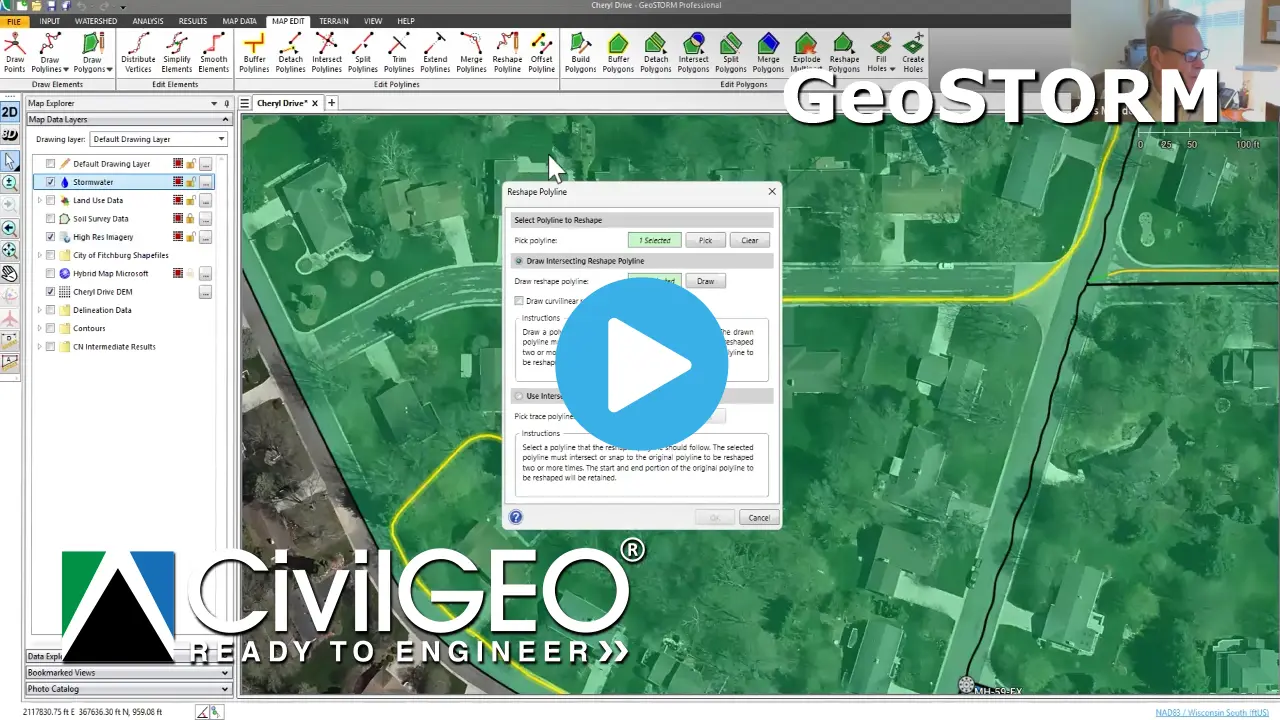
Reshaping Flow Paths

Learn how to reshape stormwater TOC/Lag Time flow paths. This tutorial video shows how to modify flow paths to better align with terrain, obstructions and hydrologic features.

Editing Time of Concentration (TOC) segments by drawing and assigning flow paths in stormwater modeling

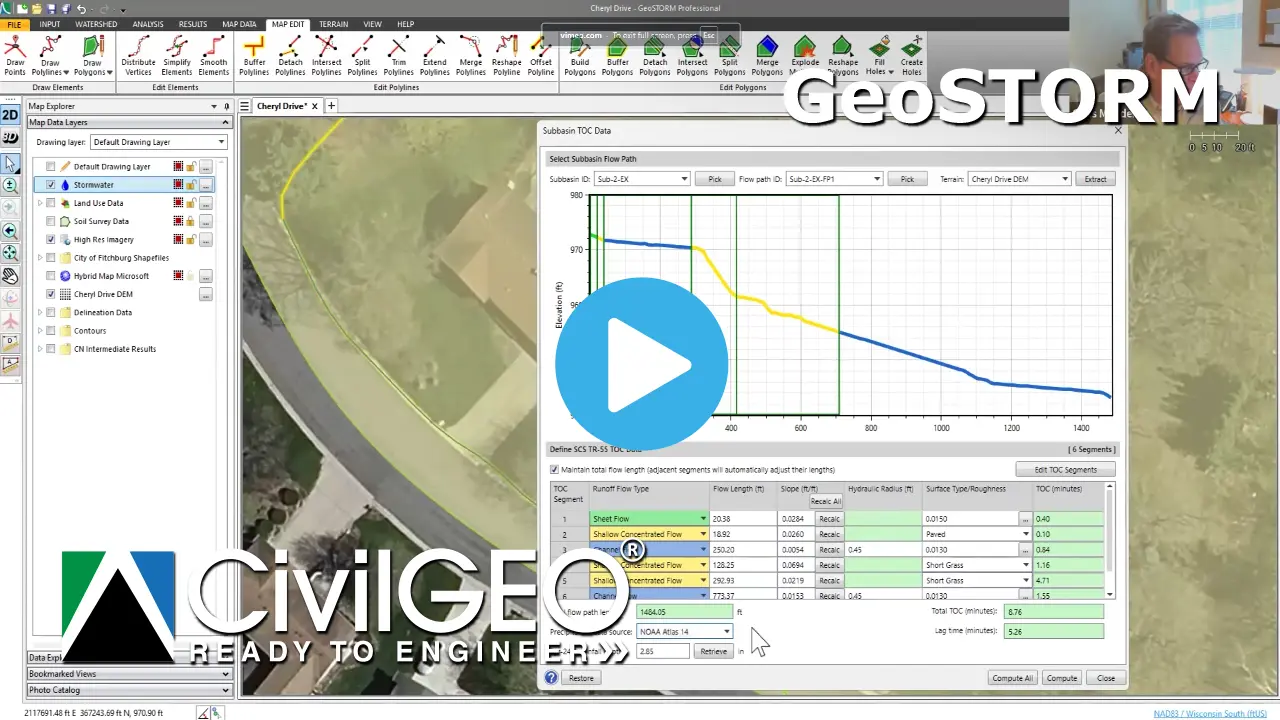
Editing TOC Segments

Learn how to edit Time of Concentration (TOC) and Lag Time segments. This tutorial video shows how to edit the stormwater TOC flow path segments directly from the Map View.

Editing GIS polygon layers using the GIS Element Properties command to customize map visuals and transparency

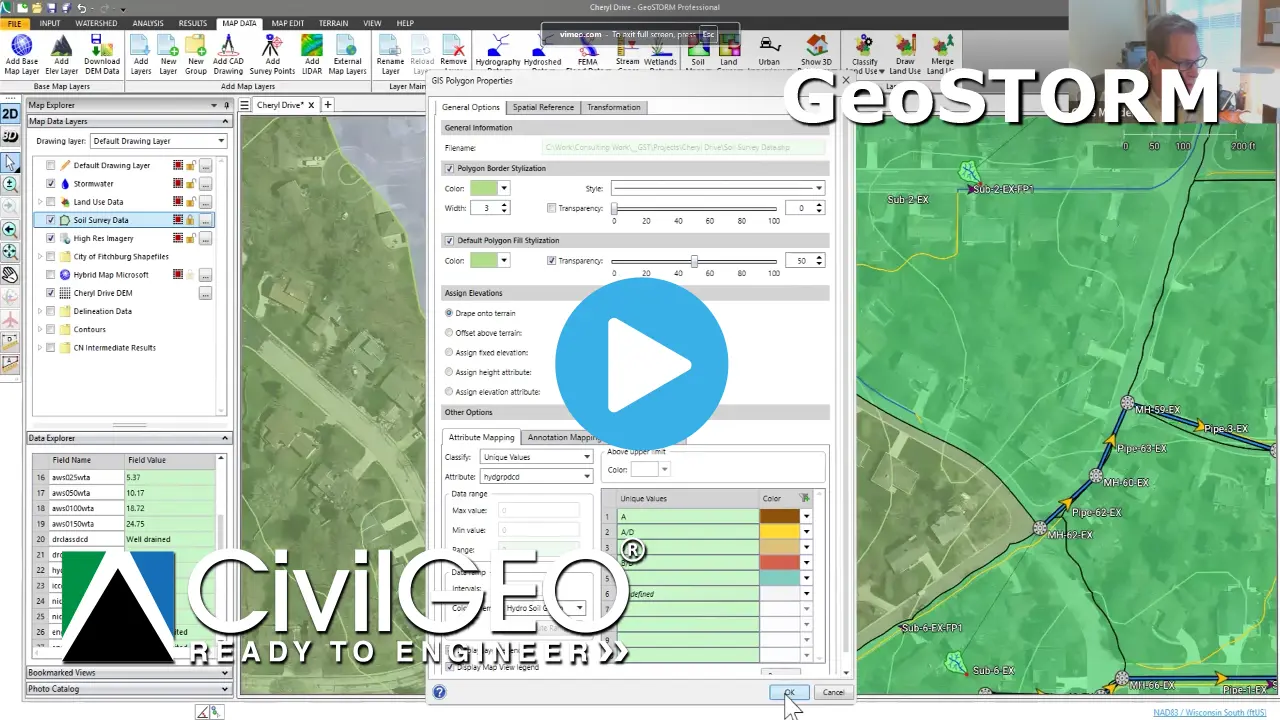
Editing GIS Polygon Layers

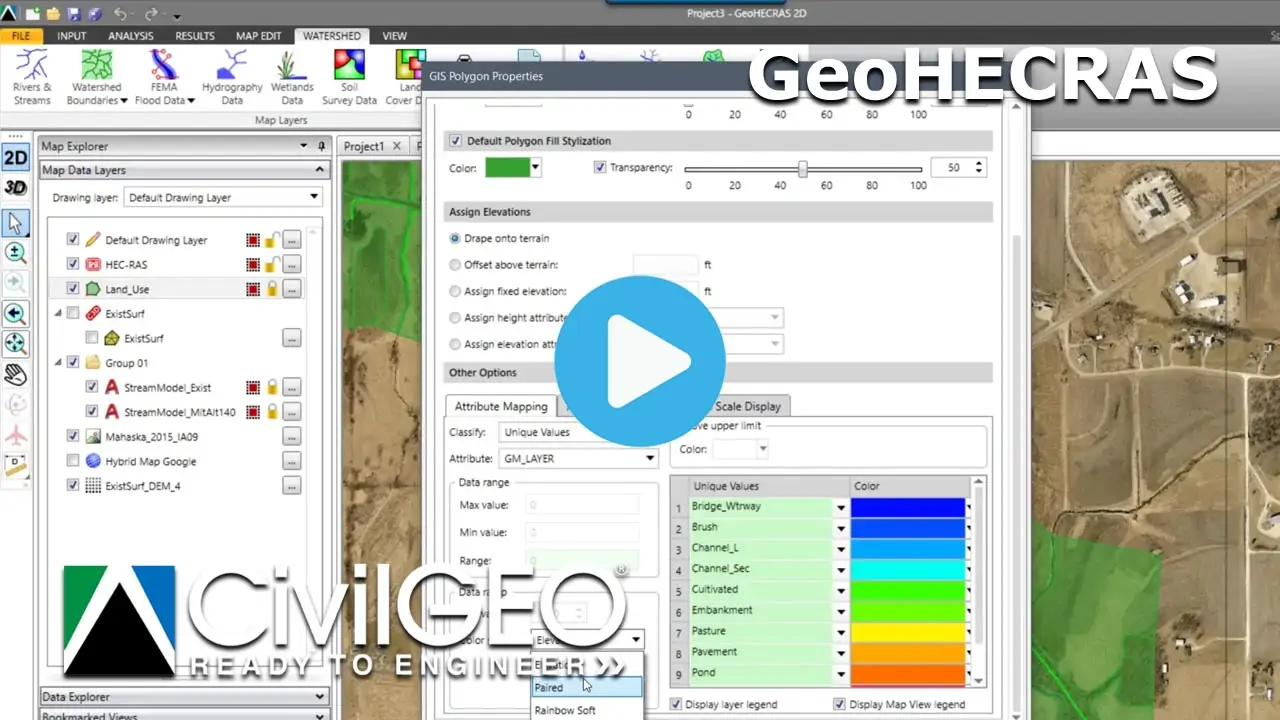
Learn how to edit GIS polygon layers using the GIS Element Properties command. This tutorial video shows how to define and customize various GIS elements, style borders, and other display options for improved Map View visualization.

Automatically classifying land use types using the Automated Classify Land Use command with OpenStreetMap data

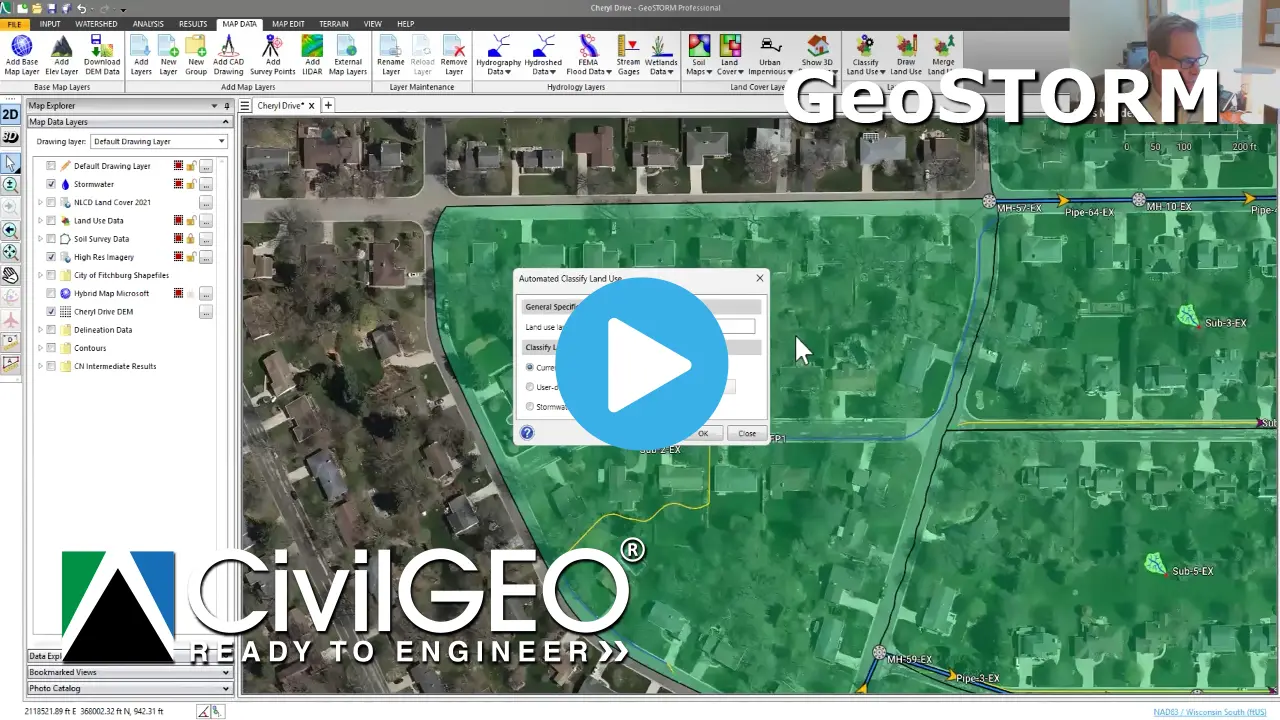
Automated Classify Land Use Command

Learn how to use the Automated Classify Land Use command. This tutorial video shows how to automatically identify and categorize land use types for anywhere in the world.

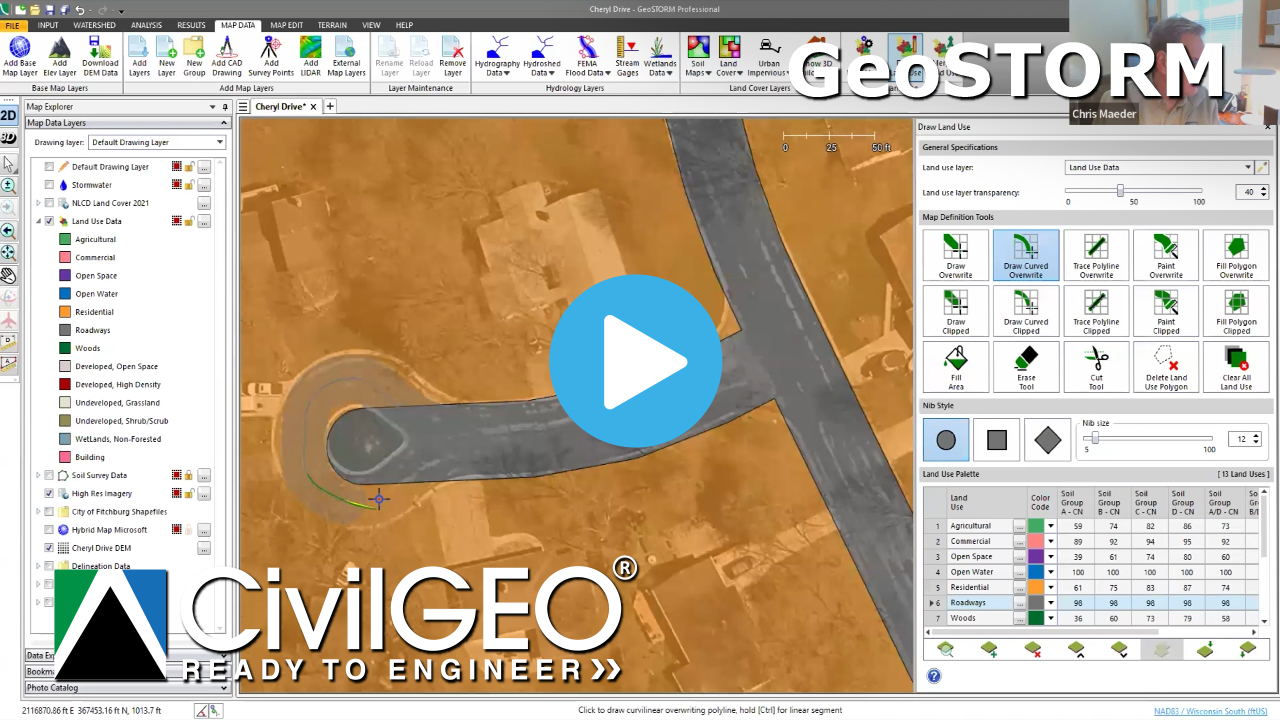
Draw Land Use Command

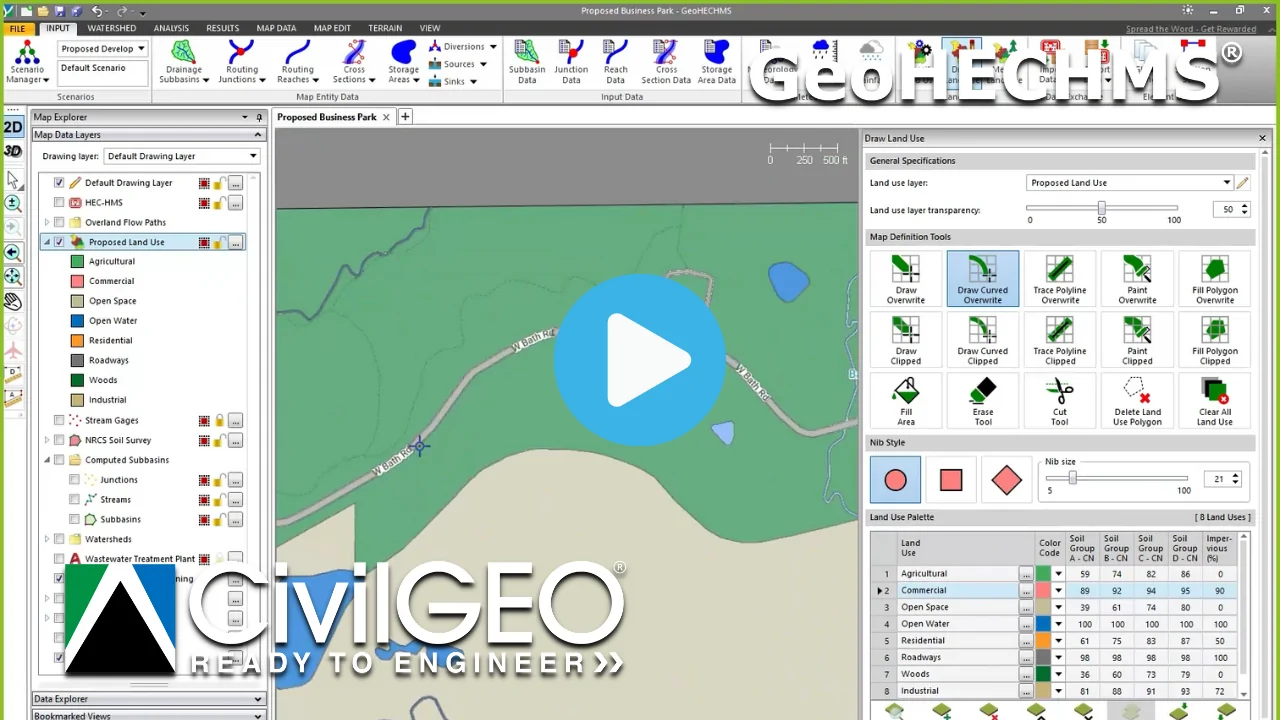
Learn how to use the Draw Land Use command to manually create and refine land use regions on the Map View. This tutorial video shows how to draw and assign polygons for various land use and then compute composite curve numbers, runoff coefficients, Green Ampt values and other hydrologic parameters for each drainage catchment area.

Computing subbasin curve numbers using land cover and hydrologic soil data with the Compute CN command

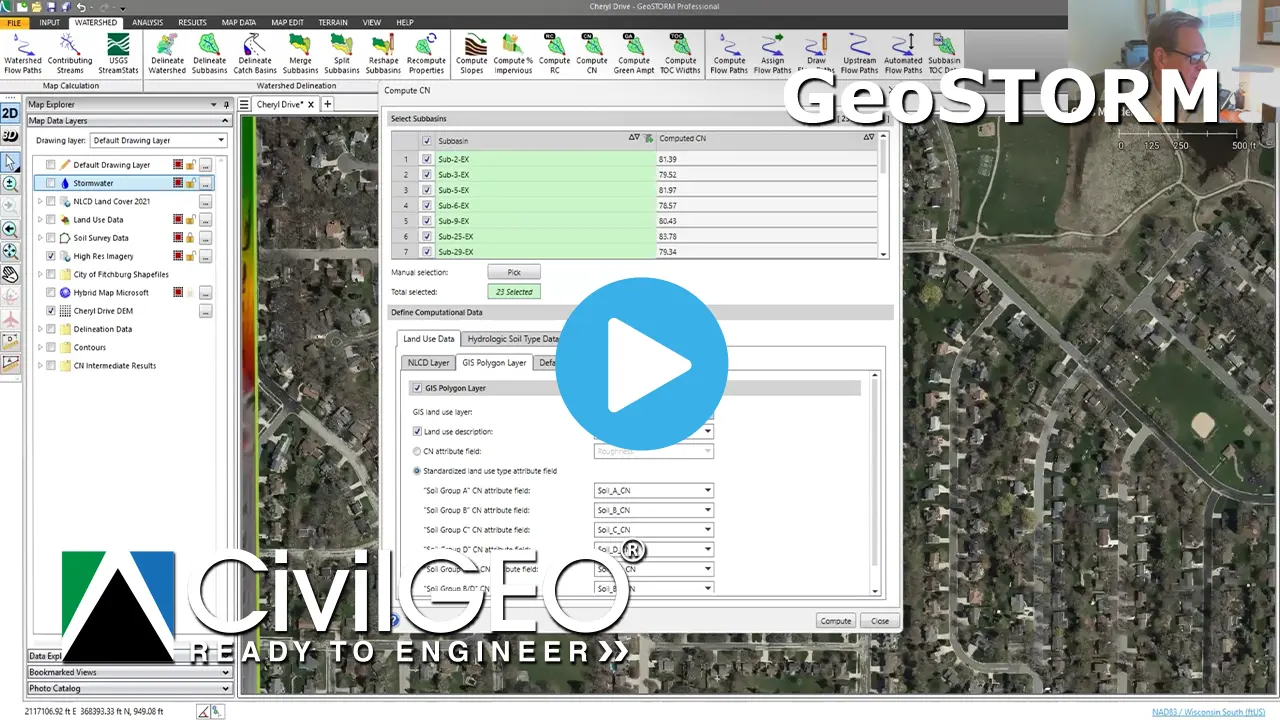
Computing Curve Numbers

Learn how to use the Compute CN command to automatically compute subbasin curve numbers. This tutorial video shows how subbasin curve number (CN) values are computed from land use and hydrologic soil data.

Plotting pipe profiles using the Profile Plot command to visualize and analyze stormwater systems

Plotting Pipe Profiles

Learn how to display stormwater pipe and ditch profile (long section) plots. This tutorial video shows how to use the Profile Plot command and the advanced capabilities in being able to display HGL and EGL along stormwater pipe and ditch profiles, revise pipe diameters and inverts, export to AutoCAD, MicroStation and other sources for your stormwater project.

Generating automated Excel reports for subbasins, storm sewer networks, and stormwater modeling components

Generating Excel Reports

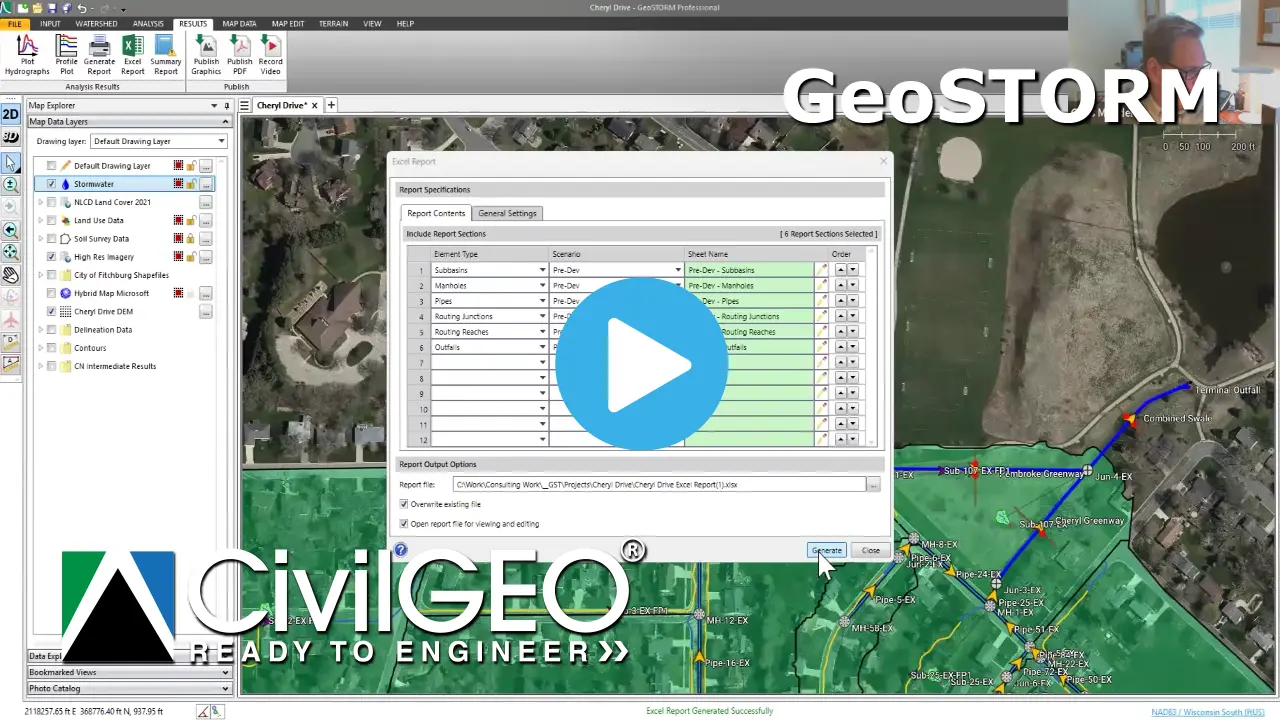
Learn how to create Excel reports automatically for your stormwater project. This tutorial video shows how to generate detailed reports for subbasins, storm sewer pipe and ditch networks, and other stormwater components.

Defining roadway gutters, ditches, and stormwater inlets using the Gutter/Ditch/Inlet Data command

Defining Roadway Gutters, Roadway Ditches, and Stormwater Inlets

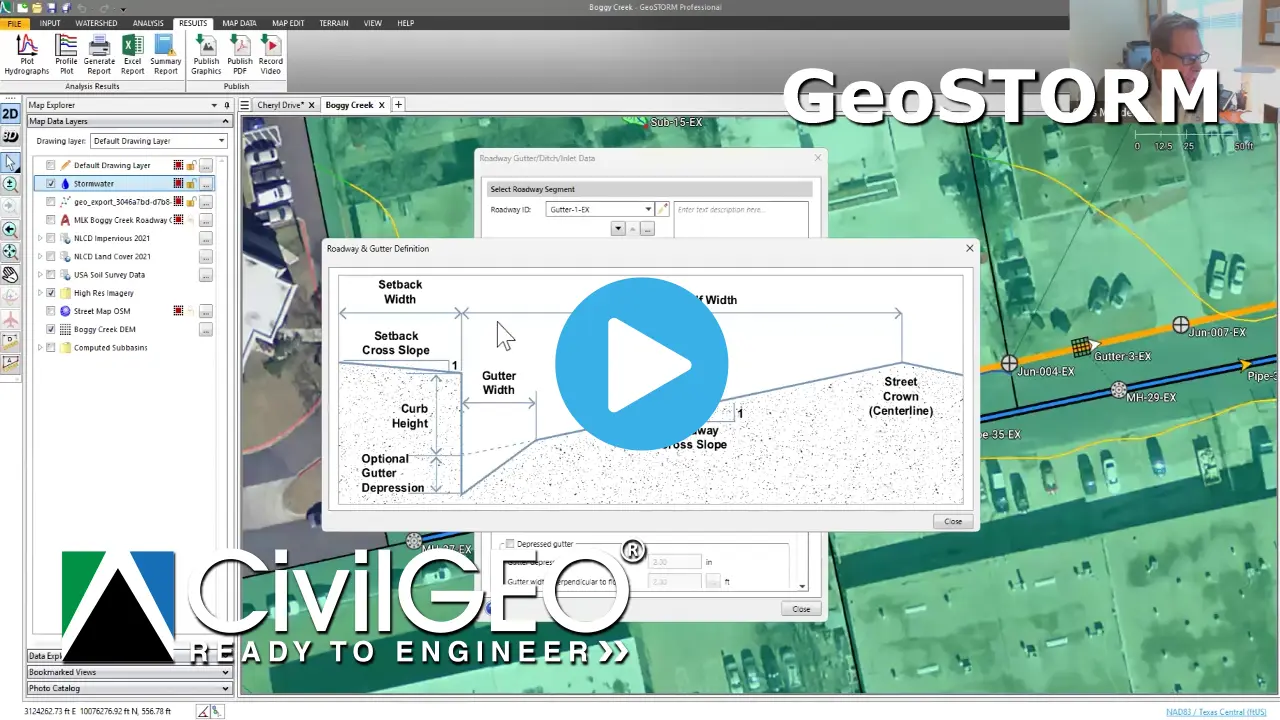
Learn how to define roadway gutters, ditches, and storm drain catch basin inlets using the Roadway Gutter/Ditch/Inlet Data command. This tutorial video shows how to create and edit roadway gutters and ditches, along with the associated storm drain catch basin inlets.

Adding and editing stormwater inlets to define entry points in the drainage network

Adding and Editing Stormwater Inlets

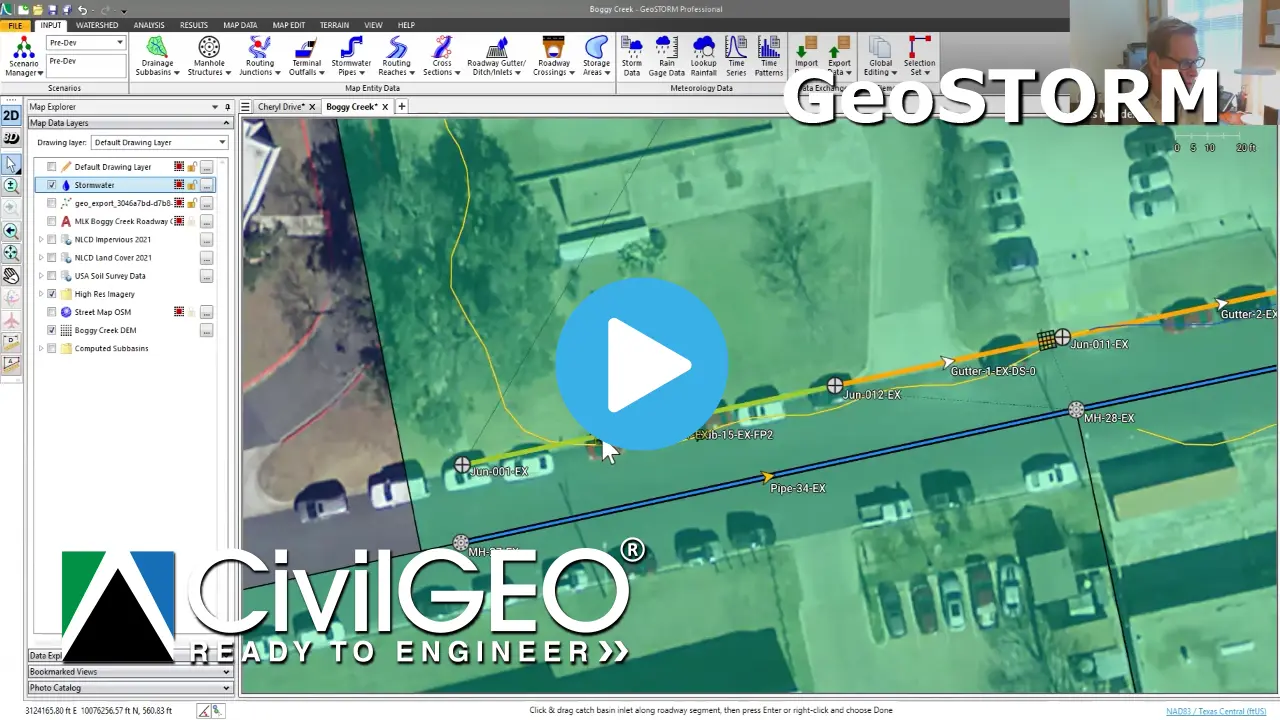
Learn how to add and edit storm drain catch basin inlets. This tutorial video shows how to place catch basin inlet structures, select catch basin inlet types, and modify their properties to accurately define stormwater entry points for the stormwater drainage network.

Creating ponds using Automated Draw Storage Areas to model stormwater storage from terrain data

Creating Ponds

Learn how to create detention and retention ponds using the Automated Draw Storage Areas command. This tutorial video shows how to automatically extract storage area volumes from terrain model to accurately represent ponds in your stormwater project.

Using Google Street View and Photo Catalog to view site imagery within a stormwater project

Using Google Street View and Photo Catalog

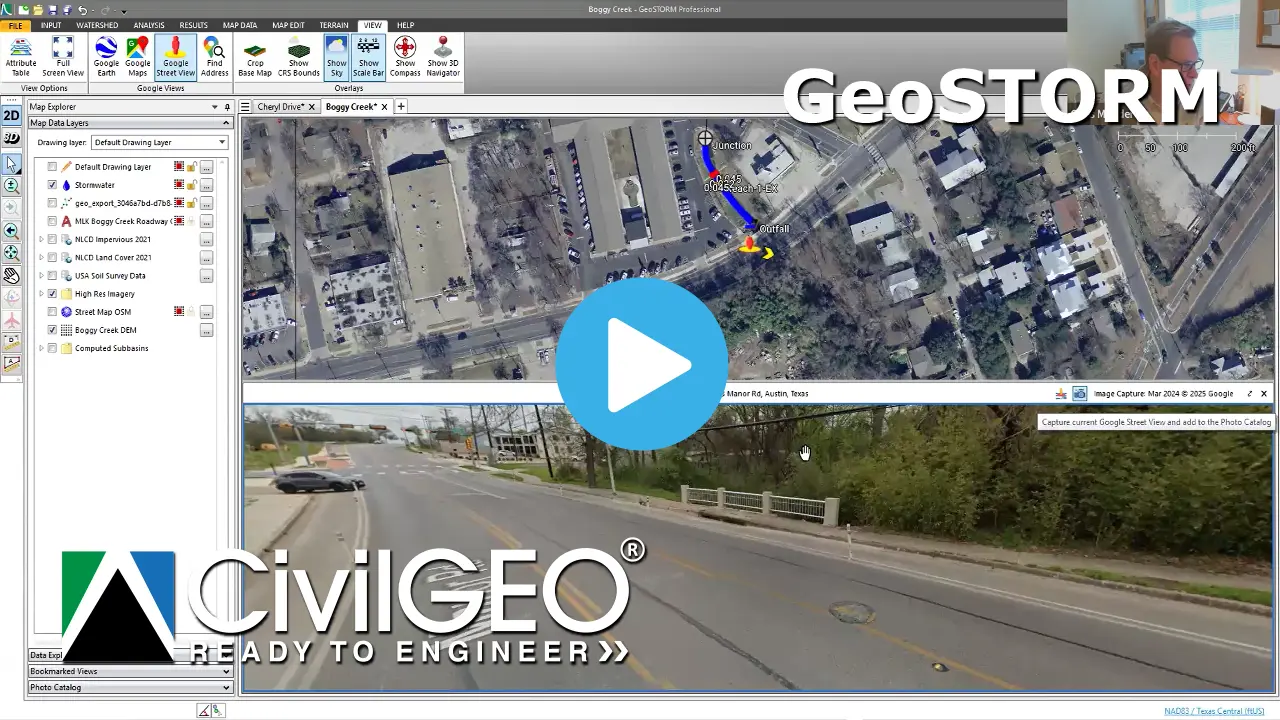
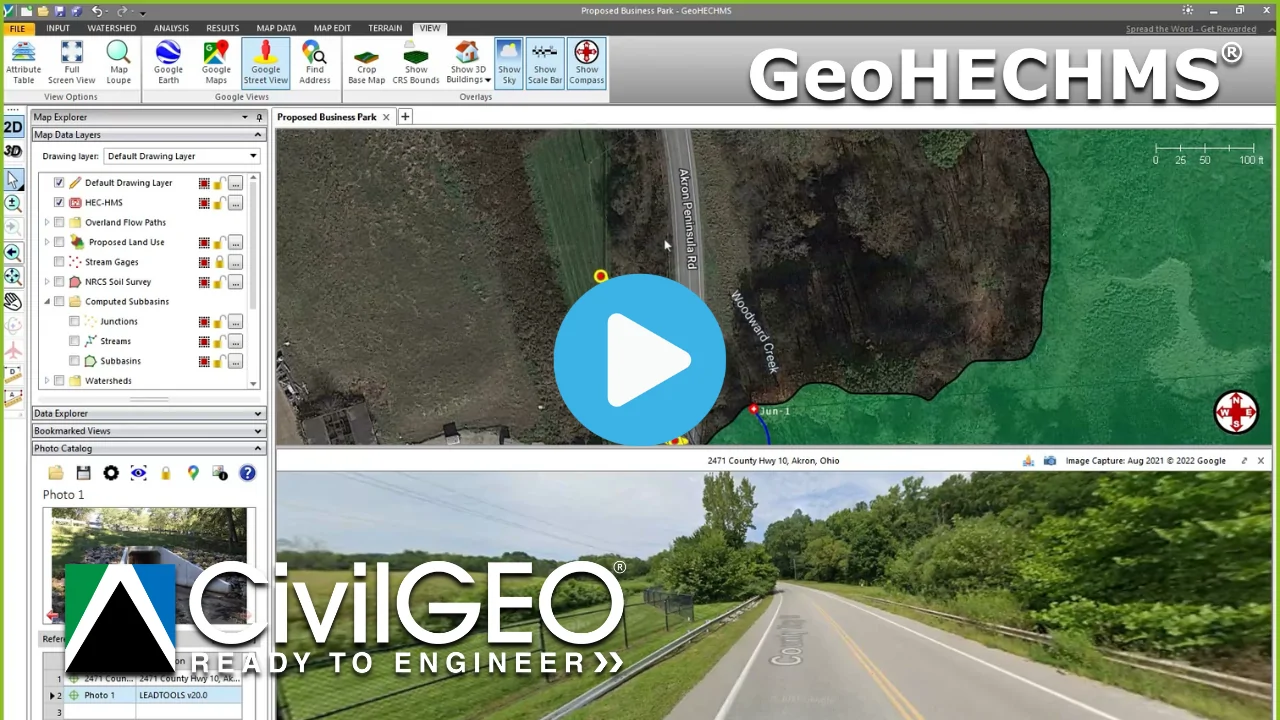
Learn how to use the Google Street View and Photo Catalog. This tutorial video shows how to use the Google Street View and Photo Catalog commands to view street-level imagery and catalog site photos directly within your engineering project.

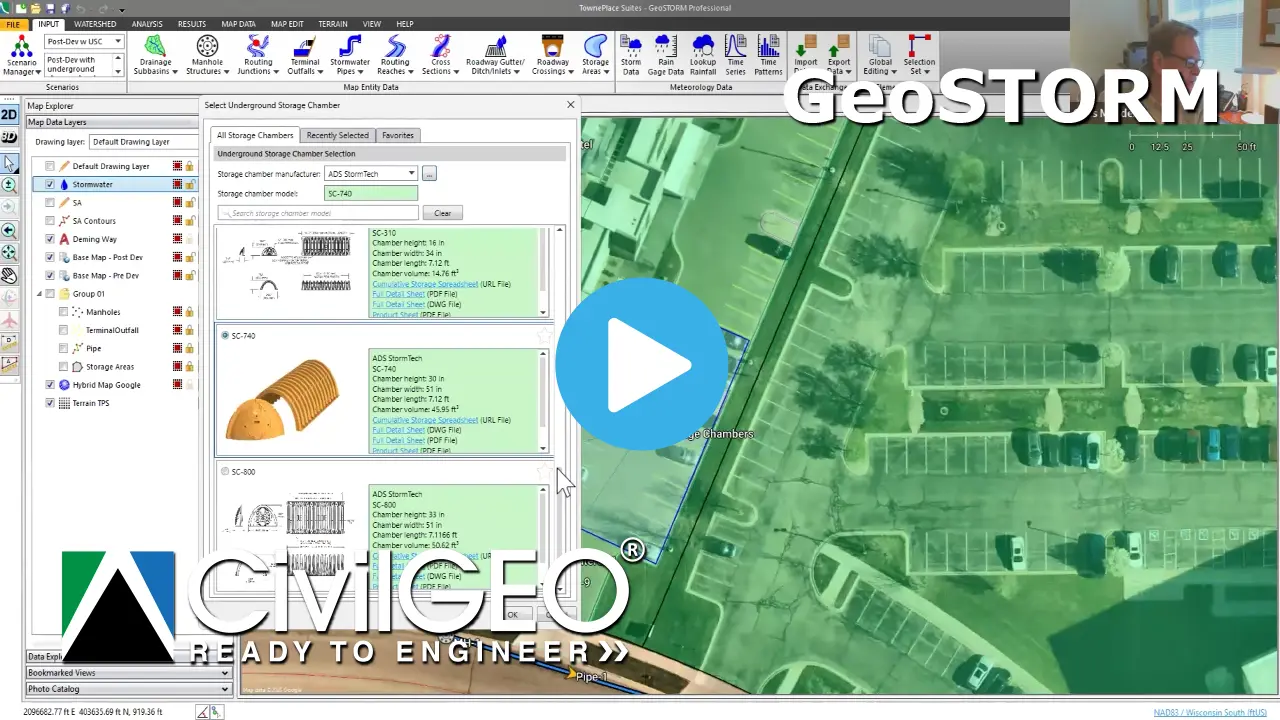
Designing underground stormwater storage chambers using the Storage Area Data command for effective stormwater management

Designing Underground Stormwater Storage Chambers

Learn how to design underground stormwater storage chambers. This tutorial video shows how to define design the underground storage chambers to fit site specific location requirements, as well as selecting the appropriate storage chamber manufacturer and chamber model for effective stormwater management.

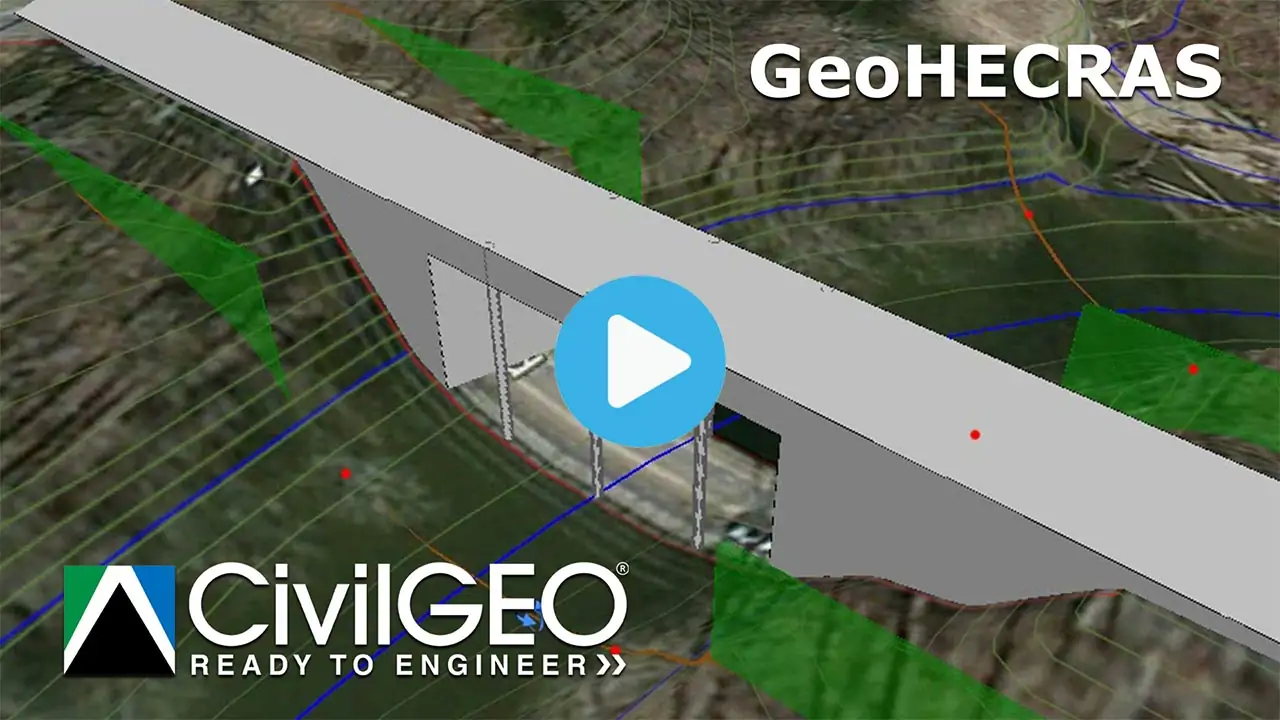
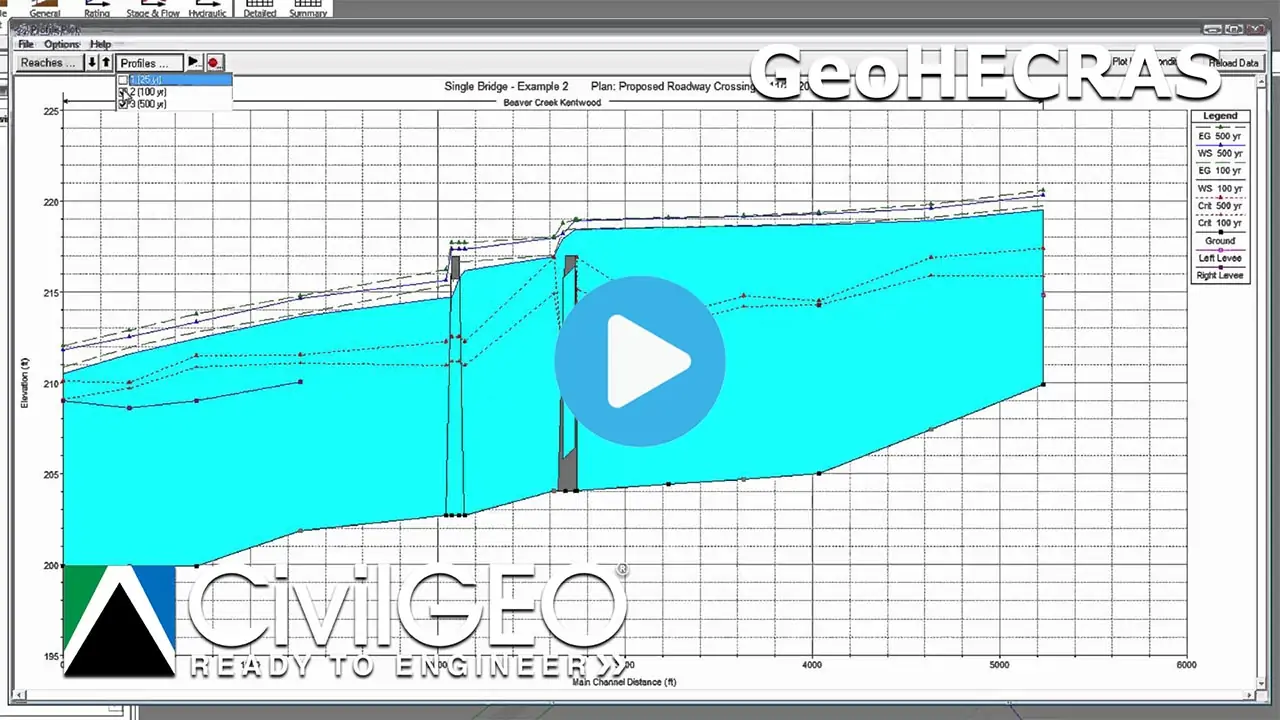
Bridge Modeling with HEC-RAS

Learn how to model roadway crossings consisting of single or multiple bridge openings and culverts using the Bridge & Culvert Data command. This video tutorial details the necessary steps to model a single bridge opening for a roadway crossing.

Draw 2D Patch Faces command

Learn how to use the Draw 2D Patch Faces command to create 2D patch elements in a 2D model. This command refines the mesh in a 2D flow area and helps to analyze the water flow and erosion patterns in a river or stream.

Georeferencing a HEC-RAS Model to a River Alignment

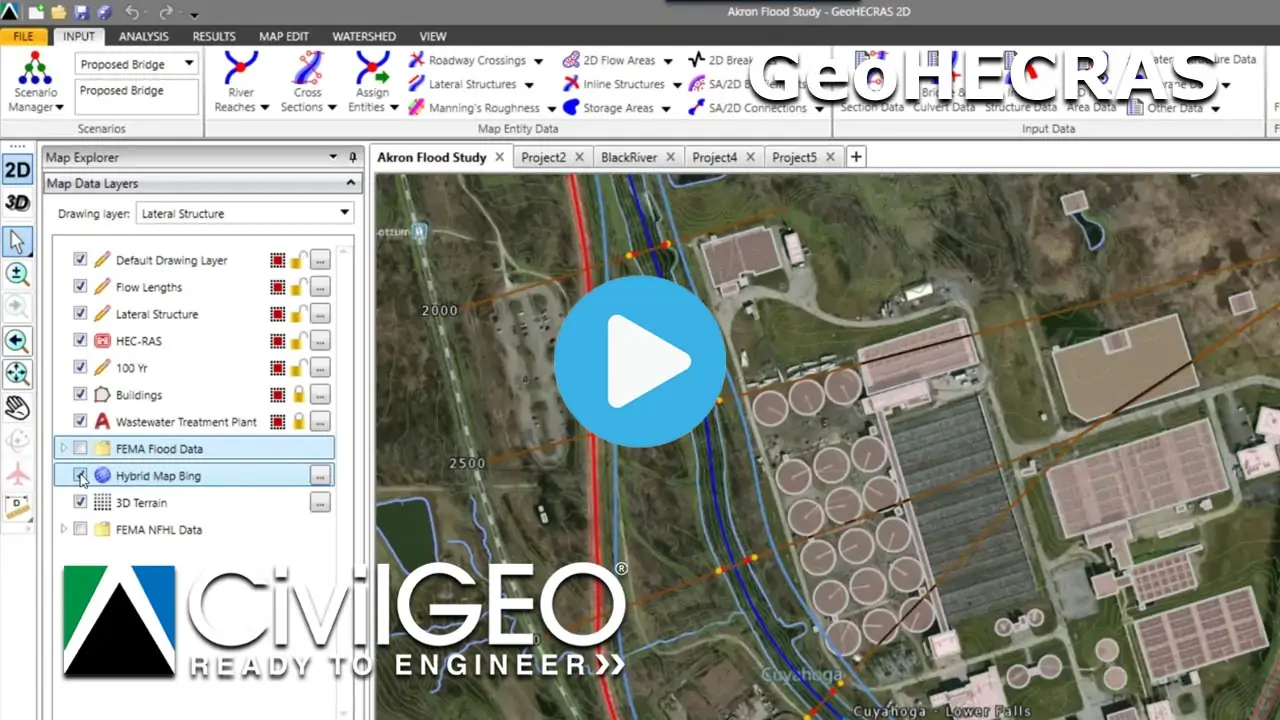
Learn how to georeference a HEC-RAS model to a river alignment using the Georeference River Reaches command. The georeferencing process involves aligning the model element with real-world coordinates so that it can be accurately represented on the Map View.

Scenario Management with HEC-RAS

Learn how to perform scenario management in GeoHECRAS using the Scenario Manager command. GeoHECRAS provides the ability to work with multiple scenarios (or plans) within a single model.

Georeferencing a HEC-RAS Model to Map

Learn how to georeference an existing HEC-RAS model to a real-world map. Georeferencing a HEC-RAS model to a map involves aligning the model with real-world coordinates so that it can be accurately represented on the Map View.

Incorporating a HEC-RAS model into Google Earth

Learn how to export a HEC-RAS model and analysis results from GeoHECRAS to Google Earth using the Export HEC‑RAS to Google Earth command. This command helps the user to export and view a HEC-RAS model in Google Earth.

Automating Floodplain Encroachment Modeling with HEC-RAS

Learn how to compute floodplain encroachment using the Floodplain Encroachments command. This command quickly iterates the encroachment station locations while reviewing the computed results.

Exporting a Flood Model to HEC-RAS

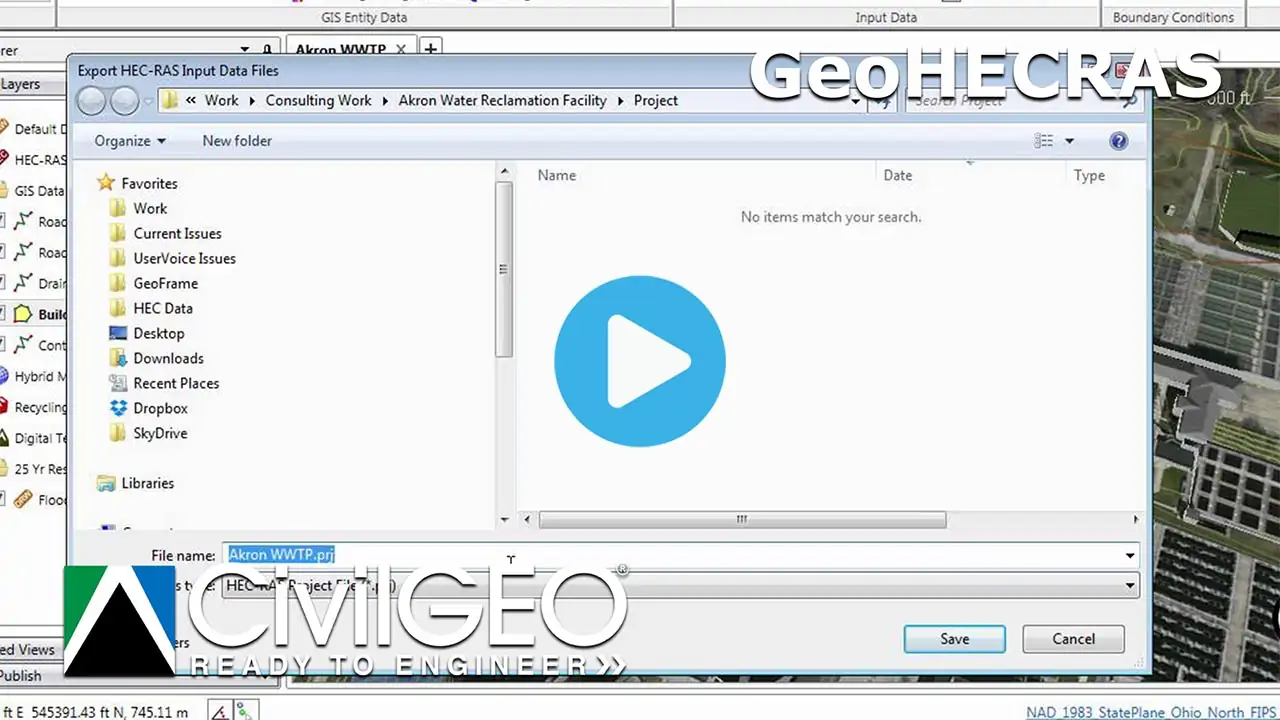
Learn how to export a HEC-RAS model from GeoHECRAS to the U.S.Army Corps of Engineers HEC-RAS software. The Export HEC-RAS Project command is used to export a HEC-RAS flood model to external HEC-RAS files.

Exporting a HEC-RAS model to AutoCAD

Learn how to export a HEC-RAS model from GeoHECRAS to AutoCAD or MicroStation drawing file using the Export HEC-RAS to CAD command. This command allows HEC‑RAS model data to be shared with CAD and other software.

Displaying FEMA Flood Map Data on a HEC-RAS Model

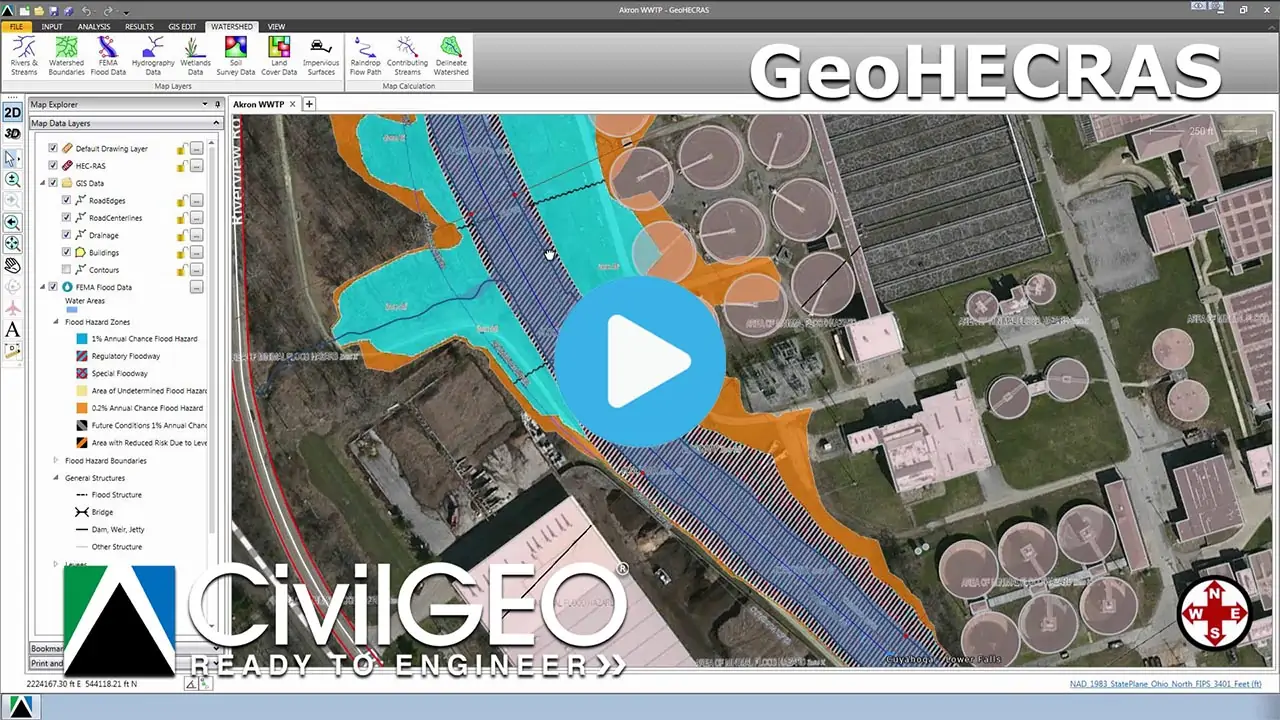
Learn how to display a FEMA flood hazard map on your HEC-RAS model using the FEMA Flood Data command. This command is used to display FEMA flood data directly on the Map View.

ESRI TIN to Elevation Raster Conversion

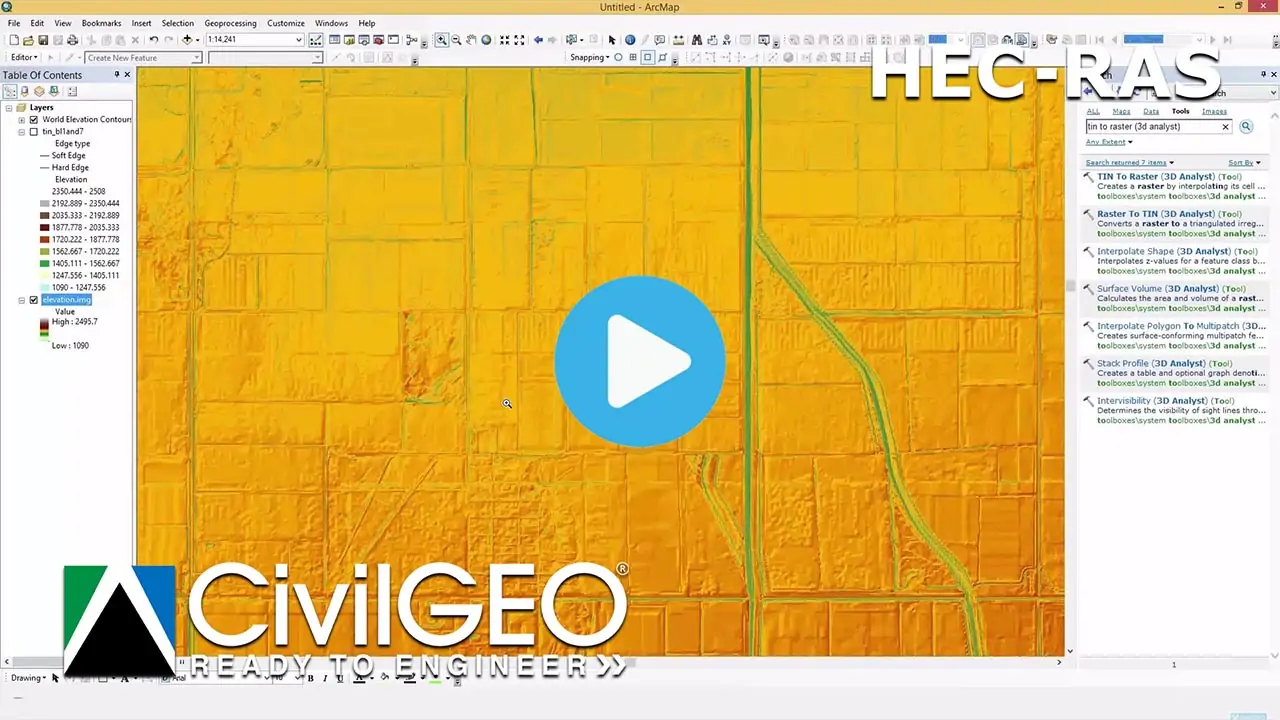
Learn how to convert a TIN elevation dataset to an elevation raster using ArcGIS and a 3D analytics engine. This file conversion is important as the Elevation Raster files are widely supported, and have different formats.

Adding a GIS Shapefile to a HEC-RAS Model

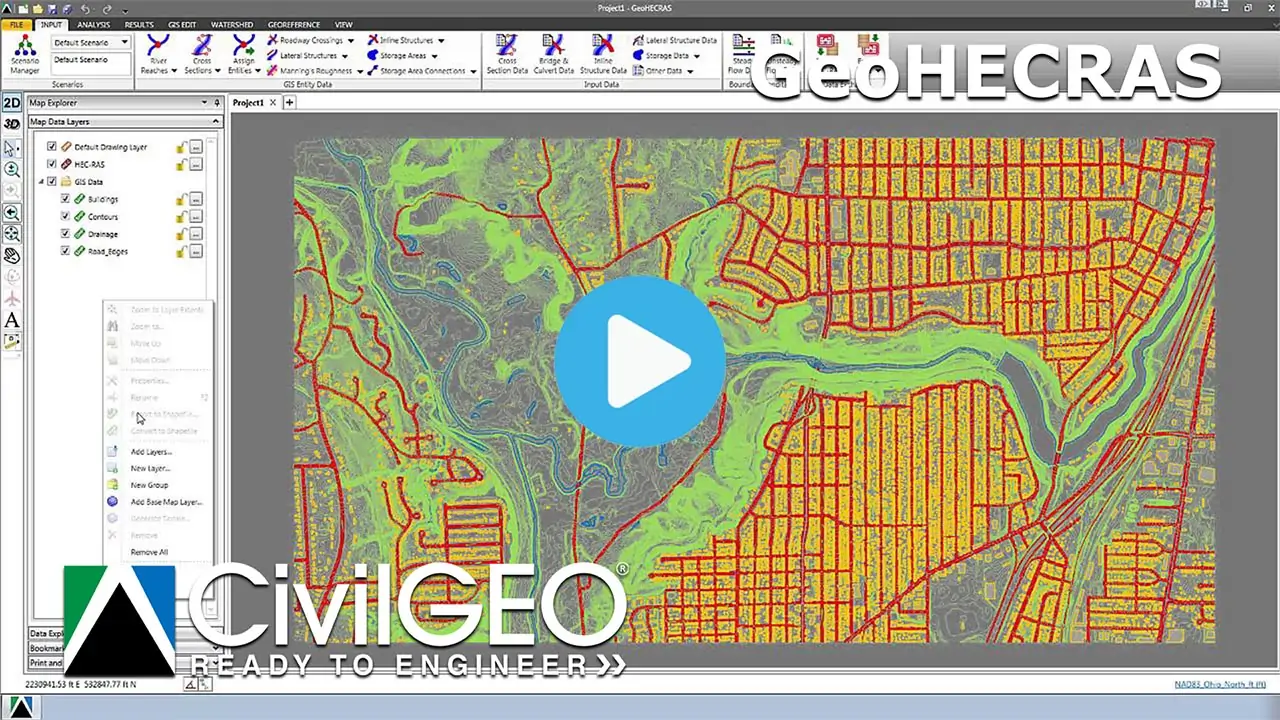
Learn how to add a GIS shapefile in GeoHECRAS using the Add Layers command or by simply dragging and dropping the shapefile into the software window.

Adding a Base Map Layer in HEC-RAS

Learn how to add a base map layer to the HEC-RAS model using the Add Base Map Layer command. This command provides high-quality background aerial and other imagery from different online map providers and displays them on the Map View.

Adding and Georeferencing an AutoCAD Drawing to a HEC-RAS Model

Learn how to add an AutoCAD file in GeoHECRAS using Add Layers command or by simply dragging and dropping the AutoCAD file into the software window. You’ll also learn how to georeference the CAD file with the model.

GeoHECRAS Training Course – Session 01

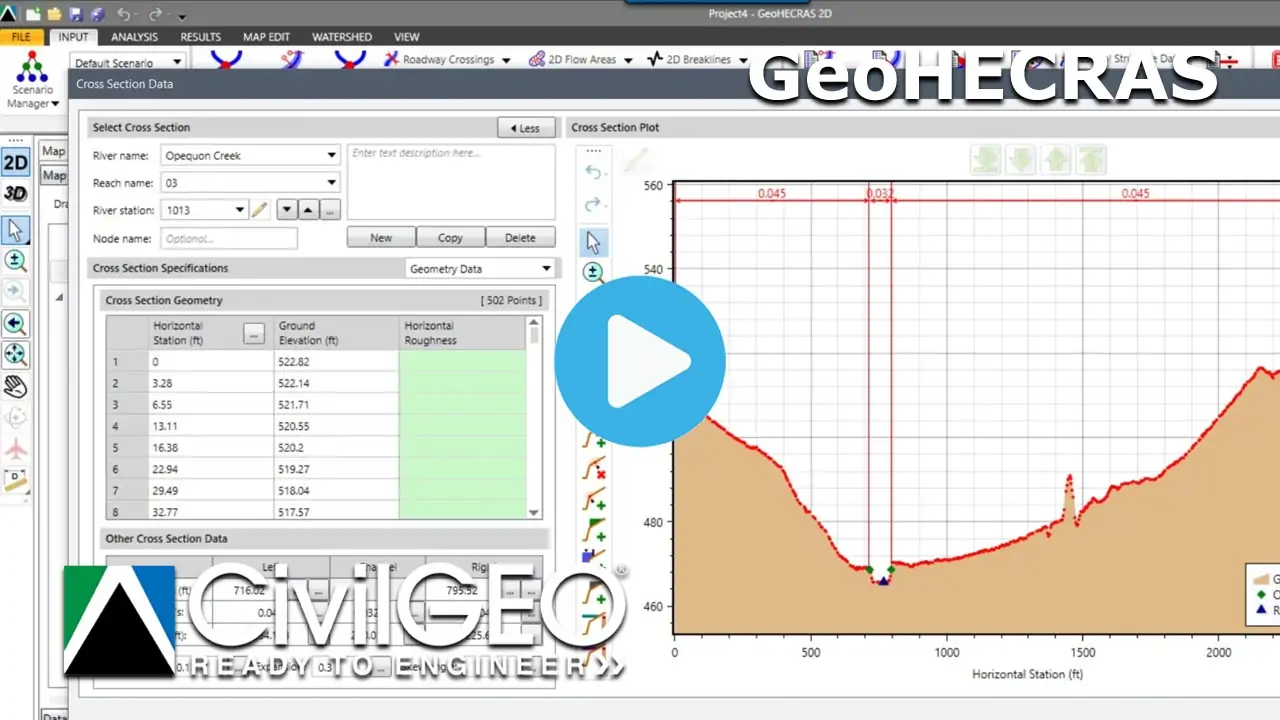
Learn how to create a HEC-RAS river model for small streams and analyze it for the 100-year discharge. You will also learn how to export the project to HEC-RAS along with the water surface profile and the generated floodplain map.

GeoHECRAS Training Course – Session 02

Learn how to use an existing polyline from the Map View and assign it as a cross section using the Assign Cross Sections command. The command also extracts cross section geometry using the underlying ground terrain.

GeoHECRAS Training Course – Session 03

Learn how to accurately match surveyed channel cross section data with a straight river channel. You will also learn how to utilize the Conflate Point Data command to merge the surveyed channel cross section data into a cross section alignment.

GeoHECRAS Training Course – Session 04

Learn how to work with LIDAR layers to generate a 3D spatial representation of the surveyed environment in highly accurate 3D point cloud data. This video covers Add Layers, Generate Terrain, Add Elevation Layer, and Merge DEMs commands.

GeoHECRAS Training Course – Session 05

Learn how to use the Stamp Geometry command to modify the terrain geometry by burning in a stream channel or constructing a levee or dam. This feature allows you to perform a series of trapezoidal cuts to create new channel geometry.

GeoHECRAS Training Course – Session 06

Learn how to georeference a HEC-RAS model to a river alignment using the Georeference River Reaches command. The georeferencing process involves aligning the model element with real-world coordinates so that it can be accurately represented on the Map View.

GeoHECRAS Training Course – Session 07

Learn how to construct large multi-reach HEC-RAS models in GeoHECRAS. This video covers Add Layers, Import HEC-RAS Shapefile Geometry, Cross Section Data, Assign Channel Banks, and Import Steady Flow Data commands for HEC-RAS model development.

GeoHECRAS Training Course – Session 08

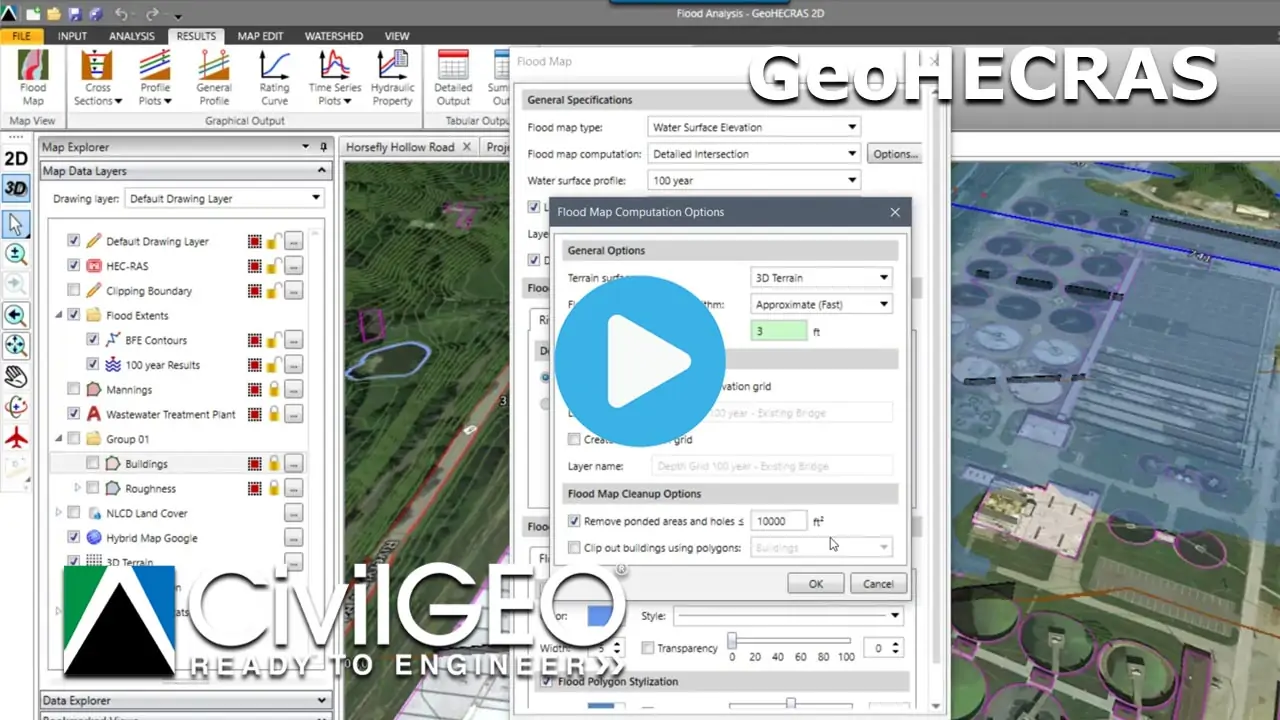
Learn how to create flood maps using region-specific hydraulic and topographic data. Flood inundation maps are useful for a variety of purposes such as municipal planning, emergency action plans, flood insurance rates, etc.

GeoHECRAS Training Course – Session 09

Learn how engineers can identify potential scour locations and design countermeasures to prevent scour. You will also learn about bridge scour modeling and factors to consider when designing a bridge for a range of flow conditions.

GeoHECRAS Training Course – Session 10

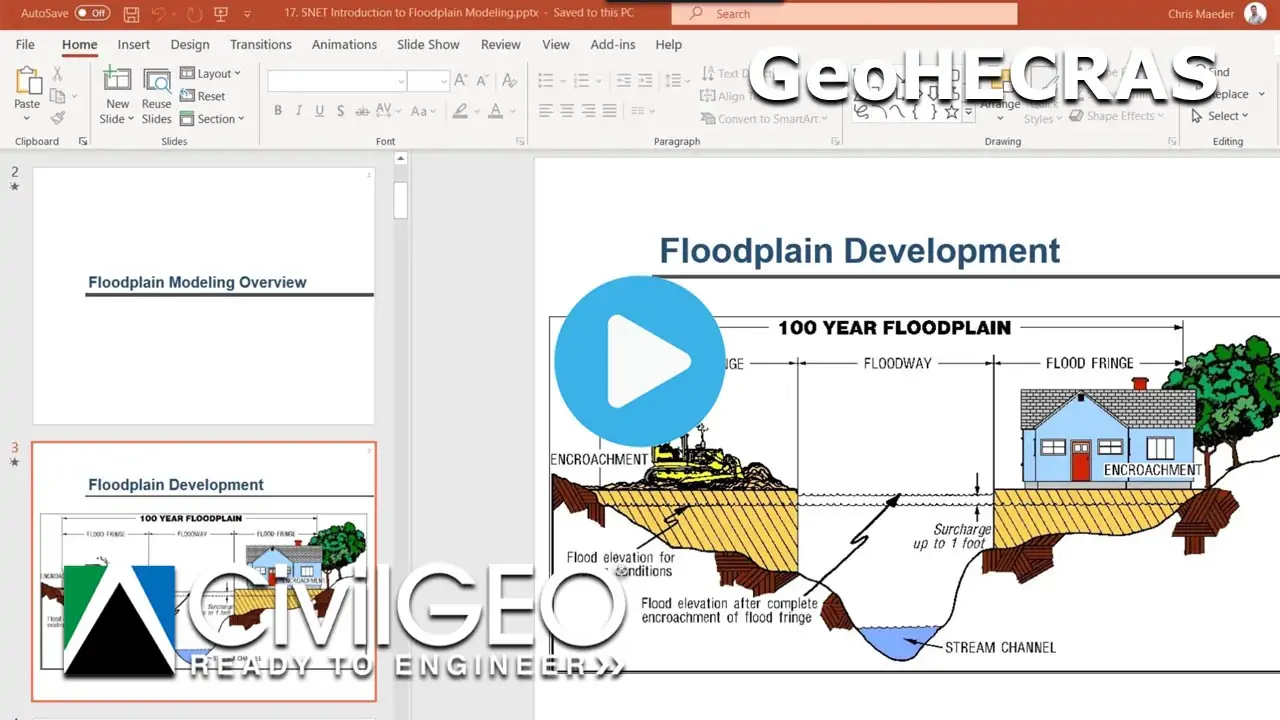
This course provides an overview of floodplain modeling in GeoHECRAS. This video covers floodway determination, floodway modeling procedure, floodplain encroachments, how to compute floodway, and special considerations in determining floodway.

GeoHECRAS Training Course – Session 11

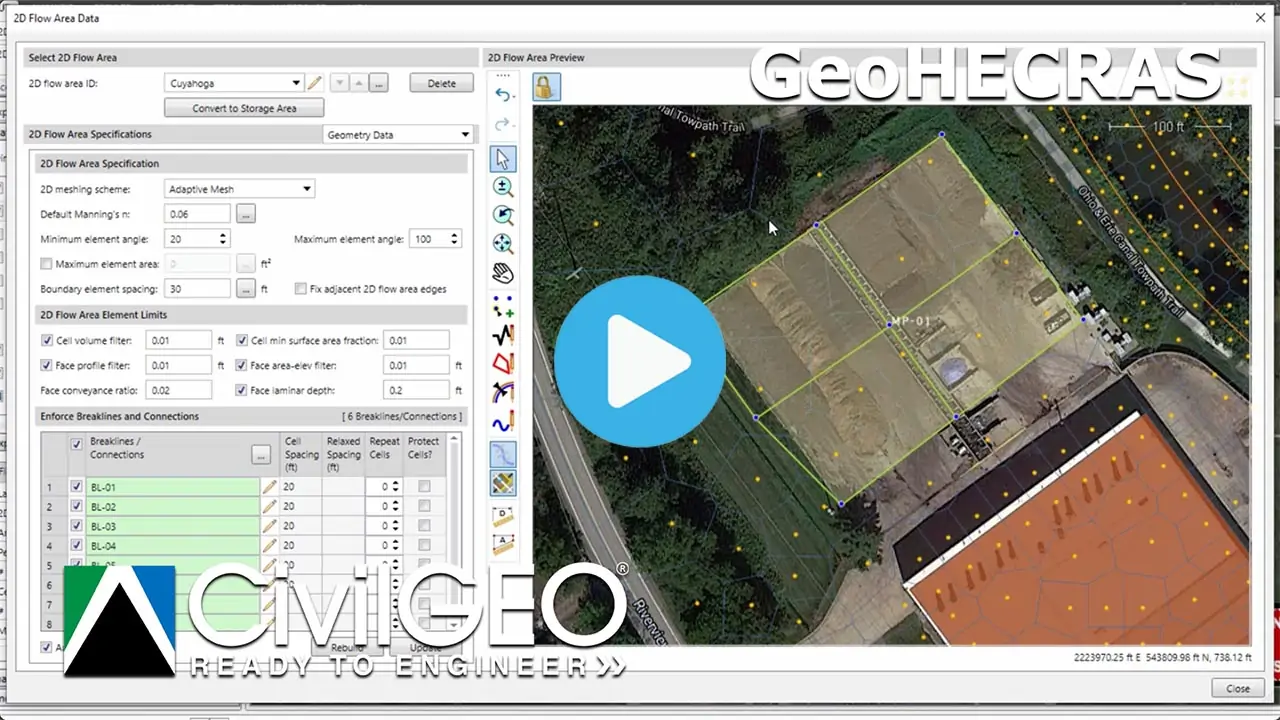
Learn how to define 2D flow areas by laying out a polygon representing the outer boundary of the 2D flow area and then specifying the computational mesh. 2D flow areas are regions where flow is computed with HEC-RAS 2D flow algorithms.

GeoHECRAS Training Course – Session 12

Learn how GeoHECRAS models water flow in a 2D space, providing detailed information about water levels, velocities, and flow patterns. You can then predict flood risks and identify mitigation measures based on topography, channel geometry, etc.

GeoHECRAS Training Course – Session 13

Learn how to draw profile lines in order to extract linear data from a 2D flow area. Profile lines are used to generate the plot of terrain and computed water surface elevation down the centerline of a channel as well as the time series output.

GeoHECHMS Training Course – Session 01

This video presents an easily digestible overview of our software’s various commands. You’ll also discover how GeoHECHMS can assist you in creating, reviewing and analyzing your stormwater models rapidly.

Downloading USGS DEM Data using GeoHECHMS

Learn how to download elevation data for your project in just a few clicks using the Get USGS DEM command. This command allows you to download elevation data directly from the USGS website.

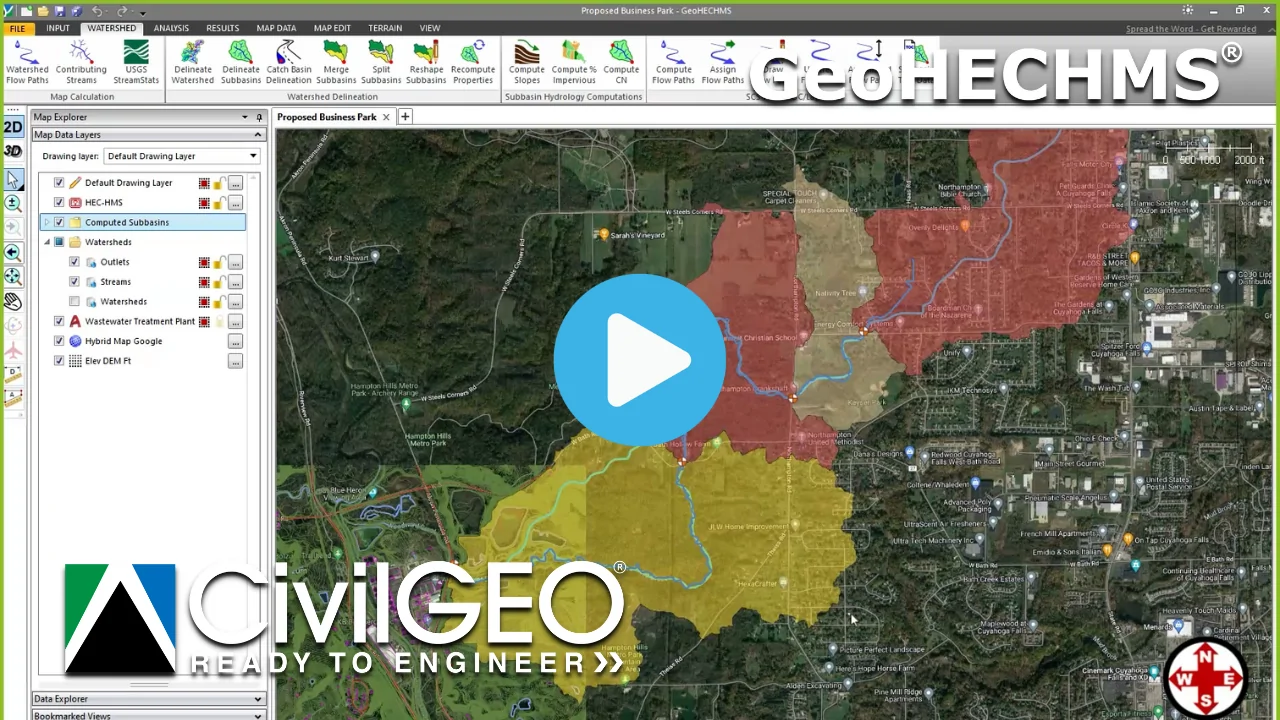
Delineating Watersheds with GeoHECHMS

Learn how to automatically delineate watersheds in your project using the Delineate Watershed command. This command computes the contributing watershed drainage network that drains to a specific location on the Map View.

Delineating Subbasins using GeoHECHMS

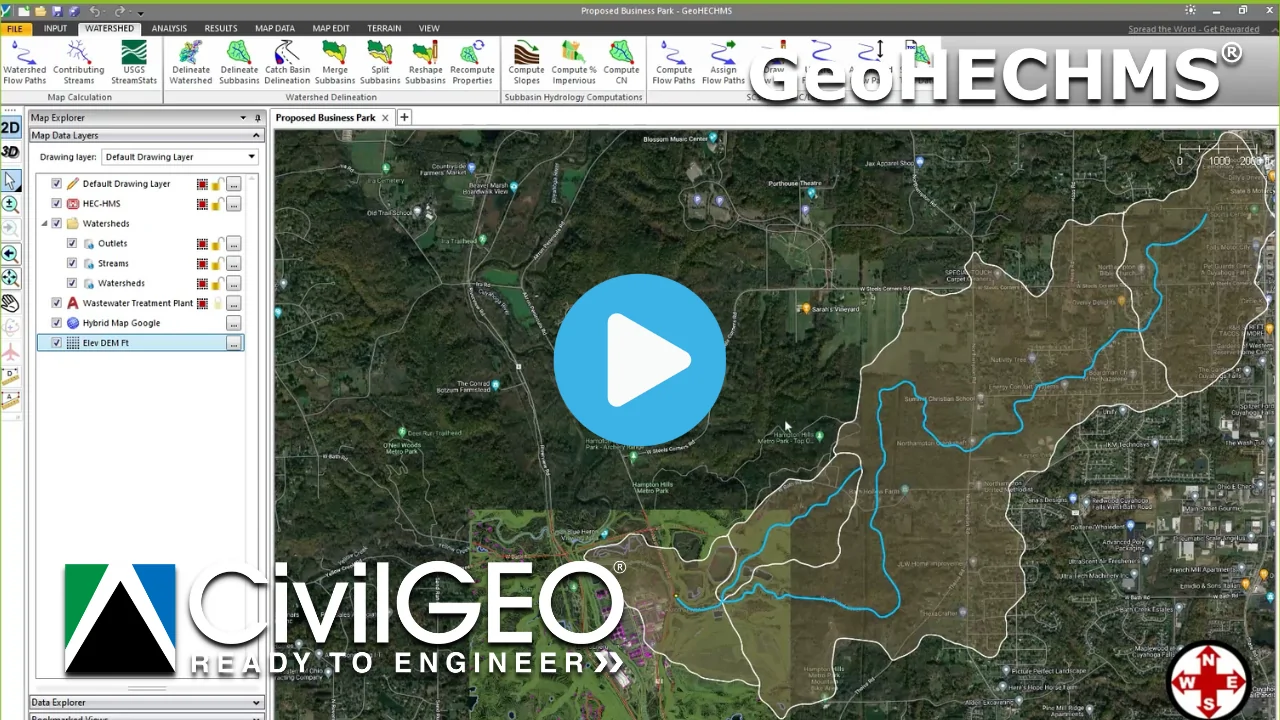
Learn how to delineate subbasins in your project using the Delineate Subbasin command. This command delineates upstream drainage subbasins from user-selected locations, detailing the subbasin boundaries and upstream drainage tributaries.

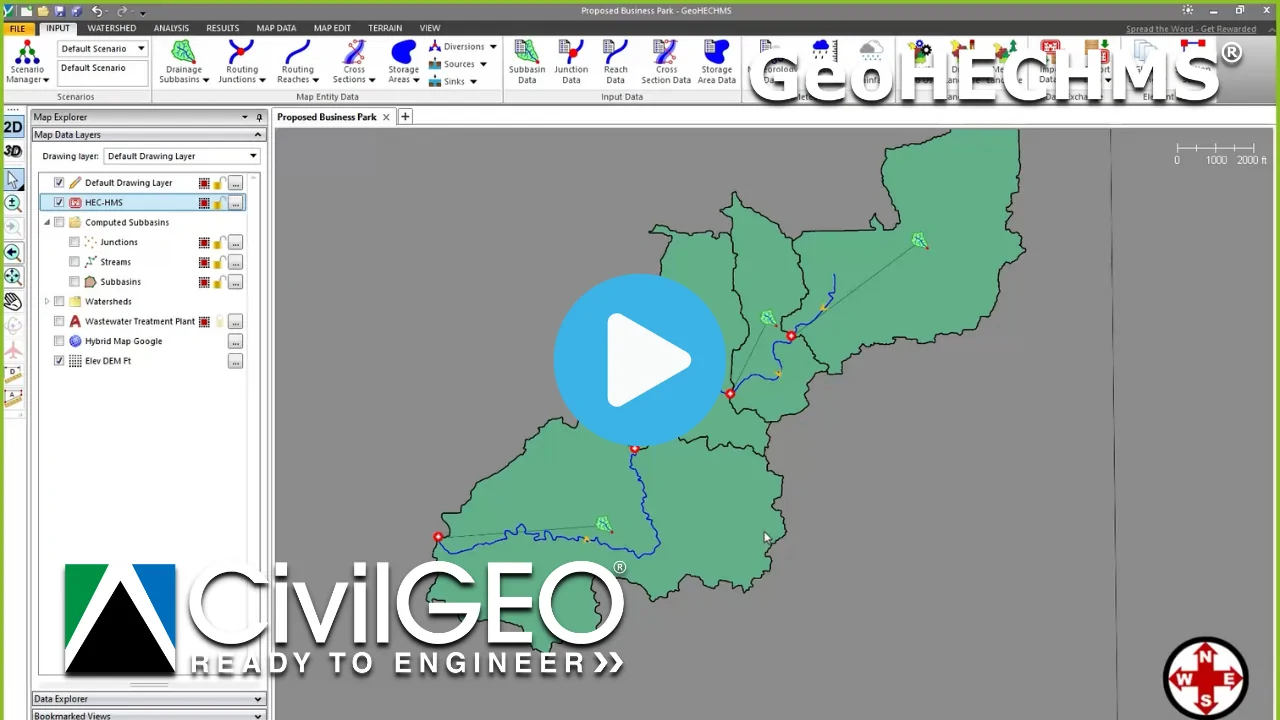
Developing HEC-HMS Model using GeoHECHMS

Learn how to create a HEC-HMS basin model—complete with subbasins, junctions, and a routing reach—using the Draw and Assign Subbasins, Draw and Assign Reaches, and Draw and Assign Junctions commands.

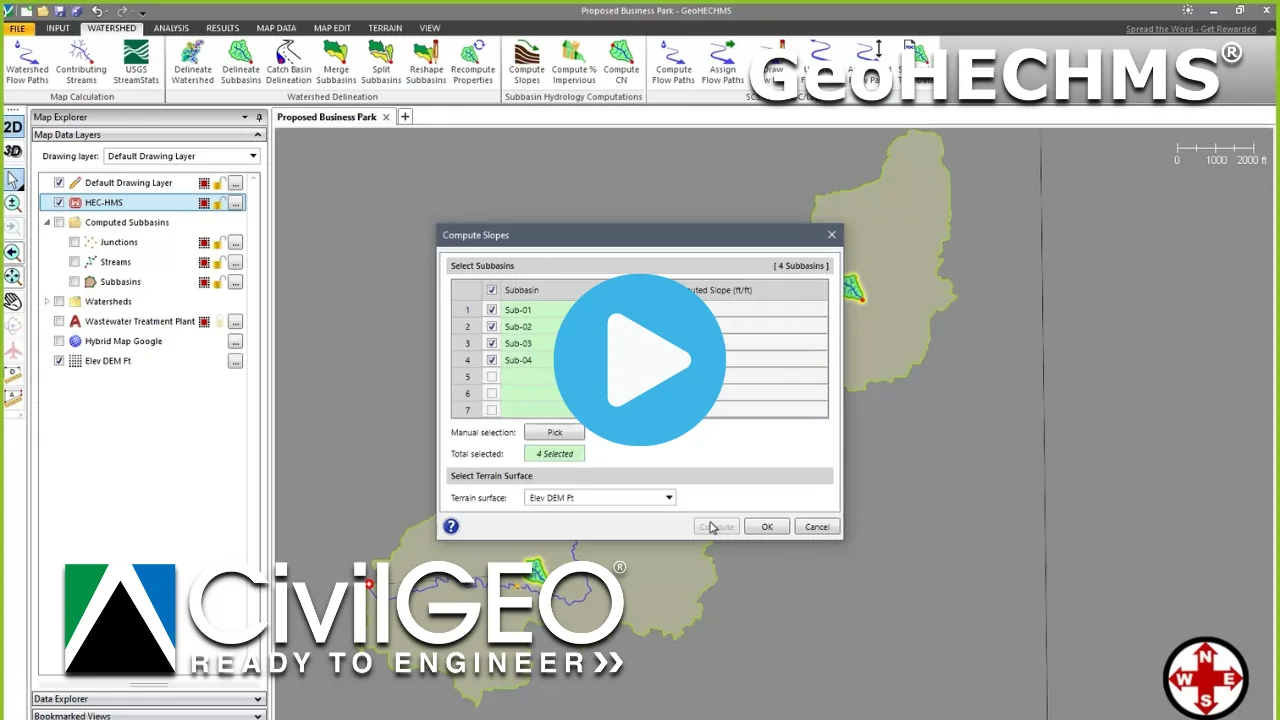
Computing Subbasin Slopes using GeoHECHMS

Learn how to use the Compute Slopes command to compute runoff slopes in your project. Since GeoHECHMS works with elevation grids, it is straightforward to compute subbasin slope and then store the value as a subbasin property.

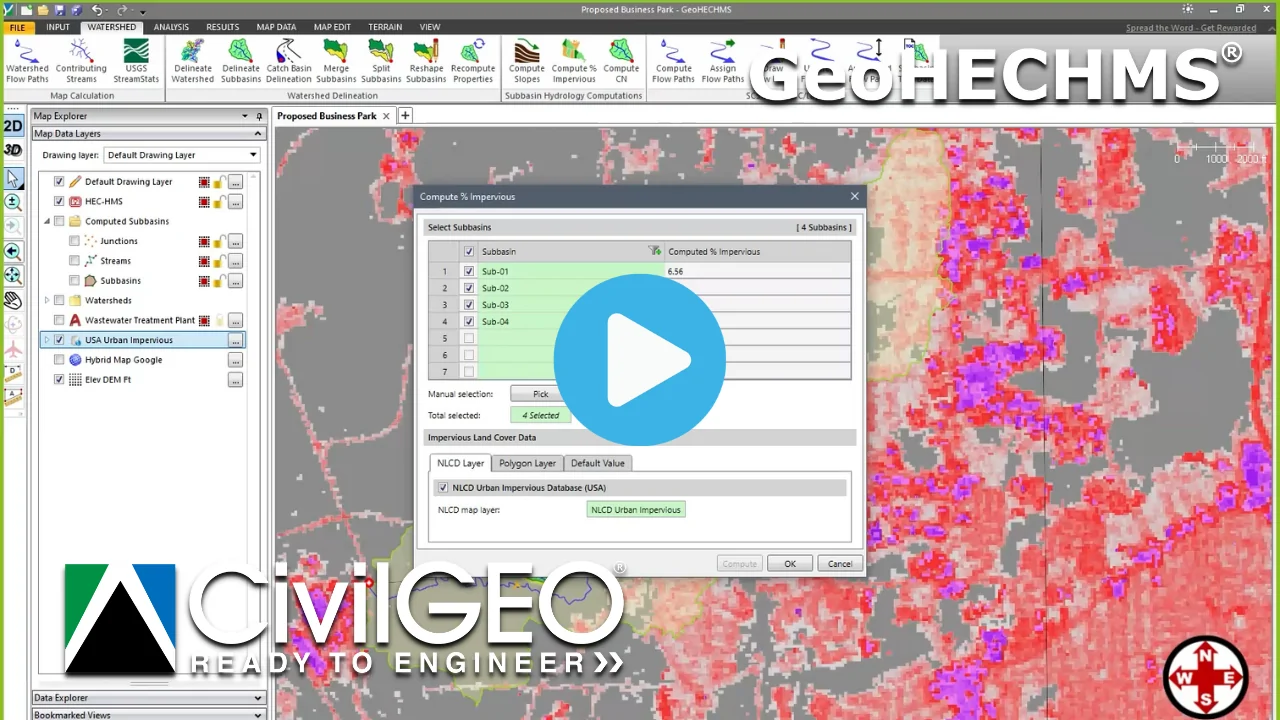
Computing % Imperviousness using GeoHECHMS

Learn how to use the Compute % Impervious command, which uses USGS NLCD web map service data and/or the user-defined GIS polygon shapefile, to automatically compute percent impervious value for each subbasin in your project.

Computing Curve Numbers (CN) using GeoHECHMS

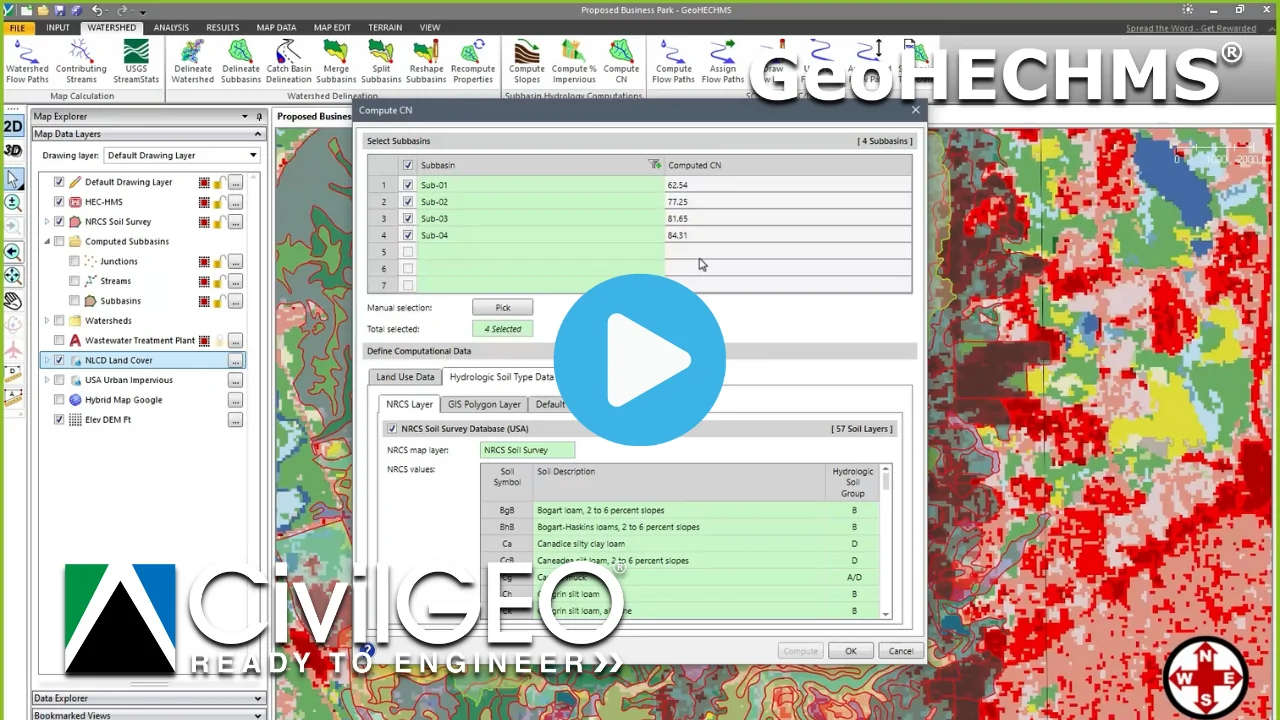
Learn how to use the Compute CN command to automatically compute curve number for subbasin(s) in your project. This command is used to determine runoff amounts based on Land Use and underlying Hydrologic Soil Type.

Computing Flow Paths using GeoHECHMS

Learn how to use the Automated Flow Paths command to select subbasins and direct the software to compute the longest flow path. The Subbasin TOC Data command allows the user to subdivide the subbasin flow path into segments.

Defining Reach Cross Sections using GeoHECHMS

Learn how to use the Cross Sections Data command to automatically extract and simplify cross section geometry into an 8-point cross section and store it in the Cross Section Data dialog box.

Defining Routing Reaches using GeoHECHMS

Learn how to use the Reach Data dialog box to edit the properties of a reach. Reach Data can be used to define and customize reach properties like routing method, initial discharge, length, and slope, etc.

Defining Meteorologic Storm Data using GeoHECHMS

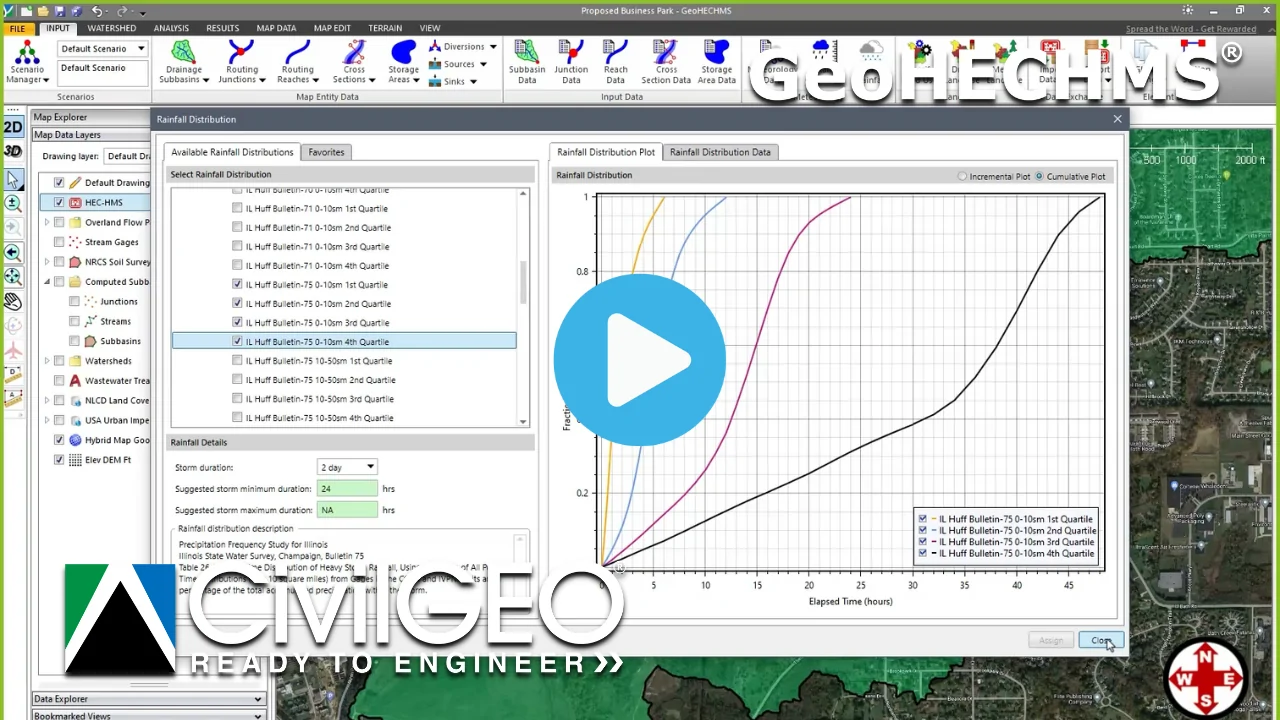
Learn how to use the Meteorology Data command to prepare the boundary conditions that act on watershed during simulation. The command supports meteorological data such as precipitation and evapotranspiration.

Defining Model Run Specifications using GeoHECHMS

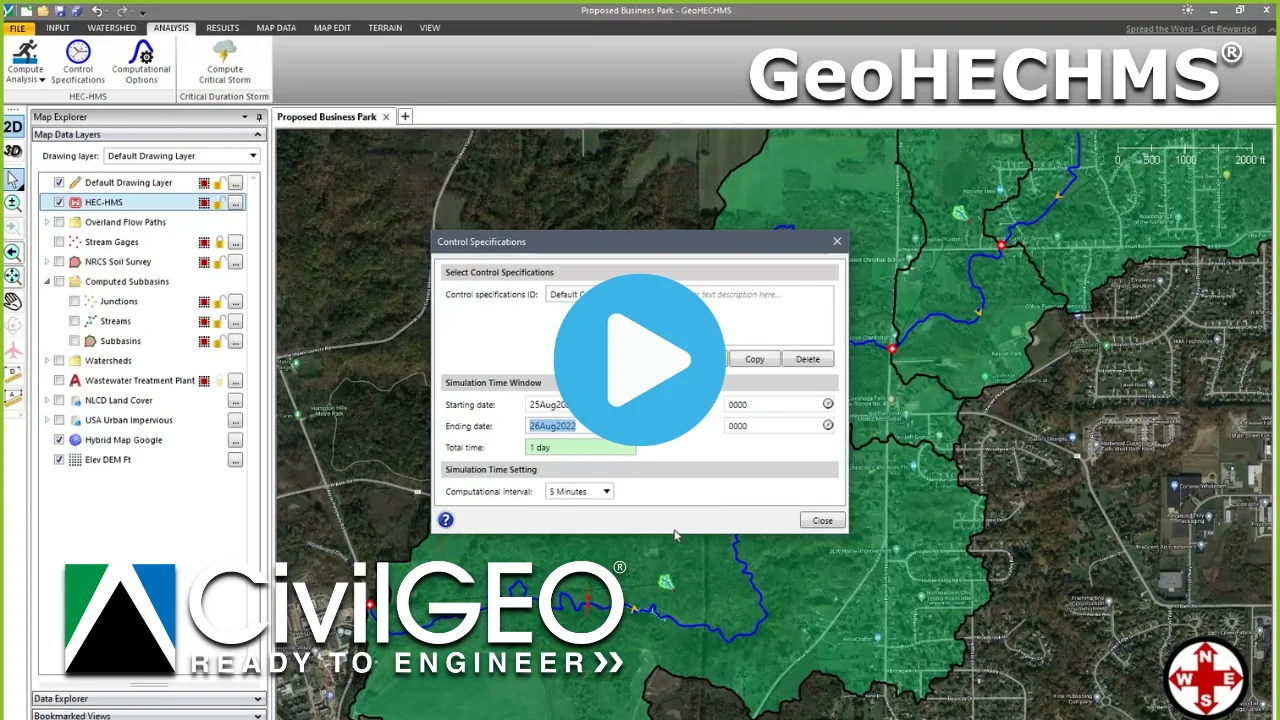
Learn how to use the Control Specifications command, which allows the user to define when the HEC-HMS hydrology simulation starts and stops, and permits specification of computational time intervals.

Running HEC-HMS Model Simulations in GeoHECHMS

Learn how to use the Compute Analysis command to run model simulations. This command is used to simulate analyses of single or multiple scenarios of the model.

Plotting Outflow Hydrographs in GeoHECHMS

Learn how to use the Plot Hydrographs command to plot time series data such as rainfall, runoff hydrographs, and other HEC-HMS analysis output results for any location in the drainage network.

Reshaping Subbasins using GeoHECHMS

Learn how to use the Reshape Subbasin command to reshape an already drawn subbasin. This command allows the user to easily cleanup the watershed boundary for a single subbasin or between adjacent subbasins.

Classifying Land Use Regions using GeoHECHMS

Learn how to use the Classify Land Use command, which draws on AI machine learning capabilities to assign land use categories to specific areas; and Draw Land Use command to manually define land use on the Map View.

Generating Customized Output Reports using GeoHECHMS

Learn to use the Generate Report command to create comprehensive engineering reports detailing key findings of the hydrology study. Most sections of the report that use figures, graphs, and tables etc. are automatically generated.

Using Google Street View and Photo Catalog in GeoHECHMS

Learn how to use the Photo Catalog, which permits the user to add geotagged photographs to the project. This is made possible with use of the Google Street View feature, which allows the user to add photos to the Photo Catalog.

Using Google Street View and Photo Catalog in GeoHECHMS

Learn how to use the Photo Catalog, which permits the user to add geotagged photographs to the project. This is made possible with use of the Google Street View feature, which allows the user to add photos to the Photo Catalog.

Using Google Street View and Photo Catalog in GeoHECHMS

Learn how to use the Photo Catalog, which permits the user to add geotagged photographs to the project. This is made possible with use of the Google Street View feature, which allows the user to add photos to the Photo Catalog.

Using Trim Polylines Command

Learn how to use the Trim Polylines command to trim selected polylines by intersecting them with another polyline. This tutorial demonstrates how to draw or pick trimming boundary, select target polylines, and automatically trim them to fit neatly within defined areas for accurate modeling.

Using Extend Polylines Command

Learn how to use the Extend Polylines command to extend selected polylines until they intersect with another polyline or polygon. This tutorial shows how to define extension boundaries, select target polylines, and extend them to close gaps, connect geometry, or ensure accurate boundary alignment.

Using Buffer Polylines Command

Learn how to use the Buffer Polylines command to create polygons around selected polylines at a specified distance. This tutorial demonstrates how to select polylines, define buffer distance and shape options, and store results in either the default drawing layer or a GIS shapefile for use in analysis and mapping.

Using Buffer Polygons Command

Learn how to use the Buffer Polygons command to generate new polygons at a specified distance around existing polygon features. This tutorial demonstrates how to select polygons, set positive or negative buffer distances, choose corner styles, and store results in either the default drawing layer or a GIS shapefile.

Using Split Polylines Command

Learn how to use the Split Polylines command to divide a polyline into two or more separate line segments. This tutorial demonstrates how to draw or pick a cut point, split the polyline, and generate new segments that can be used independently in your model.

Using Split Polygons Command

Learn how to use the Split Polygons command to divide polygons such as subbasins, storage areas, and 2D flow areas into smaller regions using a cut polyline. This tutorial demonstrates how to draw or pick a cut line, split the selected polygons, and create multiple subareas for refined modeling.

Assigning Model Elements

Learn how to use the assign commands to assign existing drawn objects into model elements. This tutorial demonstrates how to assign polygons or polylines as subbasins, set IDs manually or with auto-naming, and quickly turn your drawings into functional elements of your model.

Deleting Model Elements

Learn how to use the delete commands. This tutorial demonstrates the Delete Subbasins command as an example, showing how the model elements can be deleted in the software.

Recomputing Element Properties

Learn how to use the Recompute Properties command to update model element attributes after edits. This tutorial demonstrates how to recalculate subbasin, reach, and node properties to ensure your model reflects the most recent geometry and data changes.

Reversing Flow Direction

Learn how to use the Reverse Flow Direction command to adjust the orientation of river reaches and conduits. This tutorial demonstrates how to select flow paths, reverse their direction, and maintain correct upstream and downstream connectivity in your model.

Ask Simon

Learn how to use Ask Simon, CivilGEO’s AI-powered assistant, to get instant help with your engineering projects. This tutorial shows how to ask questions, use predefined queries, access 24/7 AI support within the software.

Scenario Management with HEC-RAS

Learn how to perform scenario management in GeoHECRAS using the Scenario Manager command. GeoHECRAS provides the ability to work with multiple scenarios (or plans) within a single model.

Georeferencing a HEC-RAS Model to Map

Learn how to georeference an existing HEC-RAS model to a real-world map. Georeferencing a HEC-RAS model to a map involves aligning the model with real-world coordinates so that it can be accurately represented on the Map View.

Incorporating a HEC-RAS model into Google Earth

Learn how to export a HEC-RAS model and analysis results from GeoHECRAS to Google Earth using the Export HEC‑RAS to Google Earth command. This command helps the user to export and view a HEC-RAS model in Google Earth.

Exporting a HEC-RAS model to AutoCAD

Learn how to export a HEC-RAS model from GeoHECRAS to AutoCAD or MicroStation drawing file using the Export HEC-RAS to CAD command. This command allows HEC‑RAS model data to be shared with CAD and other software.

ESRI TIN to Elevation Raster Conversion

Learn how to convert a TIN elevation dataset to an elevation raster using ArcGIS and a 3D analytics engine. This file conversion is important as the Elevation Raster files are widely supported, and have different formats.

Adding a GIS Shapefile to a HEC-RAS Model

Learn how to add a GIS shapefile in GeoHECRAS using the Add Layers command or by simply dragging and dropping the shapefile into the software window.

Adding a Base Map Layer in HEC-RAS

Learn how to add a base map layer to the HEC-RAS model using the Add Base Map Layer command. This command provides high-quality background aerial and other imagery from different online map providers and displays them on the Map View.

Adding and Georeferencing an AutoCAD Drawing to a HEC-RAS Model

Learn how to add an AutoCAD file in GeoHECRAS using Add Layers command or by simply dragging and dropping the AutoCAD file into the software window. You’ll also learn how to georeference the CAD file with the model.

Computing TOC Widths

Learn how to use the Compute TOC Widths command in GeoSTORM to calculate EPA SWMM TOC equivalent widths for subbasins. This tutorial demonstrates how to select subbasins, compute TOC values based on the longest flow path, and view results directly in the dialog box. These widths are used in kinematic wave TOC calculations for sheet flow and shallow concentrated flow.

Computing Subbasin Areas

Learn how to use the Compute Subbasin Areas command in GeoSTORM to recalculate drainage areas after polygon edits. This tutorial demonstrates how to select subbasins, compute their areas, and update values so the polygons accurately represent true drainage extents for reliable hydrologic analysis.

Assigning Node Elevations

Learn how to automatically assign rim and invert elevations to nodes such as manholes, junctions, and outfalls. This tutorial demonstrates how to select nodes, choose an elevation source, define manhole depths, and quickly generate assign elevations from terrain data.

Defining Storm Data for Rational, Modified Rational & DeKalb Hydrology Method

Learn how to define storm data in GeoSTORM when using the Rational, Modified Rational, or DeKalb Rational hydrology methods. This tutorial explains how to determine the rainfall intensity data and apply it your model for accurate rainfall-runoff modeling.

Defining Storm Data for EPA SWMM Hydrology Method

Learn how to define storm data when using the EPA SWMM as the hydrology analysis engine within the Storm Data dialog box. This tutorial shows how to select rainfall distributions and assign precipitation depths, or assign rain gages to the subbasin.

Defining Storm Data for SCS TR-20/TR-55 Hydrology Method

Learn how to define storm data in GeoSTORM when using the SCS TR-20/TR-55 hydrology methods. This tutorial explains how to choose rainfall distributions, specify storm durations, and apply precipitation depths to your subbasins for accurate hydrologic modeling.

Viewing and Editing Using Table Edit Command

Learn how to use the Table Edit command in GeoSTORM to view and modify model data in a tabular format. This tutorial shows how to filter records, edit values directly, and update multiple model elements at once using an efficient table-based workflow.

Defining Subbasin LID Structures

Learn how to use the Subbasin LID Structures command in GeoSTORM to add and configure Low Impact Design elements. This tutorial demonstrates how to select LID types, define layer and discharge specifications, and assign LID structures to subbasins using the LID Specifications panel.

Assigning Pipe Invert Elevations

Learn how to use the Assign Pipe Invert Elevations command in GeoSTORM to quickly compute and assign pipe inverts. This tutorial shows how to select pipes, extract elevations, apply constraints, and visualize results with the Pipe Profile view for accurate stormwater system modeling.

Computing Green Ampt Parameters

Learn how to use the Compute Green-Ampt command in GeoSTORM to compute infiltration parameters for subbasins using NLCD land-cover and NRCS soils data via web services, or by mapping values from your GIS shapefiles. This tutorial covers selecting subbasins, choosing the soil-moisture method, configuring NLCD/NRCS sources or GIS attributes, reviewing results, and applying the parameters to your model.

Computing Runoff Coefficients

Learn how to use the Compute Runoff Coefficients command in GeoSTORM to determine composite runoff coefficients. This tutorial demonstrates how to combine land use, soil type, and slope information to calculate accurate runoff coefficients for use in Rational and Modified Rational hydrology methods.

Creating a Stormwater Sewer Network

Learn how to create a stormwater sewer pipe network for your stormwater project using the Draw Pipes command. This tutorial video shows how to quickly define a pipe layout and ensure proper connections to manholes, inlets, outfalls and other drainage infrastructure elements in your stormwater project.

Generating Engineering Report

Learn how to have the software automatically produce an engineering report using the Generate Report command. This tutorial video shows how the software will compile model input data and output results—including subbasin data, pipe network results, etc.—into a comprehensive engineering report detailing the stormwater project.

Plotting Hydrographs

Learn how to visualize stormwater flow results using the Plot Hydrographs command. This tutorial video shows how to display various types of hydrographs, such as discharge, depth, velocity, stage, etc, for subbasins, pipes, junctions, and other elements of the stormwater project.
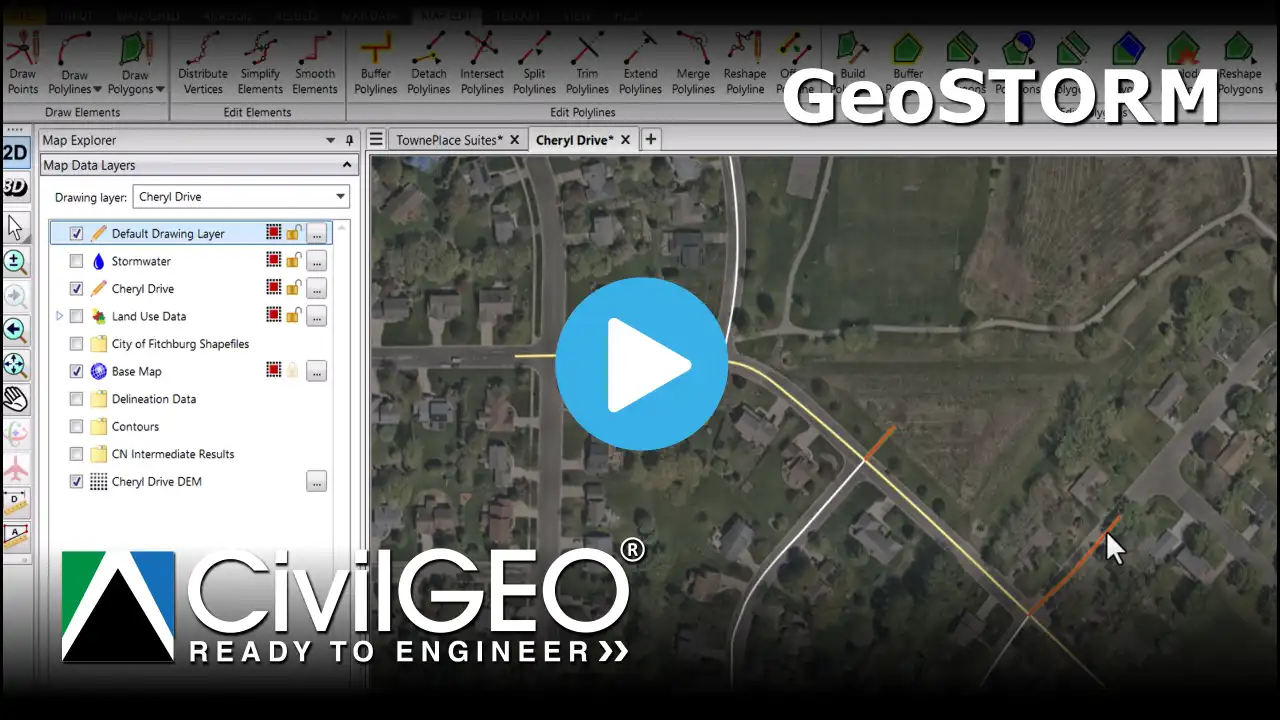
Defining Roadway Crossings

Learn how to define roadway crossings using the Roadway Crossing Data command. This tutorial video shows how to input roadway crossing data, roadway weir geometry, assign culverts, and display results to support accurate stormwater modeling at roadway crossings.

Understanding Profile Plot Output

Learn how to display stormwater pipe and ditch profile (long section) plots. This tutorial video shows how to use the Profile Plot command and the advanced capabilities in being able to display HGL and EGL along stormwater pipe and ditch profiles, revise pipe diameters and inverts, export to AutoCAD, MicroStation, and other output sources for your stormwater project.

Editing Elements in Profile Plot

Learn how to interactively edit elements within the Profile Plot command. This tutorial video shows how to adjust manhole inverts, modify pipe elevations, and resize pipes directly from the profile plot and more.

Delineating subbasins using the Delineate Subbasins command to define drainage areas and hydrologic properties

Delineating Subbasins

Learn how to delineate subbasins for your stormwater project using the Delineate Subbasins command. This tutorial video shows how this command delineates upstream drainage subbasins from user-selected locations, detailing the subbasin boundaries, contributing streams, and other hydrologic properties.

Using Map Data commands to import, edit, and display geospatial layers like FEMA Flood Data for stormwater projects

Map Data Commands

Learn how to use the Map Data commands to efficiently manage and manipulate geospatial data. This tutorial video shows the commands to import, edit, and display map layers such as FEMA Flood Data. These commands help prepare your model with different mapping and background data for your projects.

Choosing and assigning a Coordinate Reference System (CRS) to align terrain, maps, and geospatial data accurately

Choosing a Coordinate Reference System

Learn how to assign a Coordinate Reference System (CRS) using the Map Coordinates backstage page. This ensures accurate spatial alignment of your project with a projected coordinate system. This tutorial video shows how to select the correct CRS for your project data, maintaining consistency across terrain, background maps, and other geospatial layers that may be in different coordinate systems—either projected and geographic coordinate systems.

Computing flow paths to determine Time of Concentration (TOC) and Lag Time using terrain data for watershed analysis

Computing Flow Paths

Learn how to compute Time of Concentration (TOC) and Lag Time using the Automated Flow Paths command. This tutorial video shows how to generate flow paths from terrain data to accurately determine TOC and Lag Time for watershed analysis.

Reshaping flow paths to align with terrain and hydrologic features in stormwater modeling

Reshaping Flow Paths

Learn how to reshape stormwater TOC/Lag Time flow paths. This tutorial video shows how to modify flow paths to better align with terrain, obstructions and hydrologic features.

Editing Time of Concentration (TOC) segments by drawing and assigning flow paths in stormwater modeling

Editing TOC Segments

Learn how to edit Time of Concentration (TOC) and Lag Time segments. This tutorial video shows how to edit the stormwater TOC flow path segments directly from the Map View.

Editing GIS polygon layers using the GIS Element Properties command to customize map visuals and transparency

Editing GIS Polygon Layers

Learn how to edit GIS polygon layers using the GIS Element Properties command. This tutorial video shows how to define and customize various GIS elements, style borders, and other display options for improved Map View visualization.

Automatically classifying land use types using the Automated Classify Land Use command with OpenStreetMap data

Automated Classify Land Use Command

Learn how to use the Automated Classify Land Use command. This tutorial video shows how to automatically identify and categorize land use types for anywhere in the world.

Draw Land Use Command

Learn how to use the Draw Land Use command to manually create and refine land use regions on the Map View. This tutorial video shows how to draw and assign polygons for various land use and then compute composite curve numbers, runoff coefficients, Green Ampt values and other hydrologic parameters for each drainage catchment area.

Computing subbasin curve numbers using land cover and hydrologic soil data with the Compute CN command

Computing Curve Numbers

Learn how to use the Compute CN command to automatically compute subbasin curve numbers. This tutorial video shows how subbasin curve number (CN) values are computed from land use and hydrologic soil data.

Plotting pipe profiles using the Profile Plot command to visualize and analyze stormwater systems

Plotting Pipe Profiles

Learn how to display stormwater pipe and ditch profile (long section) plots. This tutorial video shows how to use the Profile Plot command and the advanced capabilities in being able to display HGL and EGL along stormwater pipe and ditch profiles, revise pipe diameters and inverts, export to AutoCAD, MicroStation and other sources for your stormwater project.
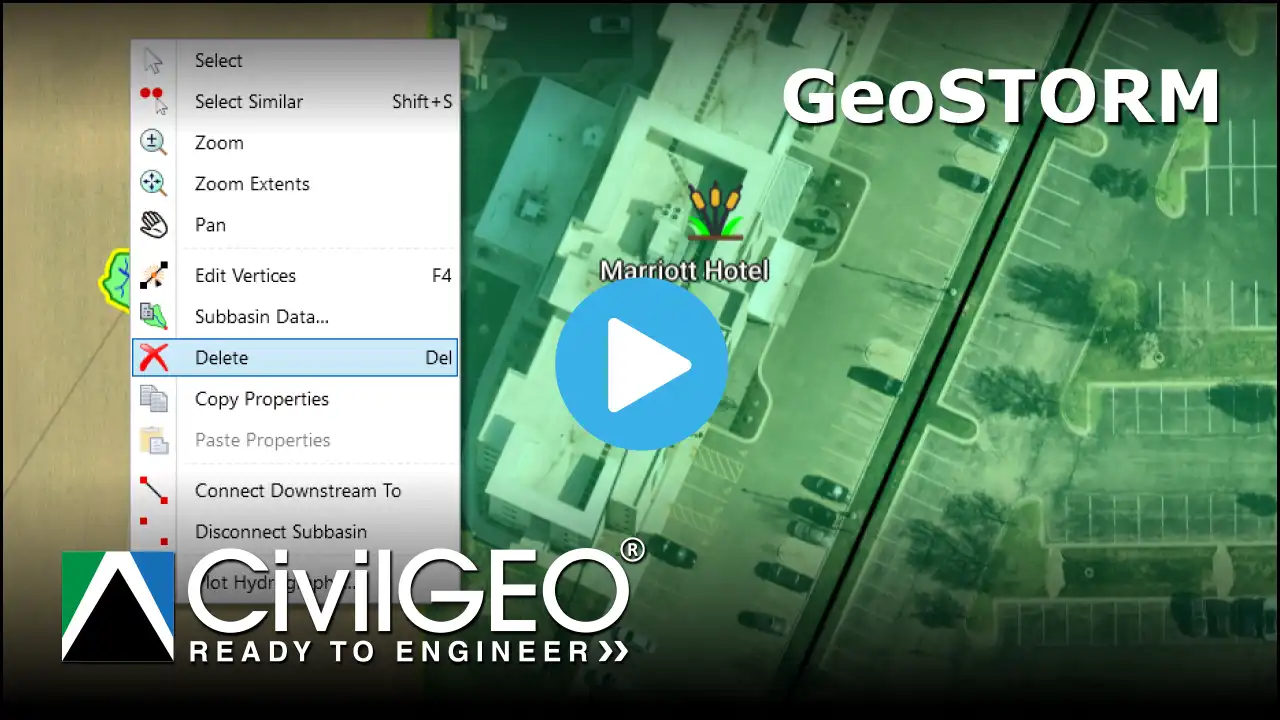
Generating automated Excel reports for subbasins, storm sewer networks, and stormwater modeling components

Generating Excel Reports

Learn how to create Excel reports automatically for your stormwater project. This tutorial video shows how to generate detailed reports for subbasins, storm sewer pipe and ditch networks, and other stormwater components.

Defining roadway gutters, ditches, and stormwater inlets using the Gutter/Ditch/Inlet Data command

Defining Roadway Gutters, Roadway Ditches, and Stormwater Inlets

Learn how to define roadway gutters, ditches, and storm drain catch basin inlets using the Roadway Gutter/Ditch/Inlet Data command. This tutorial video shows how to create and edit roadway gutters and ditches, along with the associated storm drain catch basin inlets.

Adding and editing stormwater inlets to define entry points in the drainage network

Adding and Editing Stormwater Inlets

Learn how to add and edit storm drain catch basin inlets. This tutorial video shows how to place catch basin inlet structures, select catch basin inlet types, and modify their properties to accurately define stormwater entry points for the stormwater drainage network.

Creating ponds using Automated Draw Storage Areas to model stormwater storage from terrain data

Creating Ponds

Learn how to create detention and retention ponds using the Automated Draw Storage Areas command. This tutorial video shows how to automatically extract storage area volumes from terrain model to accurately represent ponds in your stormwater project.
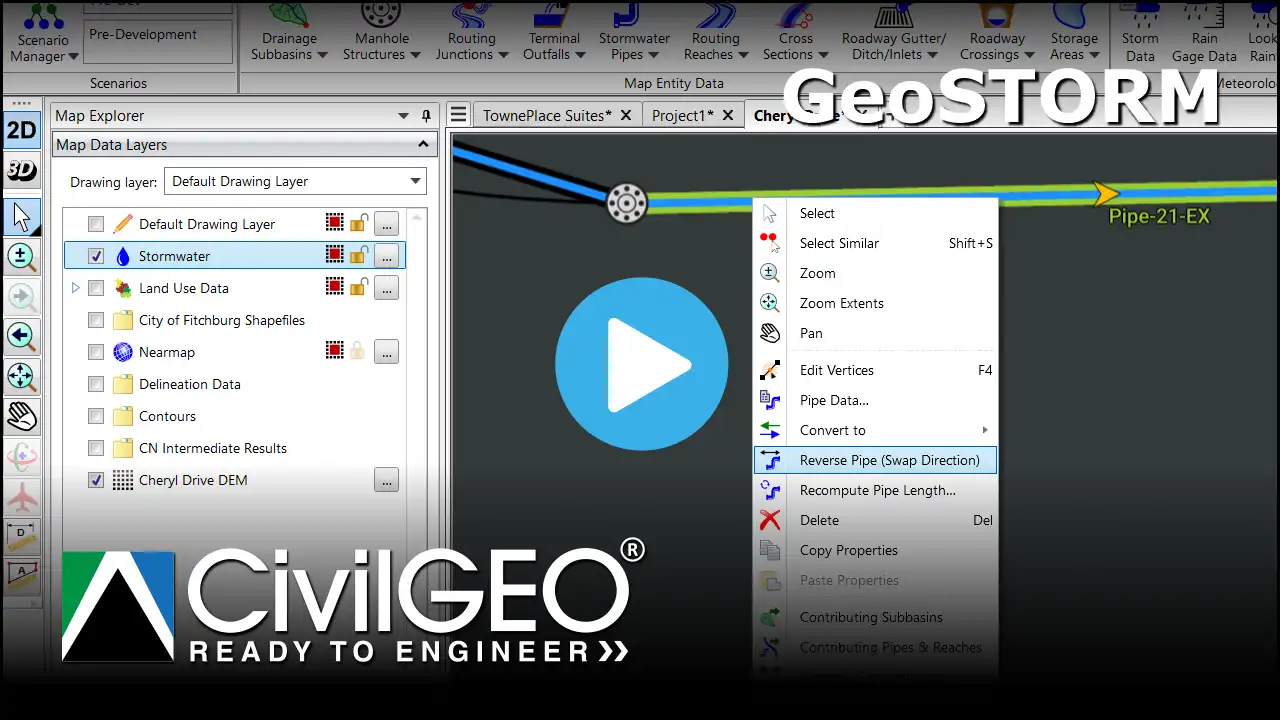
Using Google Street View and Photo Catalog to view site imagery within a stormwater project

Using Google Street View and Photo Catalog

Learn how to use the Google Street View and Photo Catalog. This tutorial video shows how to use the Google Street View and Photo Catalog commands to view street-level imagery and catalog site photos directly within your engineering project.

Designing underground stormwater storage chambers using the Storage Area Data command for effective stormwater management

Designing Underground Stormwater Storage Chambers

Learn how to design underground stormwater storage chambers. This tutorial video shows how to define design the underground storage chambers to fit site specific location requirements, as well as selecting the appropriate storage chamber manufacturer and chamber model for effective stormwater management.

GeoHECRAS Training Course – Session 01

Learn how to create a HEC-RAS river model for small streams and analyze it for the 100-year discharge. You will also learn how to export the project to HEC-RAS along with the water surface profile and the generated floodplain map.

GeoHECRAS Training Course – Session 02

Learn how to use an existing polyline from the Map View and assign it as a cross section using the Assign Cross Sections command. The command also extracts cross section geometry using the underlying ground terrain.

GeoHECRAS Training Course – Session 03

Learn how to accurately match surveyed channel cross section data with a straight river channel. You will also learn how to utilize the Conflate Point Data command to merge the surveyed channel cross section data into a cross section alignment.

GeoHECRAS Training Course – Session 04

Learn how to work with LIDAR layers to generate a 3D spatial representation of the surveyed environment in highly accurate 3D point cloud data. This video covers Add Layers, Generate Terrain, Add Elevation Layer, and Merge DEMs commands.

GeoHECRAS Training Course – Session 05

Learn how to use the Stamp Geometry command to modify the terrain geometry by burning in a stream channel or constructing a levee or dam. This feature allows you to perform a series of trapezoidal cuts to create new channel geometry.

GeoHECRAS Training Course – Session 06

Learn how to georeference a HEC-RAS model to a river alignment using the Georeference River Reaches command. The georeferencing process involves aligning the model element with real-world coordinates so that it can be accurately represented on the Map View.

GeoHECRAS Training Course – Session 07

Learn how to construct large multi-reach HEC-RAS models in GeoHECRAS. This video covers Add Layers, Import HEC-RAS Shapefile Geometry, Cross Section Data, Assign Channel Banks, and Import Steady Flow Data commands for HEC-RAS model development.

GeoHECRAS Training Course – Session 08

Learn how to create flood maps using region-specific hydraulic and topographic data. Flood inundation maps are useful for a variety of purposes such as municipal planning, emergency action plans, flood insurance rates, etc.

GeoHECRAS Training Course – Session 09

Learn how engineers can identify potential scour locations and design countermeasures to prevent scour. You will also learn about bridge scour modeling and factors to consider when designing a bridge for a range of flow conditions.

GeoHECRAS Training Course – Session 10

This course provides an overview of floodplain modeling in GeoHECRAS. This video covers floodway determination, floodway modeling procedure, floodplain encroachments, how to compute floodway, and special considerations in determining floodway.

GeoHECRAS Training Course – Session 11

Learn how to define 2D flow areas by laying out a polygon representing the outer boundary of the 2D flow area and then specifying the computational mesh. 2D flow areas are regions where flow is computed with HEC-RAS 2D flow algorithms.

GeoHECRAS Training Course – Session 12

Learn how GeoHECRAS models water flow in a 2D space, providing detailed information about water levels, velocities, and flow patterns. You can then predict flood risks and identify mitigation measures based on topography, channel geometry, etc.

GeoHECRAS Training Course – Session 13

Learn how to draw profile lines in order to extract linear data from a 2D flow area. Profile lines are used to generate the plot of terrain and computed water surface elevation down the centerline of a channel as well as the time series output.

Bridge Modeling with HEC-RAS

Learn how to model roadway crossings consisting of single or multiple bridge openings and culverts using the Bridge & Culvert Data command. This video tutorial details the necessary steps to model a single bridge opening for a roadway crossing.

Draw 2D Patch Faces command

Learn how to use the Draw 2D Patch Faces command to create 2D patch elements in a 2D model. This command refines the mesh in a 2D flow area and helps to analyze the water flow and erosion patterns in a river or stream.

Georeferencing a HEC-RAS Model to a River Alignment

Learn how to georeference a HEC-RAS model to a river alignment using the Georeference River Reaches command. The georeferencing process involves aligning the model element with real-world coordinates so that it can be accurately represented on the Map View.

Automating Floodplain Encroachment Modeling with HEC-RAS

Learn how to compute floodplain encroachment using the Floodplain Encroachments command. This command quickly iterates the encroachment station locations while reviewing the computed results.

Exporting a Flood Model to HEC-RAS

Learn how to export a HEC-RAS model from GeoHECRAS to the U.S.Army Corps of Engineers HEC-RAS software. The Export HEC-RAS Project command is used to export a HEC-RAS flood model to external HEC-RAS files.

Displaying FEMA Flood Map Data on a HEC-RAS Model

Learn how to display a FEMA flood hazard map on your HEC-RAS model using the FEMA Flood Data command. This command is used to display FEMA flood data directly on the Map View.

GeoHECHMS Training Course – Session 01

This video presents an easily digestible overview of our software’s various commands. You’ll also discover how GeoHECHMS can assist you in creating, reviewing and analyzing your stormwater models rapidly.

Downloading USGS DEM Data using GeoHECHMS

Learn how to download elevation data for your project in just a few clicks using the Get USGS DEM command. This command allows you to download elevation data directly from the USGS website.

Delineating Watersheds with GeoHECHMS

Learn how to automatically delineate watersheds in your project using the Delineate Watershed command. This command computes the contributing watershed drainage network that drains to a specific location on the Map View.

Delineating Subbasins using GeoHECHMS

Learn how to delineate subbasins in your project using the Delineate Subbasin command. This command delineates upstream drainage subbasins from user-selected locations, detailing the subbasin boundaries and upstream drainage tributaries.

Developing HEC-HMS Model using GeoHECHMS

Learn how to create a HEC-HMS basin model—complete with subbasins, junctions, and a routing reach—using the Draw and Assign Subbasins, Draw and Assign Reaches, and Draw and Assign Junctions commands.

Computing Subbasin Slopes using GeoHECHMS

Learn how to use the Compute Slopes command to compute runoff slopes in your project. Since GeoHECHMS works with elevation grids, it is straightforward to compute subbasin slope and then store the value as a subbasin property.

Computing % Imperviousness using GeoHECHMS

Learn how to use the Compute % Impervious command, which uses USGS NLCD web map service data and/or the user-defined GIS polygon shapefile, to automatically compute percent impervious value for each subbasin in your project.
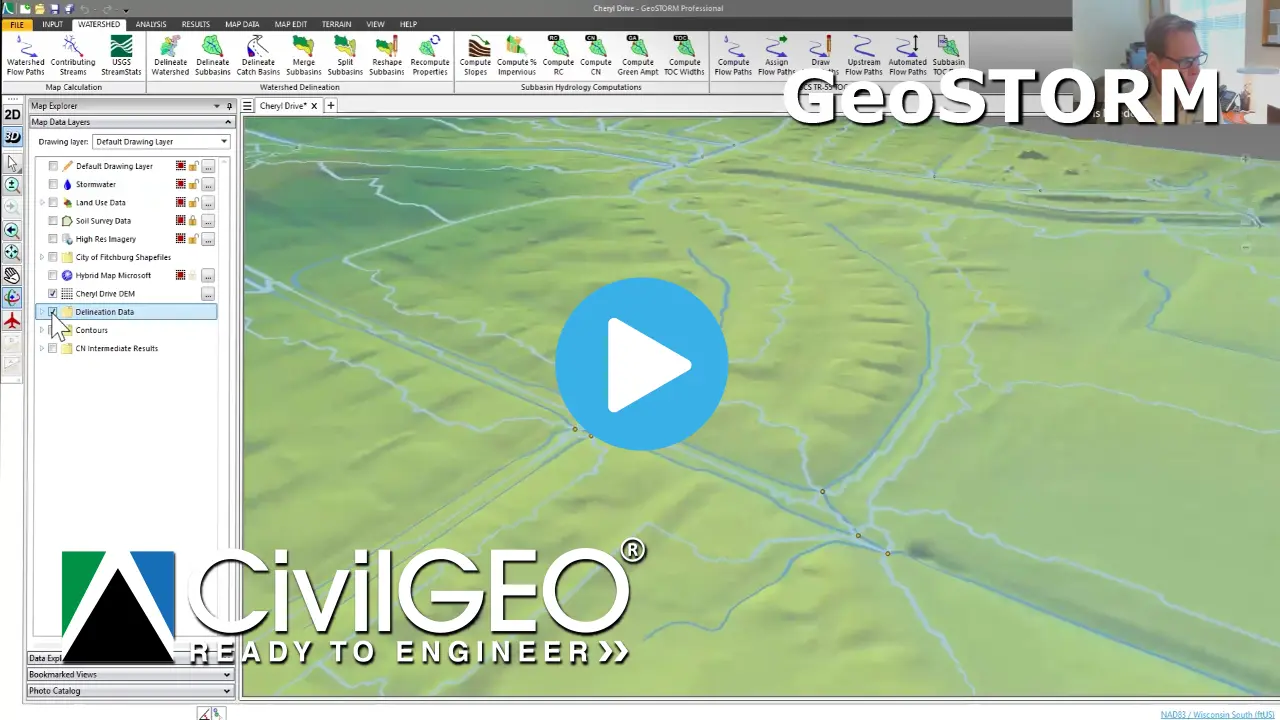
Computing Curve Numbers (CN) using GeoHECHMS

Learn how to use the Compute CN command to automatically compute curve number for subbasin(s) in your project. This command is used to determine runoff amounts based on Land Use and underlying Hydrologic Soil Type.
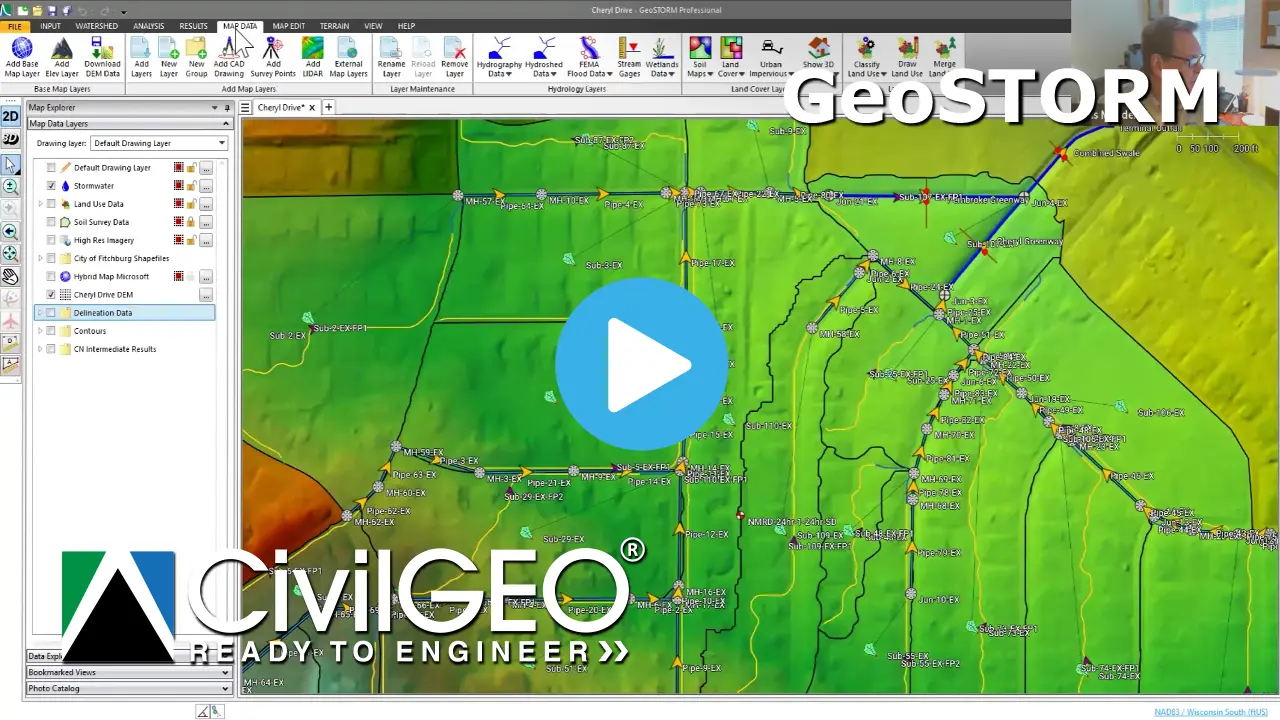
Computing Flow Paths using GeoHECHMS

Learn how to use the Automated Flow Paths command to select subbasins and direct the software to compute the longest flow path. The Subbasin TOC Data command allows the user to subdivide the subbasin flow path into segments.

Defining Reach Cross Sections using GeoHECHMS

Learn how to use the Cross Sections Data command to automatically extract and simplify cross section geometry into an 8-point cross section and store it in the Cross Section Data dialog box.

Defining Routing Reaches using GeoHECHMS

Learn how to use the Reach Data dialog box to edit the properties of a reach. Reach Data can be used to define and customize reach properties like routing method, initial discharge, length, and slope, etc.

Defining Meteorologic Storm Data using GeoHECHMS

Learn how to use the Meteorology Data command to prepare the boundary conditions that act on watershed during simulation. The command supports meteorological data such as precipitation and evapotranspiration.

Defining Model Run Specifications using GeoHECHMS

Learn how to use the Control Specifications command, which allows the user to define when the HEC-HMS hydrology simulation starts and stops, and permits specification of computational time intervals.

Running HEC-HMS Model Simulations in GeoHECHMS

Learn how to use the Compute Analysis command to run model simulations. This command is used to simulate analyses of single or multiple scenarios of the model.

Plotting Outflow Hydrographs in GeoHECHMS

Learn how to use the Plot Hydrographs command to plot time series data such as rainfall, runoff hydrographs, and other HEC-HMS analysis output results for any location in the drainage network.

Reshaping Subbasins using GeoHECHMS

Learn how to use the Reshape Subbasin command to reshape an already drawn subbasin. This command allows the user to easily cleanup the watershed boundary for a single subbasin or between adjacent subbasins.

Classifying Land Use Regions using GeoHECHMS

Learn how to use the Classify Land Use command, which draws on AI machine learning capabilities to assign land use categories to specific areas; and Draw Land Use command to manually define land use on the Map View.

Generating Customized Output Reports using GeoHECHMS

Learn to use the Generate Report command to create comprehensive engineering reports detailing key findings of the hydrology study. Most sections of the report that use figures, graphs, and tables etc. are automatically generated.

Using Google Street View and Photo Catalog in GeoHECHMS

Learn how to use the Photo Catalog, which permits the user to add geotagged photographs to the project. This is made possible with use of the Google Street View feature, which allows the user to add photos to the Photo Catalog.