
This article describes how to sign in to the CivilGEO Customer Portal with your registered email address and password. The user can access the customer portal using the following methods:
- Sign In Using Email and Password
- Sign In Using Magic Link
Sign In Using Email and Password
- Click here to access the CivilGEO Customer Portal through an Internet browser. The following login screen will be displayed.
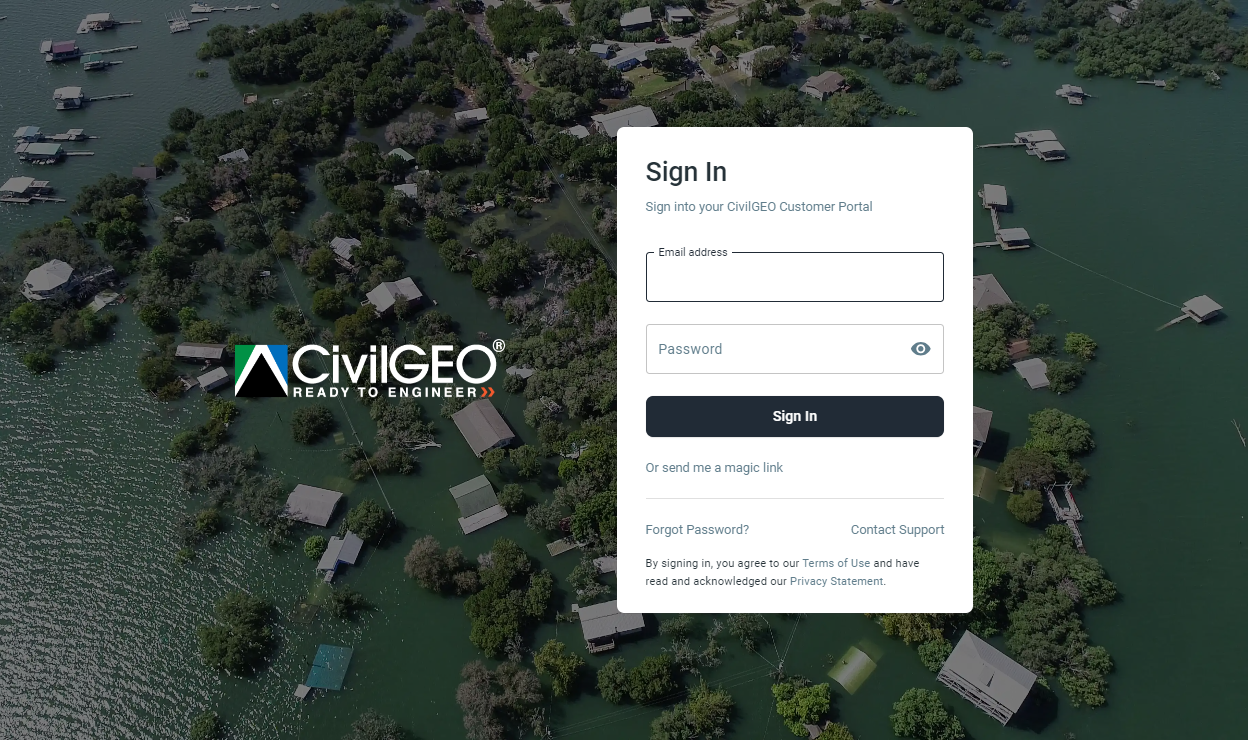
- Enter the registered email address and password. Then, click on the [Sign In] button.
![[Sign In] button](https://knowledge.civilgeo.com/wp-content/uploads/2024/07/How-to-Sign-In-to-CivilGEO-Customer-Portal-Image-2.png)
- The Two Factor Authentication page will be displayed. Enter the One Time Password verification code sent to your registered email address for further authentication and click on the [Verify OTP] button.
![[Verify OTP] button](https://knowledge.civilgeo.com/wp-content/uploads/2024/07/How-to-Sign-In-to-CivilGEO-Customer-Portal-Image-3.png)
Note: If the users do not receive the One Time Password verification code or the verification code has expired, then click the Resend Verification Code (Didn’t Receive Code?) option to request a new One Time Password verification code.
Refer to this article in our knowledge base to learn how to enable or disable the two-factor user authentication login in the customer portal.
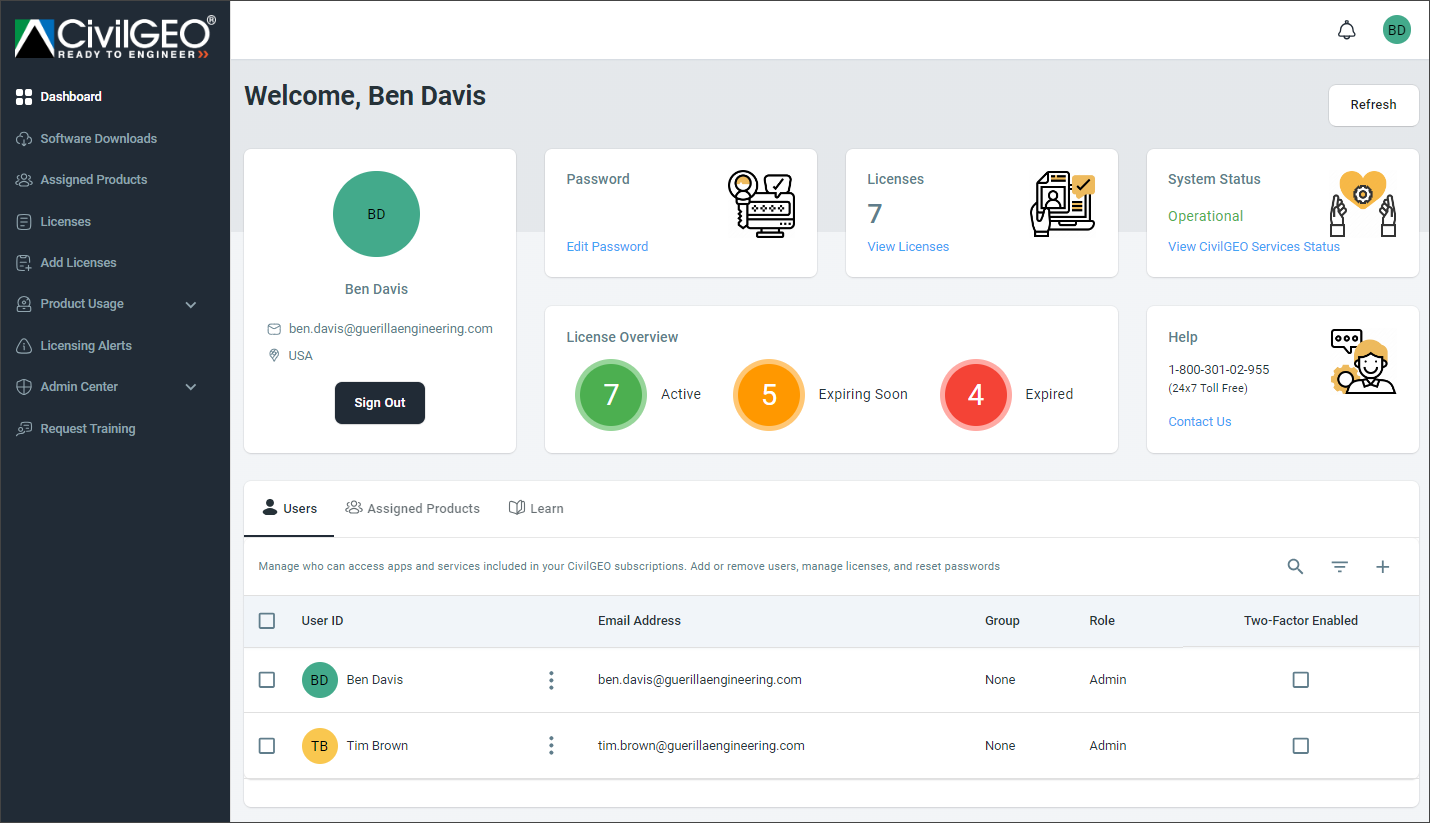
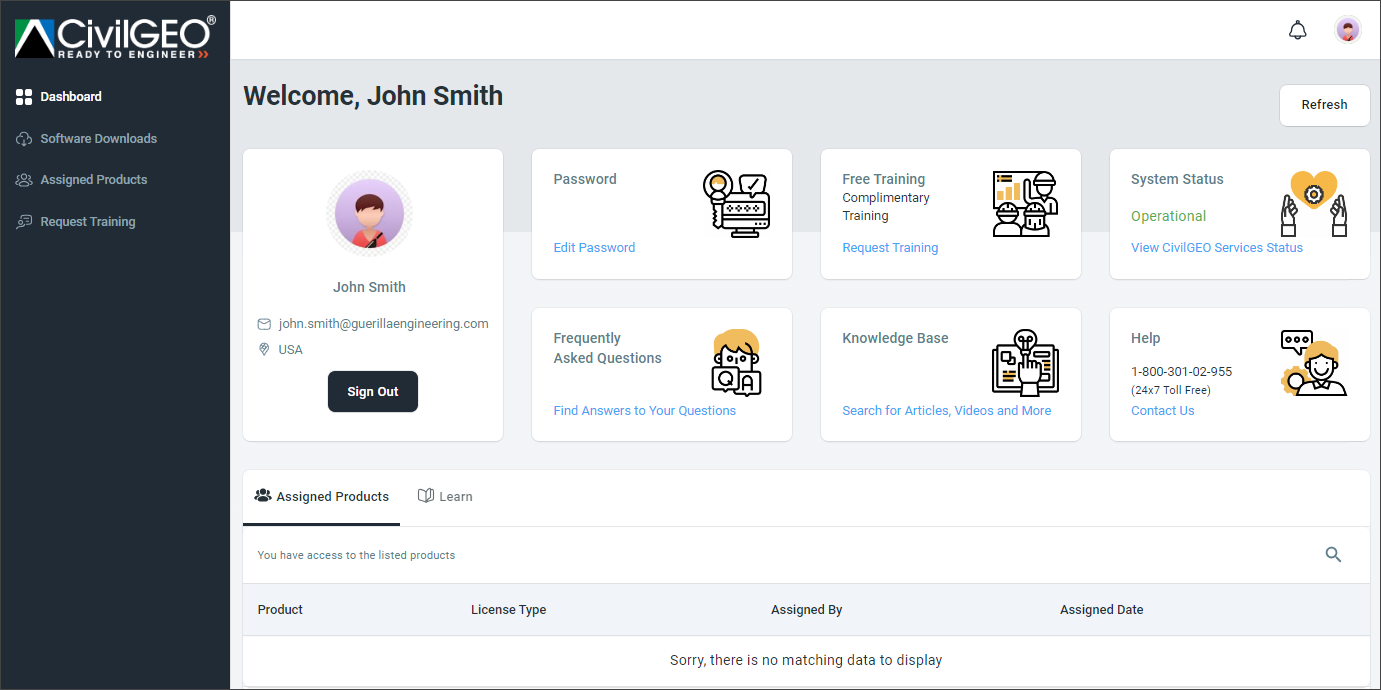
- Once the One Time Password verification code is successfully verified, the user can now access the customer portal. The following portal dashboard screen will be displayed.
- Administrator Portal (If signed in as an administrator)
- User Portal (If signed in as a user)
Refer to this article in our knowledge base to learn more about the Customer Portal.
- Administrator Portal (If signed in as an administrator)
Sign In Using Magic Link
- Click here to access the CivilGEO Customer Portal through an Internet browser.
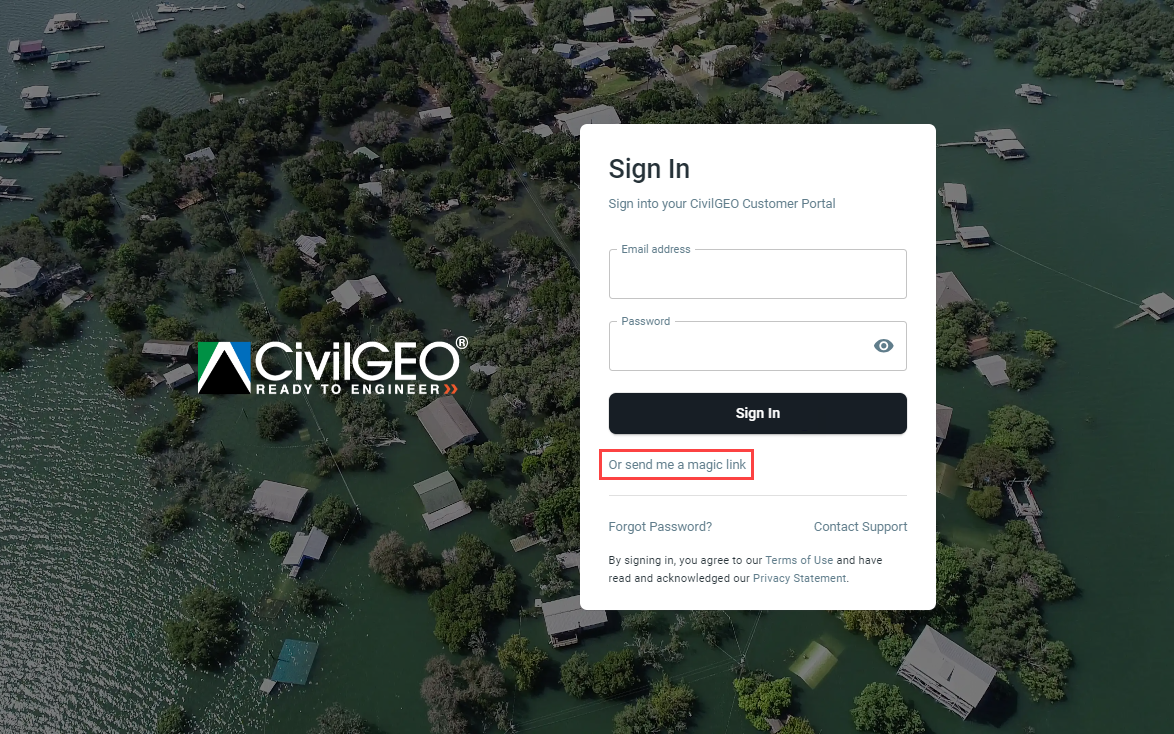
- From the login screen displayed below, click on the Or send me a magic link option.
- The Create Magic Link page will be displayed.
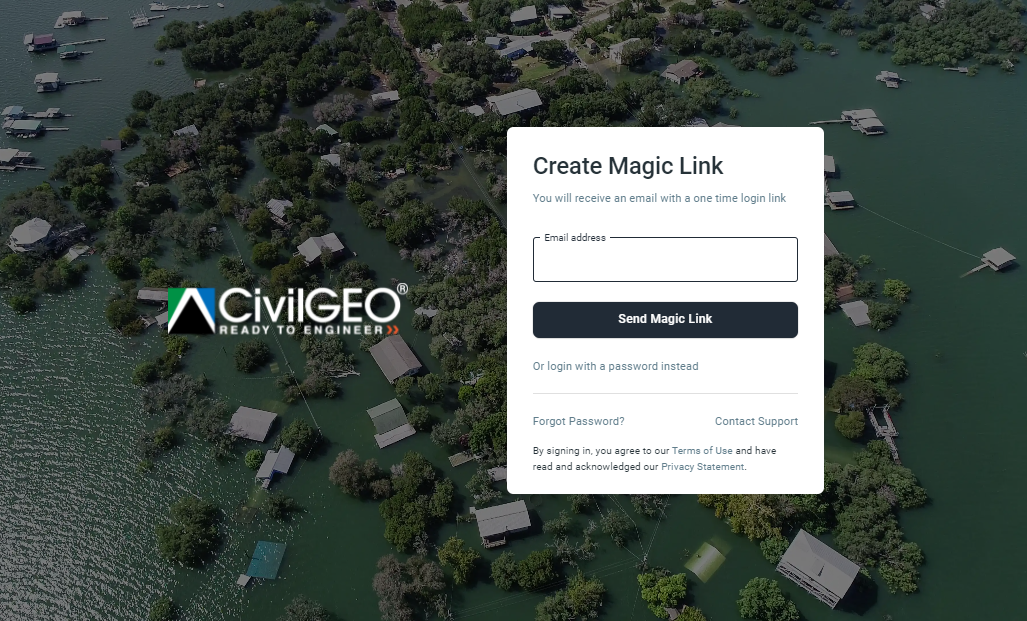
- Enter the registered email address and click on the [Send Magic Link] button.
![[Send Magic Link] button](https://knowledge.civilgeo.com/wp-content/uploads/2024/07/How-to-Sign-In-to-CivilGEO-Customer-Portal-Image-8.png)
- A magic link will be sent to your registered email address. Click on the link and the customer portal dashboard screen will be displayed in the Internet browser. The user can now access the customer portal.
Note: This one-time magic link is valid for 10 minutes only.
Refer to this article in our knowledge base to learn how to sign in to CivilGEO software.
If you are still encountering issues, please contact CivilGEO technical support. They will be glad to assist you further.