
This article describes how to download the latest release of CivilGEO software. The user can download the software using the following methods:
- Downloading from the CivilGEO Customer Portal
- Downloading from Within the Software
Downloading from the CivilGEO Customer Portal
- Log in to the Customer Portal using your registered email address and password. The portal dashboard will be displayed.

Refer to this article in our knowledge base to learn how to log in to the Customer Portal. - From the left side panel, click on Software Downloads and the following page will be displayed.
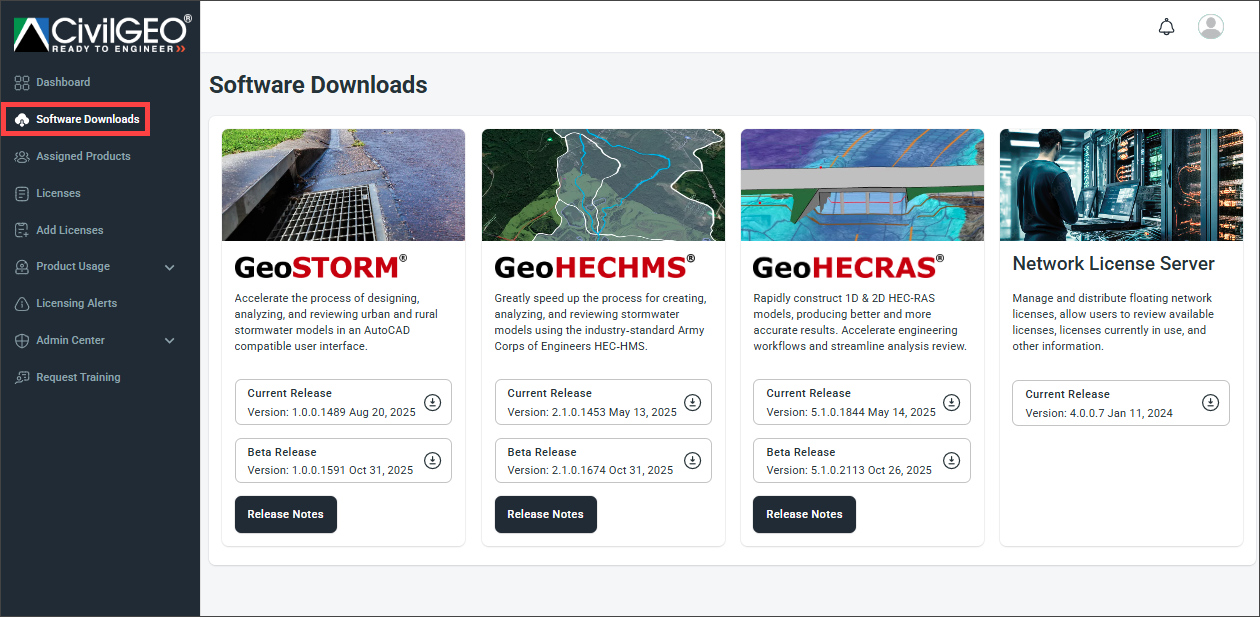
- On the Software Downloads page, you can download the Current Release and Beta Release installers of the products associated with your account. Note that the Network License Server software installer is only available for the Current Release.
- Click the Download button next to the required product to download the product installer.
- Once the download is complete, double-click on the downloaded installation file.
- The installation program will start up. Follow the instructions to install the software.
- The software will be installed.
Downloading from Within the Software
- Start up your CivilGEO software.
- From the Help ribbon menu, select the Check for Updates option.
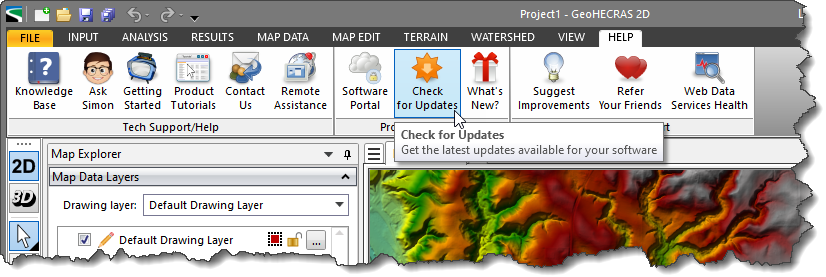
- The Software Update dialog box will be displayed, which shows that a new version of the software is now available for download. Click on the [Install Update] button.

Note that if the user is running the latest version of the software, then the following informational dialog box will be displayed.
- The software will start downloading the new version of the software. Once the download is complete, the following dialog box will be displayed. Click on the [Install] button to install the updated version of the software.

- The installation program will start up. Follow the instructions to install the software.
- The software will be installed.
If you are still encountering issues, contact our technical support. They will be glad to assist you further.