
The Delete 2D Mesh Zones command allows the user to selectively delete the 2D mesh zones created inside the 2D mesh.
The user can create 2D mesh zones inside a 2D mesh using the Draw or Assign 2D Mesh Zones command. To learn more about these commands, refer to this article in our knowledge base.
Follow the steps below to use the Delete 2D Mesh Zones command:
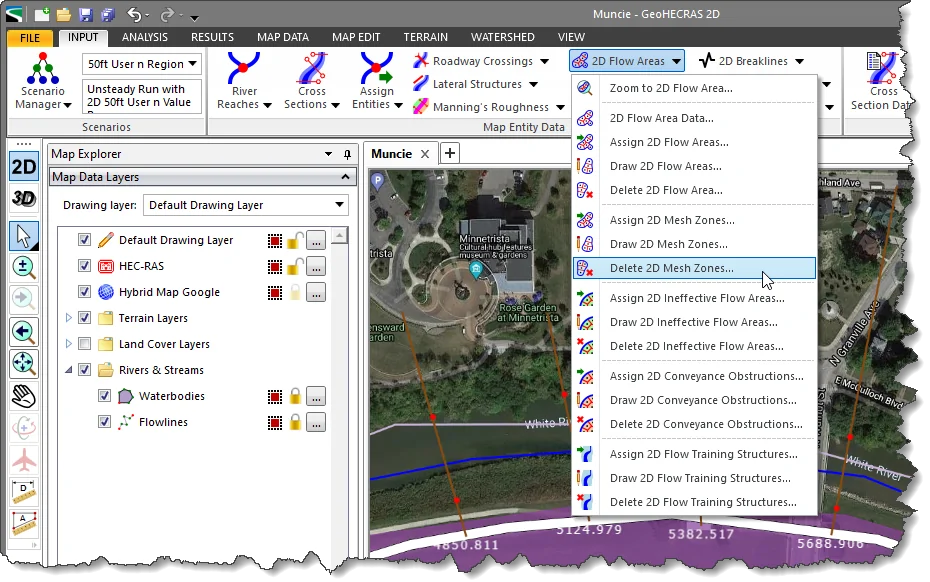
- From the Input ribbon menu, click the 2D Flow Areas dropdown menu and select the Delete 2D Mesh Zones command.
- The Delete 2D Mesh Zones dialog box will be displayed.
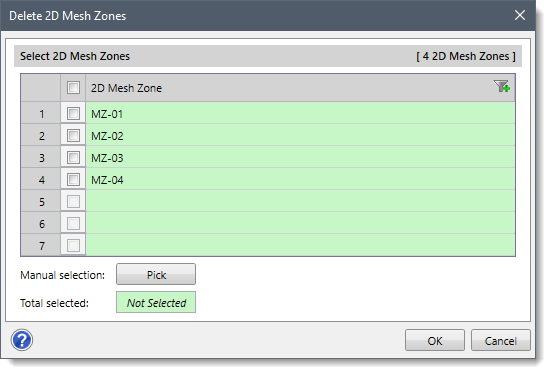
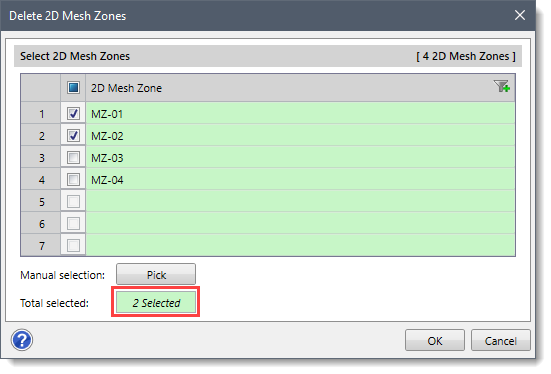
- From the Select 2D Mesh Zones section, check the checkboxes corresponding to the mesh zones you want to delete. Alternatively, click the [Pick] button to select the mesh zones from the Map View.
![Select 2D Mesh Zones section - [Pick] button](/wp-content/uploads/sites/25/2023/05/Delete-2D-Mesh-Zones-Updated-Image-3.png)
Note: To select/deselect all the mesh zones at once, check/uncheck the 2D Mesh Zone checkbox. - The number of selected mesh zones will be displayed in the Total selected read-only field.
- After selecting the mesh zones, click the [OK] button.
![[OK] button](/wp-content/uploads/sites/25/2023/05/Delete-2D-Mesh-Zones-Updated-Image-5.png)
- The following confirmational dialog box will be displayed.
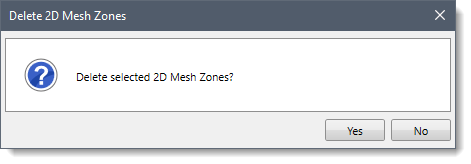
- Click the [Yes] button and the software will delete all the selected mesh zones.