
During the installation of a software product on any version of Windows, the software installer sometimes fails to run, and you may receive the following error message:
“Error 1603: A fatal error occurred during installation“
The error 1603 is a generic error code generated by Microsoft Windows Installer (MSI) that indicates a problem during the installation. This error is more likely to be system-related than software-specific.
You may receive this error due to one of the following factors:
- Short file name creation is disabled on the target computer system
- Corrupted Microsoft Visual C++ redistributable files
- Antivirus/Firewall settings are blocking the installation
- Windows TEMP folders are full
- Not enough disk space
This article describes how to troubleshoot the installation error 1603.
Enabling Short File Name Creation
The installation error 1603 can occur if short file name creation, i.e., eight-character file names with a three-character file extension (8.3 name creation), is disabled on the computer system.
Note that the short file name creation is enabled by default on Windows 10.
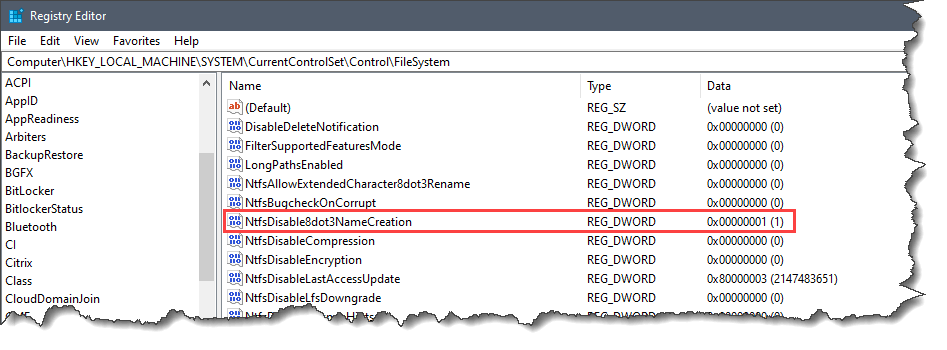
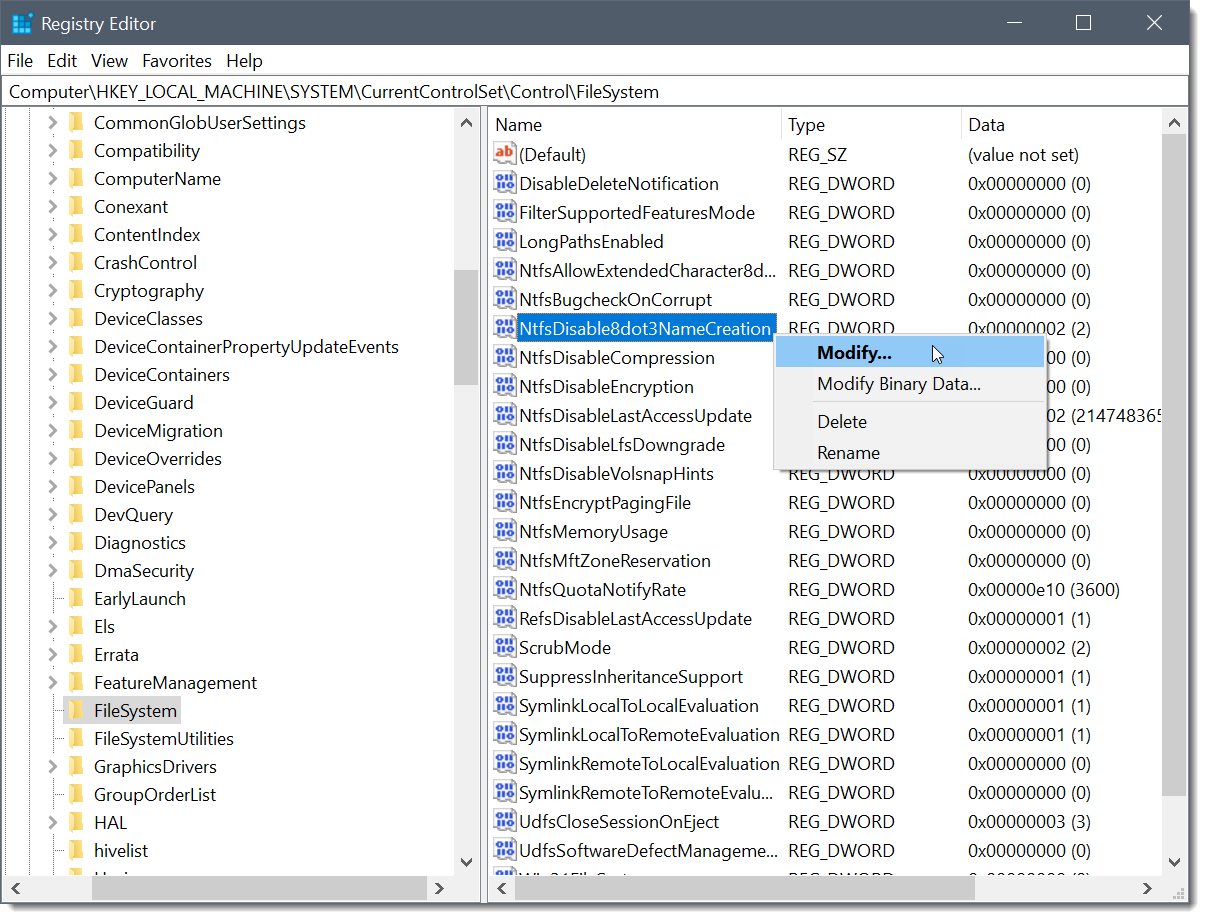
This issue can be easily corrected by changing the value of the NtfsDisable8dot3NameCreation registry entry to 0 or 2. A value of 1 or 3 indicates that this functionality is disabled.
| State Values | Description |
|---|---|
| 0 | 8.3 file creation is enabled on all volumes on the system |
| 1 | 8.3 file creation is disabled on all volumes on the system |
| 2 | 8.3 file creation is enabled per volume on the system (default) |
| 3 | 8.3 file creation is disabled on all volumes except the system volume |
To check the value of NtfsDisable8dot3NameCreation, navigate to the following registry entry:
HKEY_LOCAL_MACHINE\SYSTEM\CurrentControlSet\Control\FileSystem
 Disclaimer: This section contains information about modifying the registry. Improperly editing the registry can lead to software corruption and data loss. Before you modify the registry, make sure you back up the registry and understand how to restore the registry if a problem occurs. By proceeding beyond this point, you acknowledge that you understand the risks inherent in incorrectly editing the registry and that by proceeding, you agree to accept these risks.
To enable the short file name creation, follow the steps below:
- Display the Windows Run dialog box by pressing the Win + R keys (using the Windows key and the “R” key simultaneously) on the keyboard. This will display the Windows Run dialog box.
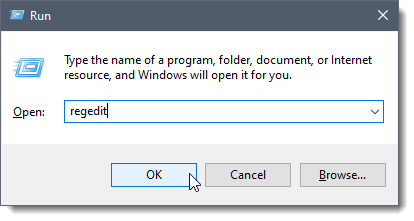
- Type regedit in the Open entry and then press the Enter key or click the [OK] button.
- Press Yes to allow changes to be made. The Registry Editor application will be displayed.
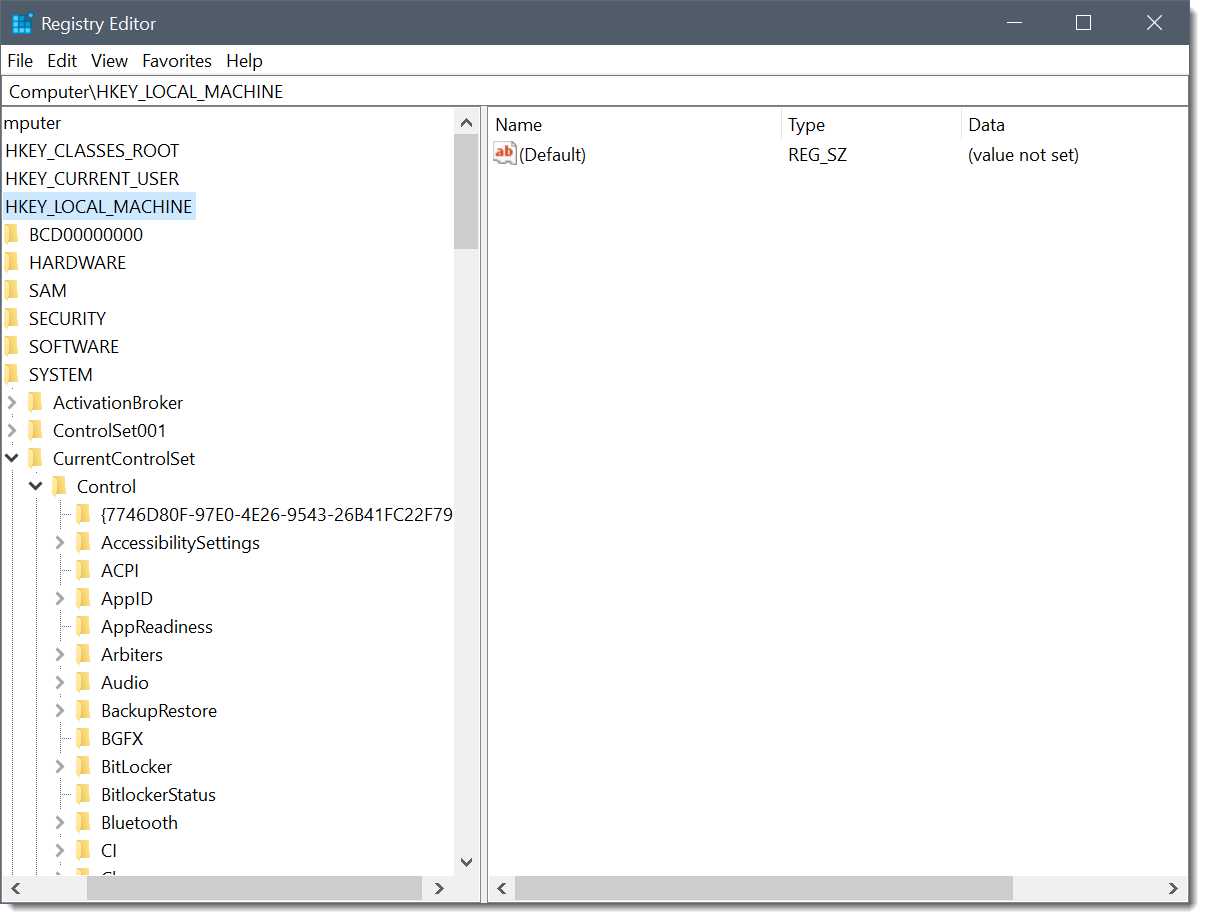
- Navigate to the FileSystem registry subkey by pasting or typing the following path into the Address Bar as shown below.
HKEY_LOCAL_MACHINE\SYSTEM\CurrentControlSet\Control\FileSystem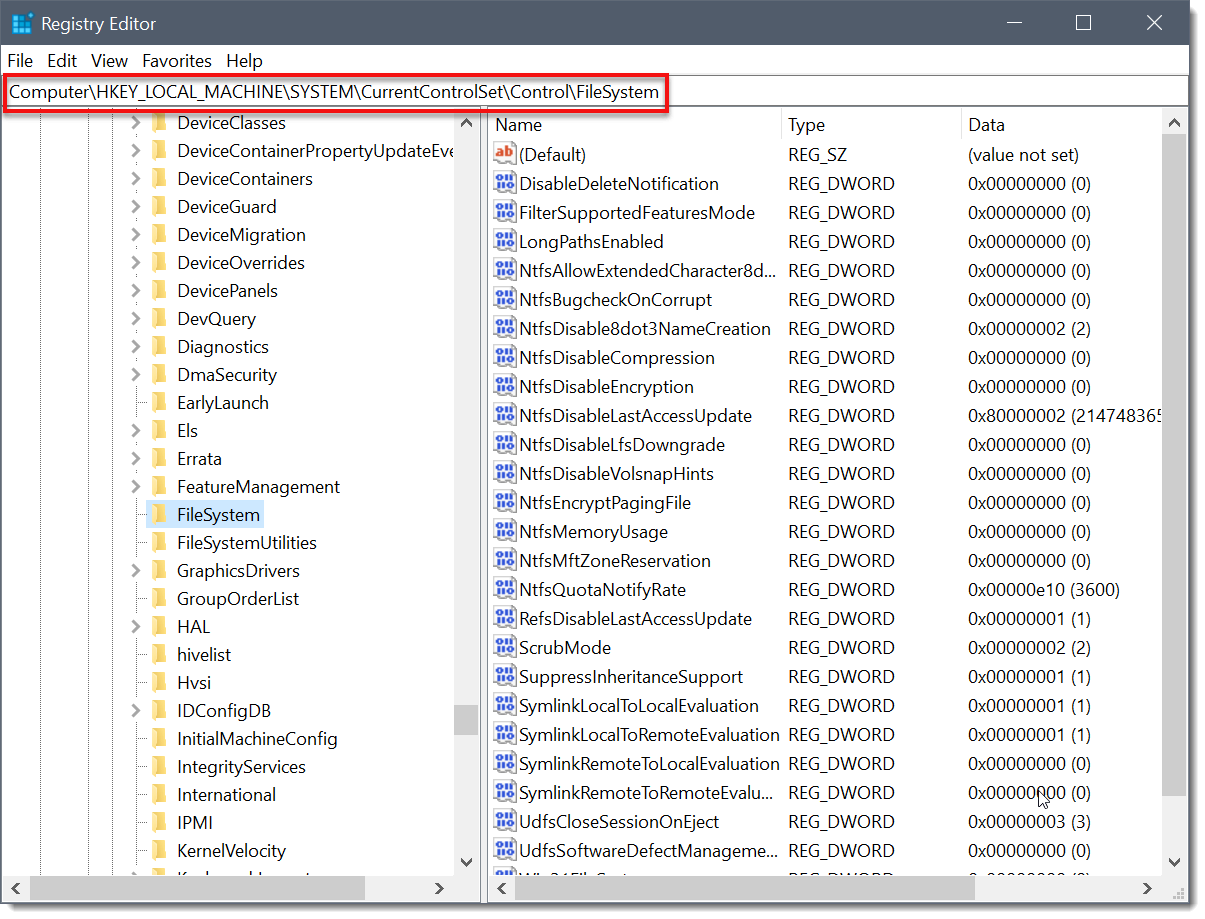
- Right-click NtfsDisable8dot3NameCreation and then select Modify from the displayed context menu.
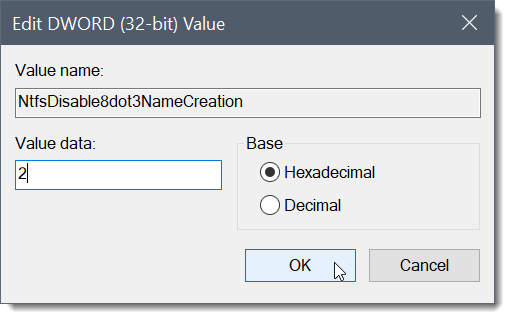
- The Edit DWORD (32-bit) Value dialog box will be displayed. In the Value data entry field, enter either 0 or 2 and then press the Enter key or click the [OK] button to submit the data.
Note that after restarting the host computer, the changes made to the Registry Editor will only be effective for new users and not for existing ones.
Reinstalling Microsoft Visual C++ Redistributable Files
The installation error 1603 can also occur if the Microsoft Visual C++ redistributable packages installed on the computer system are corrupted.
Follow the steps given below to fix this issue:
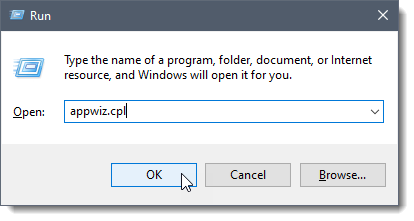
- Display the Windows Run dialog box by pressing the Win + R keys (using the Windows key and the “R” key simultaneously) on the keyboard. This will display the Windows Run dialog box.
- Type appwiz.cpl in the Open entry and then press the Enter key or click the [OK] button.
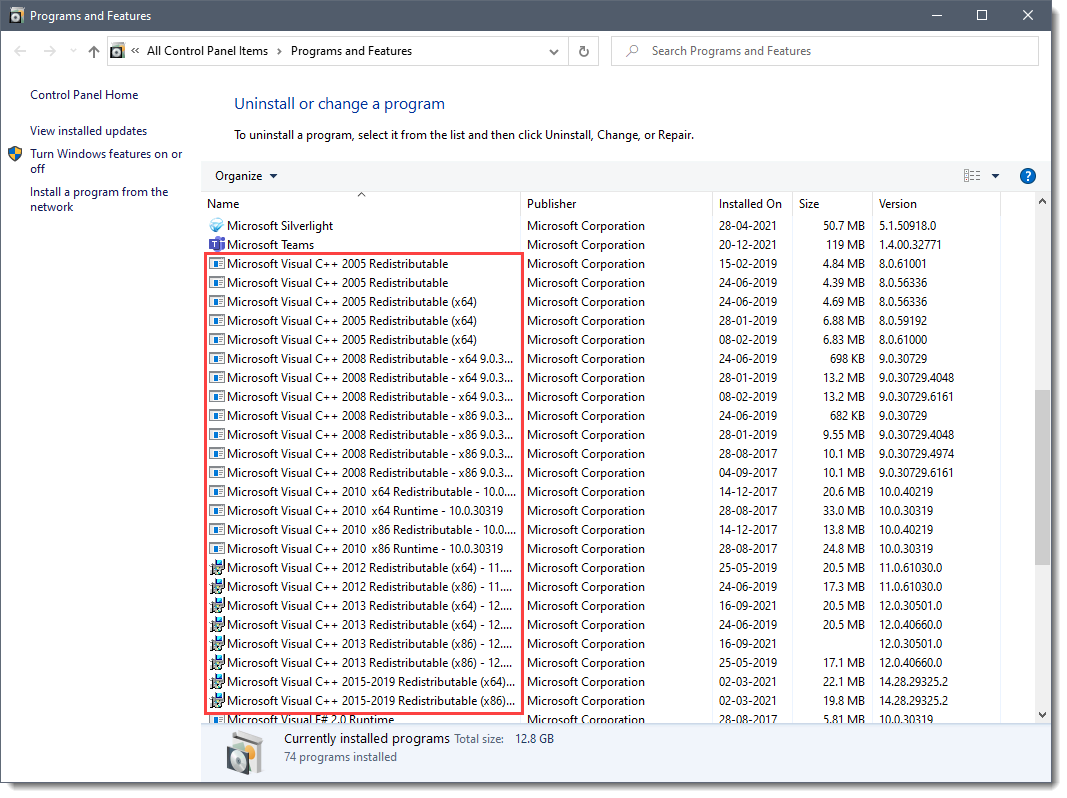
- Uninstall everything that shows Microsoft Visual C++ 2xxx Redistributable.
- Visit this link to download and save a fresh copy of Microsoft Visual C++ redistributable packages.
Notes:- For each Microsoft Visual C++ redistributable package, download the latest version only.
- Both the x86 and x64 versions are needed on 64-bit systems. Only the x86 versions will work on 32-bit systems
- Install the downloaded Microsoft Visual C++ redistributable packages.
Updating Antivirus Software
Sometimes error 1603 may also occur if antivirus software is not up to date. Please make certain that the antivirus software is up to date and/or temporarily disable your antivirus software until the installation of the software product is complete.
Cleaning up Windows TEMP Directory
The installer uses the system’s TEMP directory to extract files to and run from. The error 1603 might occur if the TEMP directory does not have enough available space or has too many files that may conflict with setup files.
Follow the steps below to clean up the TEMP directory and free up hard disk space:
- Display the Windows Run dialog box by pressing the Win + R keys (using the Windows key and the “R” key simultaneously) on the keyboard. This will display the Windows Run dialog box.
- Type %TEMP% in the Open entry and then press the Enter key or click the [OK] button.
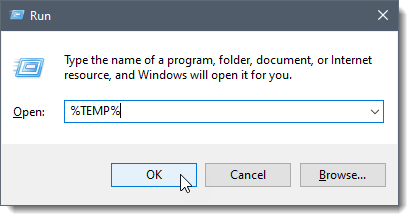
- In the TEMP directory, press CTRL+A to select all the files and folders contained in the TEMP directory and delete them.
Increasing Disk Space
The error 1603 might occur on a computer system that does not have enough disk space to install the setup and store rollback files. This space is required on the root drive even if the setup may be installed to a different drive. Check that there is enough space on the root drive of the computer system. This space is required by setup to decompress files in the temp directory and store rollback information in the Windows directory of the computer.
Refer to this article in our knowledge base to check the minimum storage requirement for installing CivilGEO’s software.
If there is not enough space available to install the software, remove some third-party software or run a disk cleaner utility to free up hard drive storage. Refer to this article from Microsoft to learn about various tips to free up disk space.