
The GeoSTORM software includes functionality that permits the user to perform analysis on multiple scenarios (plans) at the same time. The Multiple Scenarios command can be used to perform computations on multiple plans sequentially (one immediately after the other). The user can specify which scenarios to compute, and the order in which they should be computed.
This article describes how to use the Multiple Scenarios command in the GeoSTORM software.
Follow the steps below to use the Multiple Scenarios command:
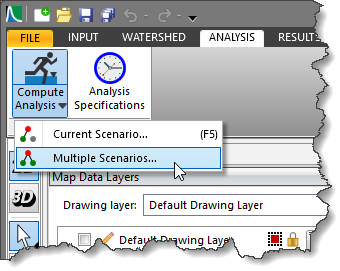
- From the Analysis ribbon menu, click the Compute Analysis dropdown menu and select the Multiple Scenarios command.
- The Compute Analysis – Multiple Scenarios dialog box will be displayed.
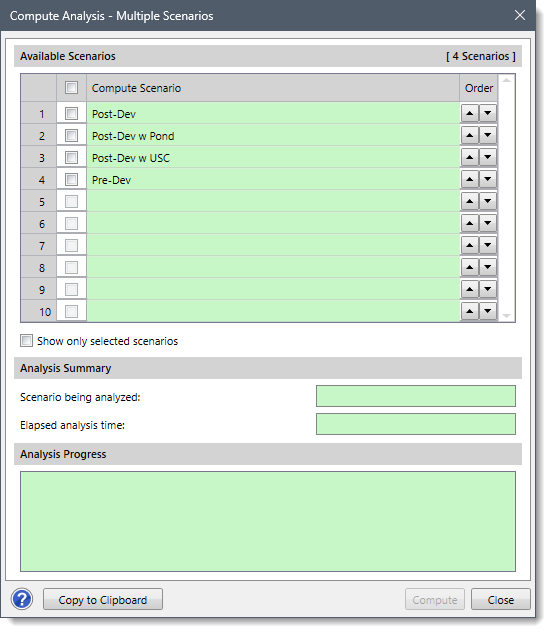
- From the Available Scenarios section, check the checkboxes corresponding to the scenarios that needs to be computed. The user can also navigate between the scenarios using the up and down arrow buttons.

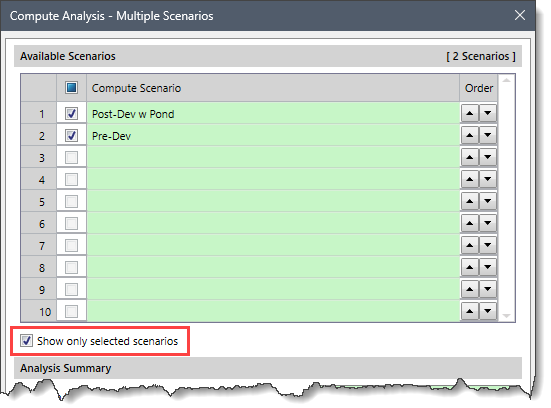
Note: To select/deselect all scenarios at once, check/uncheck the Compute Scenario checkbox option. - Check the Show only selected scenarios checkbox option to hide unselected scenarios in the data grid as shown below. By default, this checkbox option is unchecked.
- Click the [Compute] button to start the analysis.
- Once the analysis is performed, the name of the scenario selected for analysis is displayed in the Scenario being analyzed read-only field of the Analysis Summary section. In addition, the elapsed analysis time is displayed in the Elapsed analysis time read-only field.

- Once the analysis is complete, the status will be displayed in the Analysis Progress read-only section as shown below.

Note: If the Exit status is equal to 0, the analysis was successful. If the Exit status is equal to -1, the analysis failed, and the corresponding error(s)/warning(s) will be displayed under the Analysis Progress read-only section.
- The user can click the [Copy to Clipboard] button to copy the computed analysis progress into the clipboard.
Once the analysis has been computed successfully, the user can evaluate the results of the simulation to ensure that they are reasonable and consistent. The user can click the [Close] button to close the dialog box.