The CivilGEO software now utilizes an improved, easy-to-operate, more robust, and dedicated licensing technology.
Prerequisites
Before you start migrating your current software license to the new licensing technology, be sure to review the following:
- Make certain that the computer on which the network license server is installed has an internet connection.
- Make sure that there is a valid software license available on the computer.
- Make sure that you are logged in as an administrator (i.e., not a standard user).
- Make sure that the old License Server Configuration software is installed.
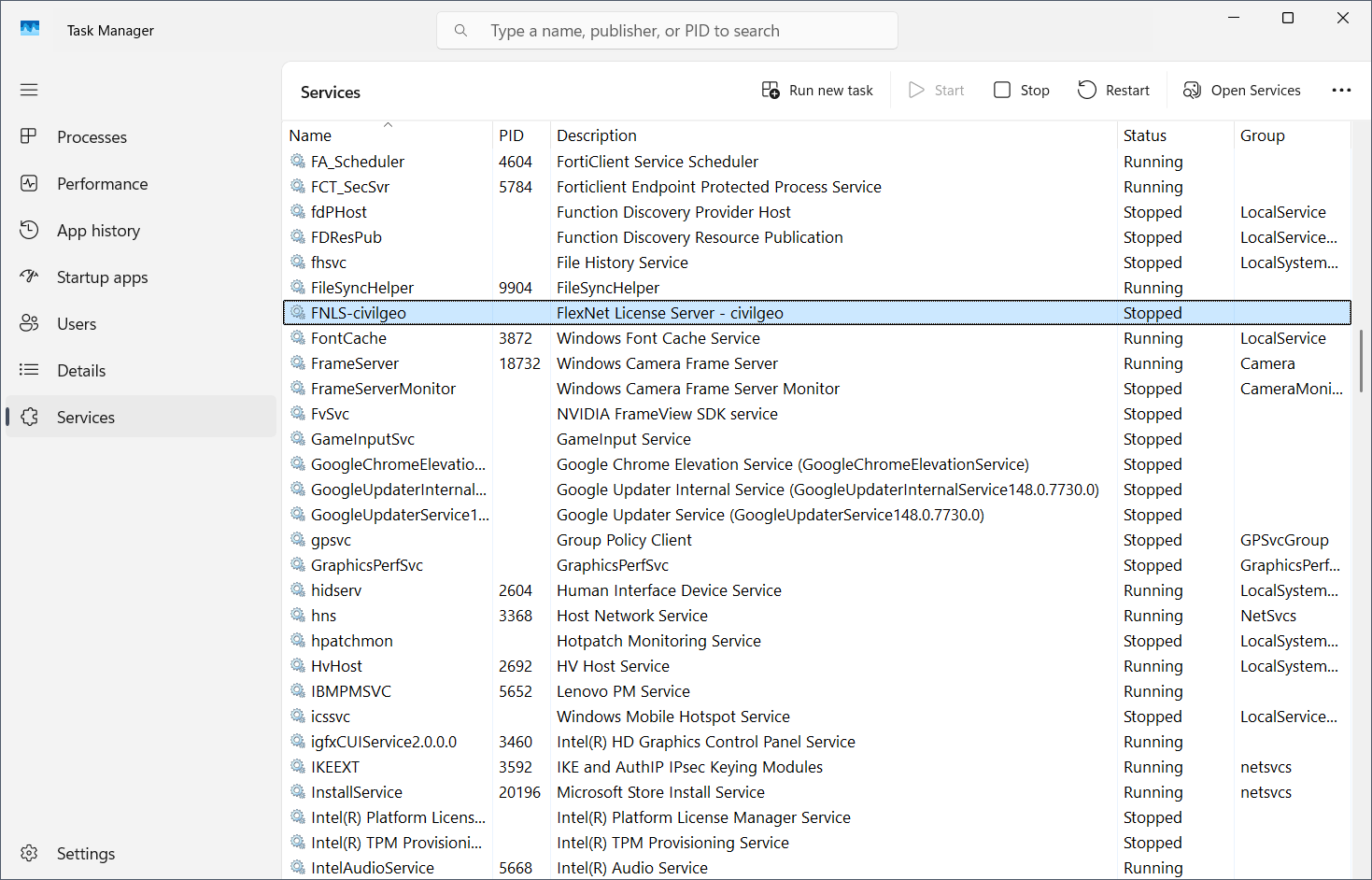
- Make sure that the FNLS-civilgeo service is running.
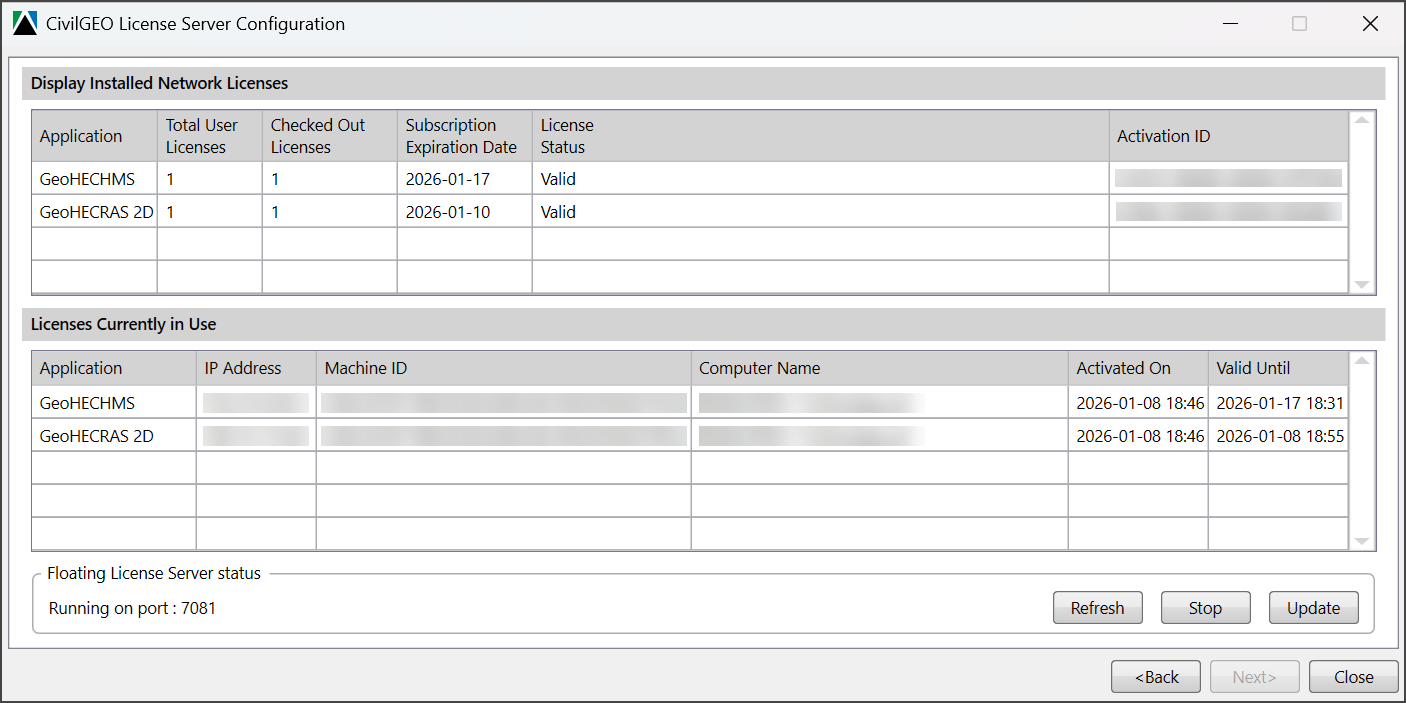
- Make sure that no users or devices are using the CivilGEO network license from the current network, i.e., all client machines are disconnected, and no active license exists. Note that the user can check the active devices in the CivilGEO License Server Configuration application.
Follow the steps below to migrate your current floating network licenses to the new technology:
- Launch the License Server Configuration software. If the current floating network license has not yet been migrated to the new licensing technology, the following Network License Migration Utility dialog box will be displayed.

- Enter the email address in the Email ID field that you want CivilGEO to use in licensing communication and then click the [Migrate] button. Note that CivilGEO will use the provided email ID for all future license-related communications.
![Floating Network License Migration - Clicking the [Migrate] button](https://knowledge.civilgeo.com/wp-content/uploads/2026/05/Migrating-Floating-Network-Licenses-to-New-Licensing-Technology-Img-4.png)
- This utility will automatically migrate your software license to the new licensing technology. This may take a couple of minutes.
- If the license migration is successful, the old license server will be uninstalled. The new license server will be automatically downloaded and installed on your system. This may take a couple of minutes. Note that if the software fails to automatically uninstall the old license server or install the new one, you can manually remove the old license server and install the new license server from this URL.
- Once successfully done, the Network License Migration Utility dialog box will close, and the software will launch.
Floating Network License Migration Failure
If the license migration fails, the software will display different error messages, as shown below. In these cases, the user must manually migrate the software using the Activation ID emailed to the previously provided email address. If you continue to encounter issues, contact our technical support.
Types of License Migration Failures
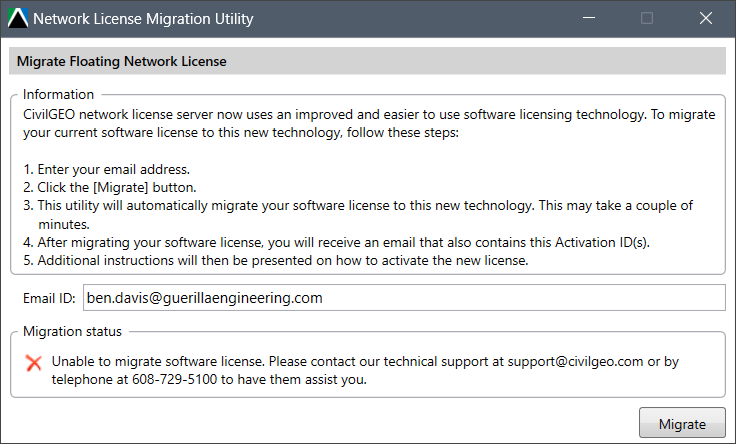
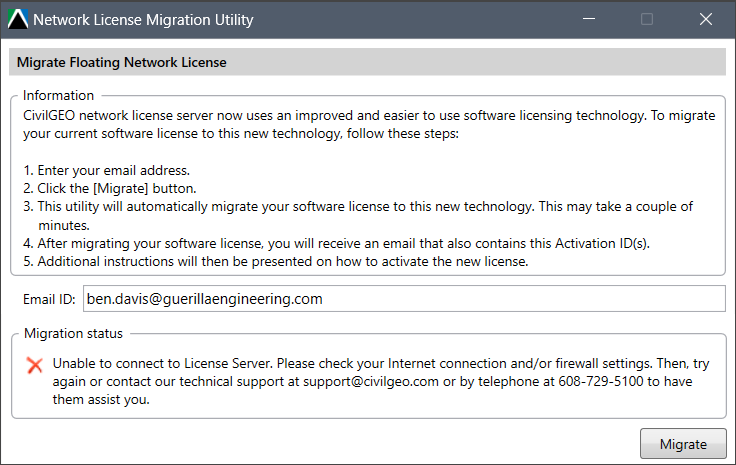
- If the following migration status is displayed in the Network License Migration Utility dialog box, then it means the software is unable to connect to the CivilGEO License Server. Please check your internet connection and/or firewall settings. If you continue to encounter issues, contact our technical support.
- If the following migration status is displayed in the Network License Migration Utility dialog box, then it means the software is unable to migrate the software license. Please contact our technical support.