
This article explains how to sign in to the CivilGEO software with your registered email address and password, and how to access the CivilGEO Customer Portal directly from within the software.
To sign in to the software, follow the steps below:
- Start up the CivilGEO software.
- From the title bar of the application window, click on the [Sign In] button.
![Click the [Sign In] button](https://knowledge.civilgeo.com/wp-content/uploads/2024/07/How-to-Sign-In-CivilGEO-Software-Image-1.png)
- The License Manager dialog box will be displayed, as shown below.
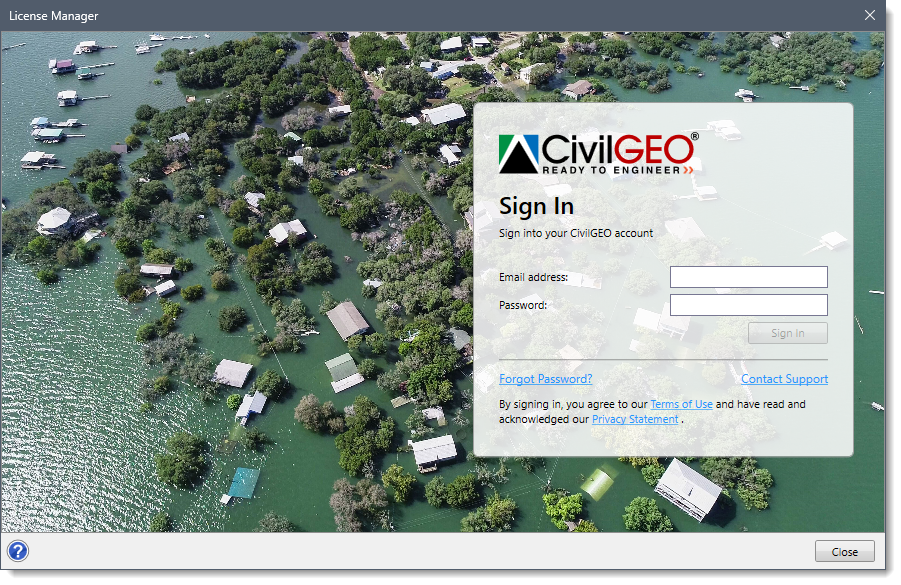
- Enter the registered email address and password. Then, click on the [Sign In] button.
- Once the sign in succeeds, the [License Manager] dialog box will be closed, and a confirmation will be displayed at the status line of the application window indicating that the license has been successfully acquired.

- The username will now be displayed at the title bar of the application window, as shown below.
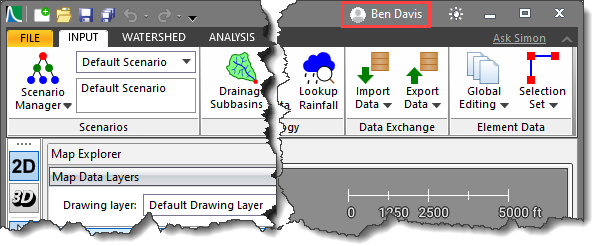
- On clicking the username at the title bar of the application window, the following will be displayed: the username, email address, company name, and software license version.

- The user can click the [View Account] button to directly access the CivilGEO Customer Portal in the Internet browser.
![Click on the [View Account] button](https://knowledge.civilgeo.com/wp-content/uploads/2024/07/How-to-Sign-In-CivilGEO-Software-Image-6.png)
Refer to this article in our knowledge base to learn more about the CivilGEO Customer Portal.
If you encounter any issues, please contact CivilGEO technical support. They will be glad to assist you further.