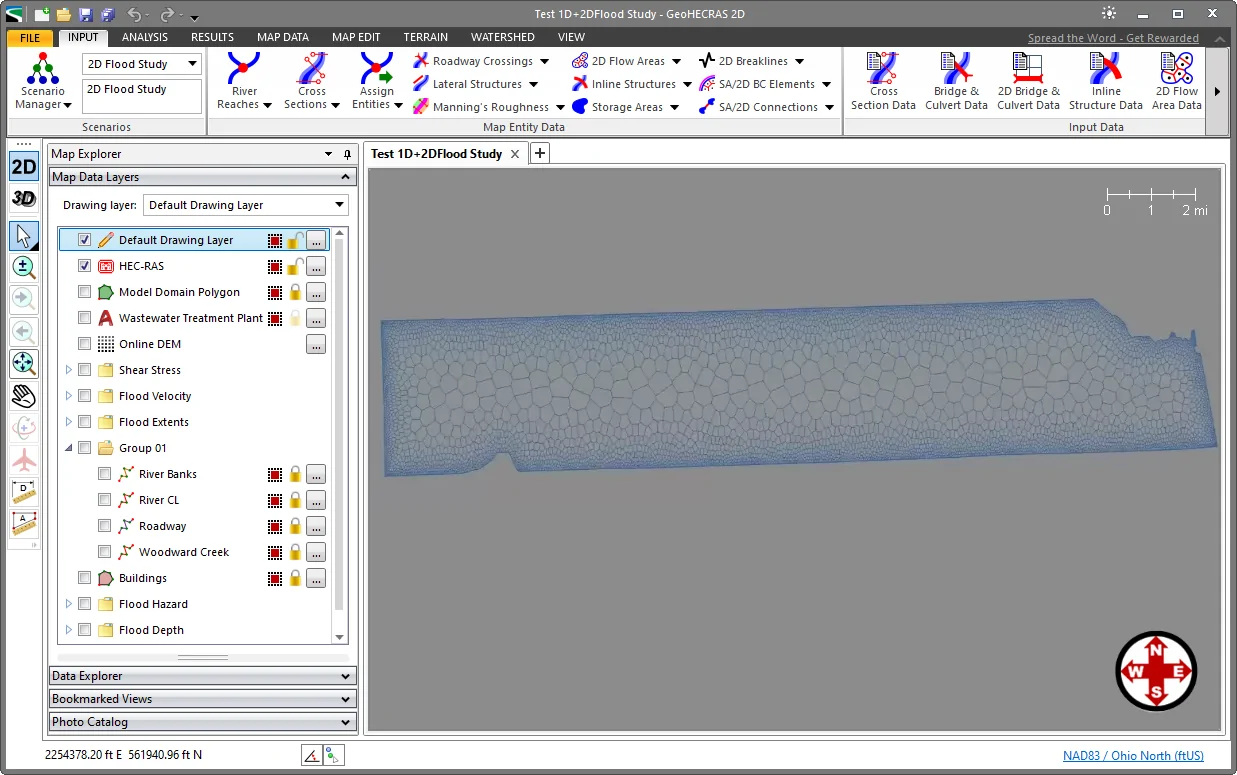
Creating a HEC-RAS 2D mesh that correctly represents the flow area being modeled can take some time due to the need to add the appropriate details to the model to represent the components and due to the terrain data to be included.
When working with complex meshes, there may be times when the mesh generation fails to run. When this situation occurs, the user will need to review the data that has been assigned to construct the mesh.
For example, the below 2D mesh fails to correctly generate an adaptive mesh.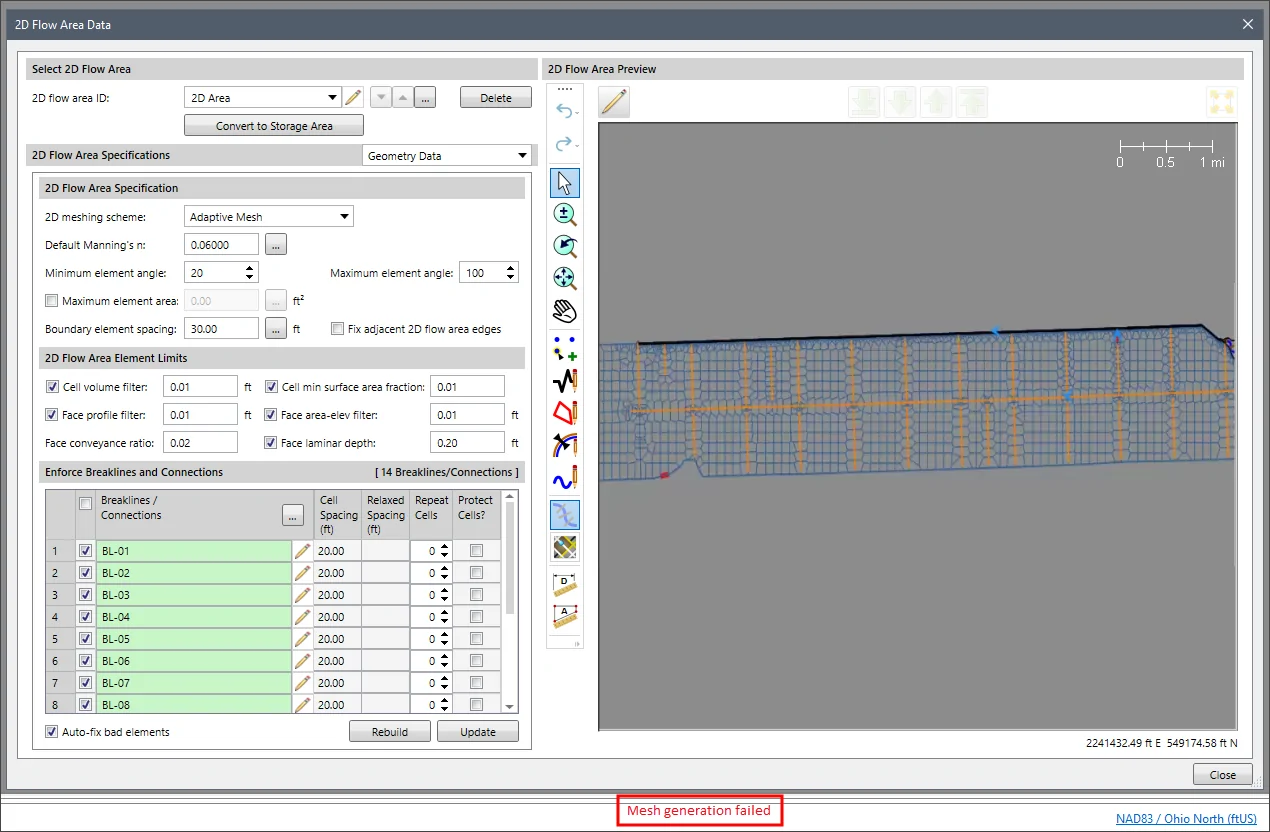
However, upon review of the polygon boundary used to define the mesh, it becomes evident that the upper boundary contains a large number of unnecessary and redundant vertices.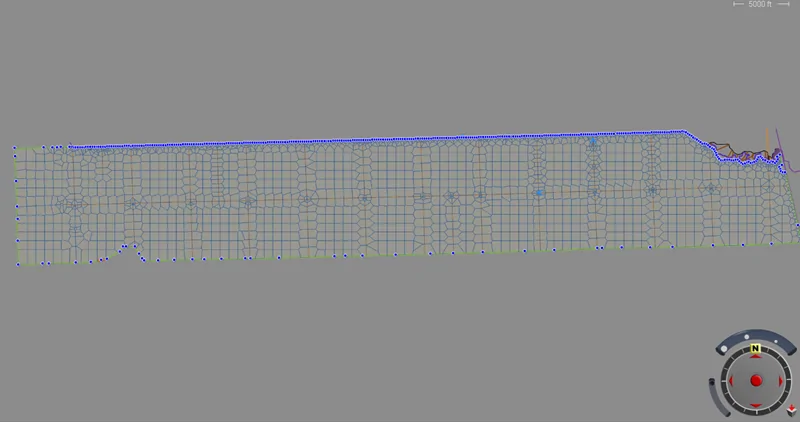
In this situation, the Simplify Elements command of the Map Edit ribbon menu can be used to correct this issue by removing the redundant vertices along the 2D mesh boundary.
The following sections describe how to perform this task.
Export 2D Flow Area Mesh as Shapefile
To be able to simplify the 2D flow area mesh boundary, it needs to be exported as a shapefile. Follow the steps below:
- From the Input ribbon menu, click the Export Data dropdown menu, and then select the Export HEC-RAS to Shapefiles command.
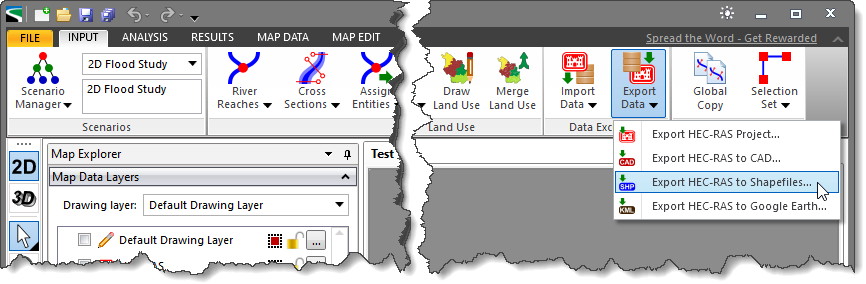
- The Export HEC-RAS to Shapefiles dialog box will be displayed.
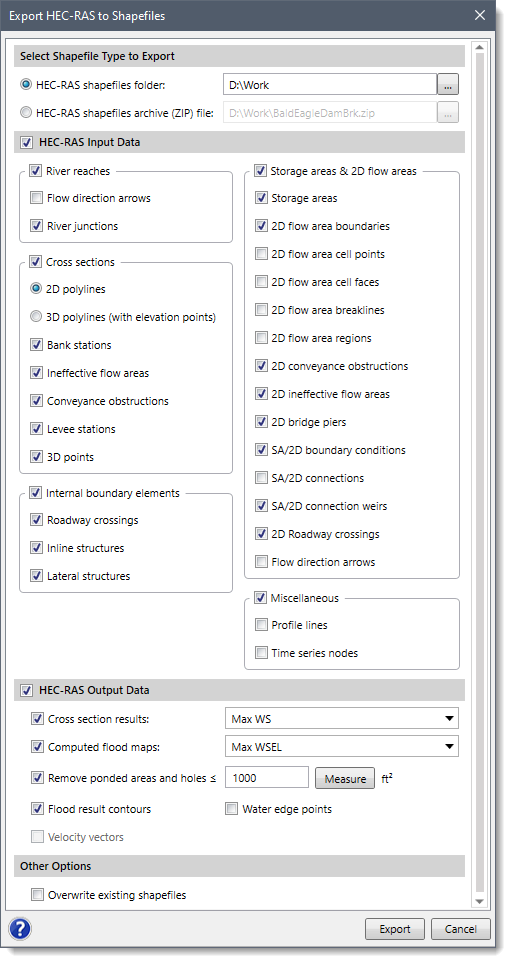
The Export HEC-RAS to Shapefiles dialog box is used to export a HEC-RAS model to GIS shapefiles allowing the HEC-RAS model data to be shared with GIS software. Refer to this article in our knowledge base for further discussion on how to export the HEC-RAS elements. - Click the […] button adjacent to the HEC-RAS shapefiles folder entry and then choose the directory to save the exported shapefiles.
- Under the HEC-RAS Input Data section, turn off all the HEC-RAS element checkboxes except for the 2D flow area boundaries checkbox.
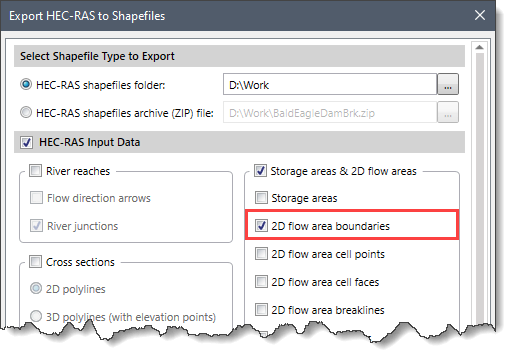
- Click the [Export] button.
![[Export] button](/wp-content/uploads/sites/25/2019/02/Export-HEC-RAS-to-Shapefiles-Image-6-.png)
- The software will export the 2D flow area mesh boundary as a polygon shapefile.
Import Polygon Shapefile
Next, we need to import the polygon shapefile that was exported. Follow the steps below to import the polygon shapefile.
- Right-click on the Map Data Layers panel and then select Add Layers from the displayed context menu.
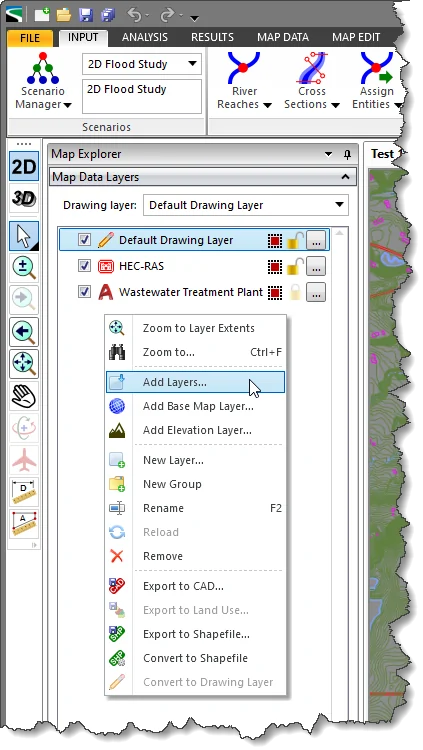
- Browse and select the exported polygon shapefile, and then click the [Open] button.
![Add Layers - [Open] button](/wp-content/uploads/sites/25/2019/02/Export-HEC-RAS-to-Shapefiles-Image-8.png)
- The selected shapefile should be loaded and correctly overlay the HEC-RAS model area.
Polygon Simplification
The imported polygon shapefile will be used to recreate the 2D flow area for the HEC-RAS model. However, the number of vertices that define the shapefile polygon first needs to be simplified. For this, the Simplify Elements command can be used. Refer to this article in our knowledge base to learn how to use the Simplify Elements command.
Upon using the Simplify Elements command, the polygon will be simplified, reducing the number of redundant vertices used to describe the polygon boundary.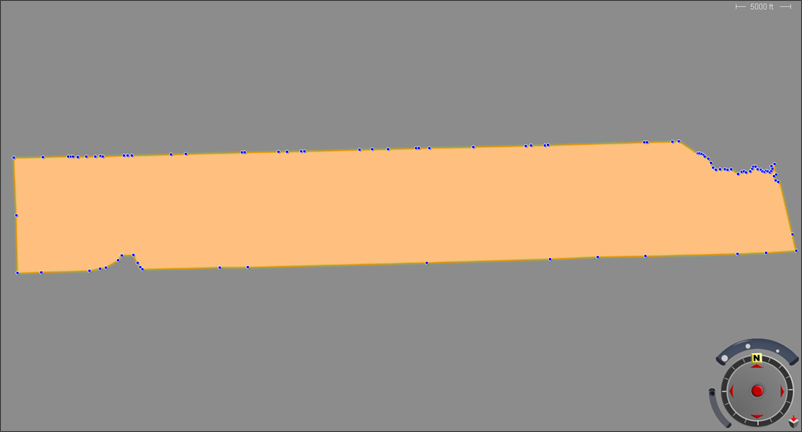
Assigning Polygon as 2D Flow Area Mesh
After simplifying the polygon, it can be used to define the 2D mesh. In HEC-RAS, generation of the 2D mesh for 2D modeling begins with the 2D flow area. The 2D flow area defines the boundary for which the computation will occur. The user can use the Assign 2D Flow Areas command for assigning the simplified polygon as a 2D flow area. Refer to this article in our knowledge base to learn how to use the Assign 2D Flow Areas command.
After the 2D flow area polygon boundary is created, the next step is to begin generating the 2D mesh. Follow the steps below to generate the 2D mesh:
- Double-click on the 2D flow area on the Map View to display the 2D Flow Area Data dialog box.
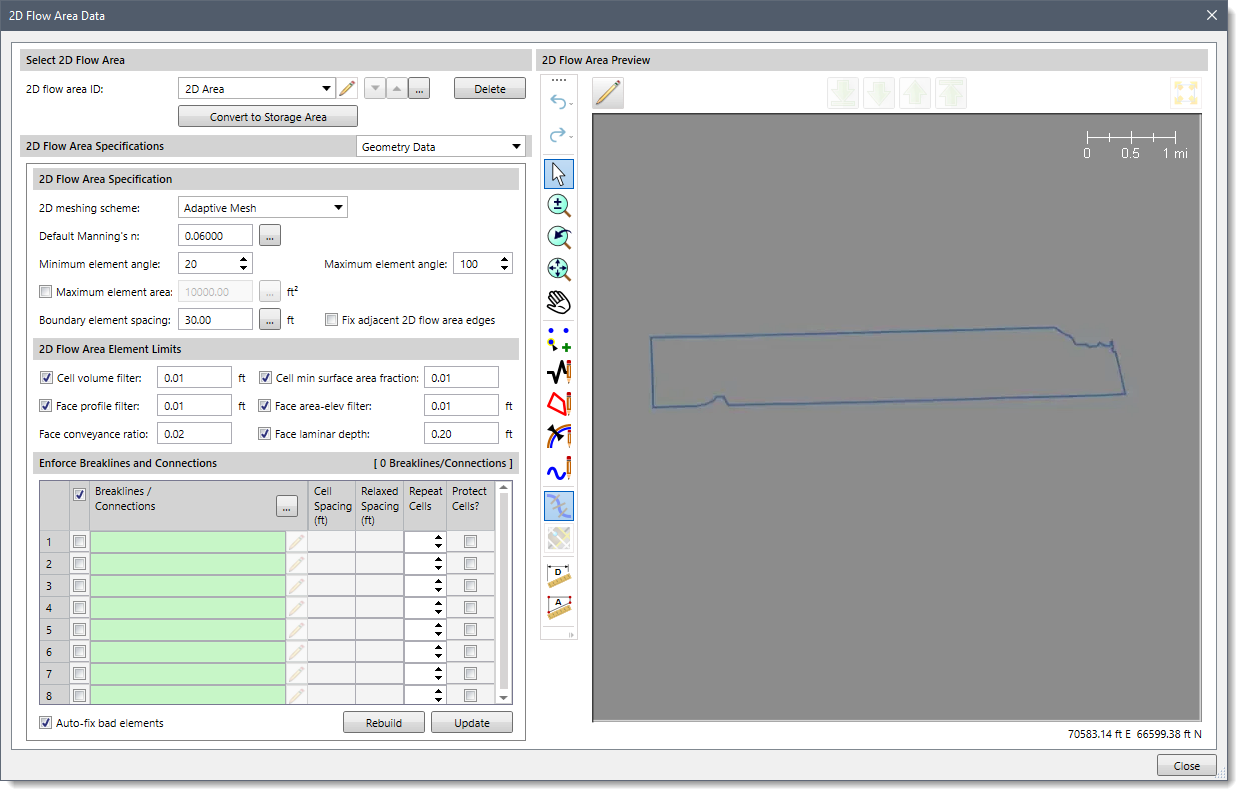
- Click the [Update] button.
![[Update] button](/wp-content/uploads/sites/25/2019/02/Export-HEC-RAS-to-Shapefiles-Image-11.png)
- The software will generate the 2D mesh without the previously reported error.