
The Rational Method and Modified Rational Method require that the user define the Runoff Coefficient (RC) for each subbasin in order to compute runoff amount given storm intensity. In GeoSTORM software, the Compute RC command can be used to utilize the land use layer, soil map layer, and subbasin average slope to determine a composite runoff coefficient for each subbasin.
Follow the steps below to use the Compute RC command:
- From the Watershed ribbon menu, select the Compute RC command.

- The Compute RC dialog box will be displayed, as shown below.
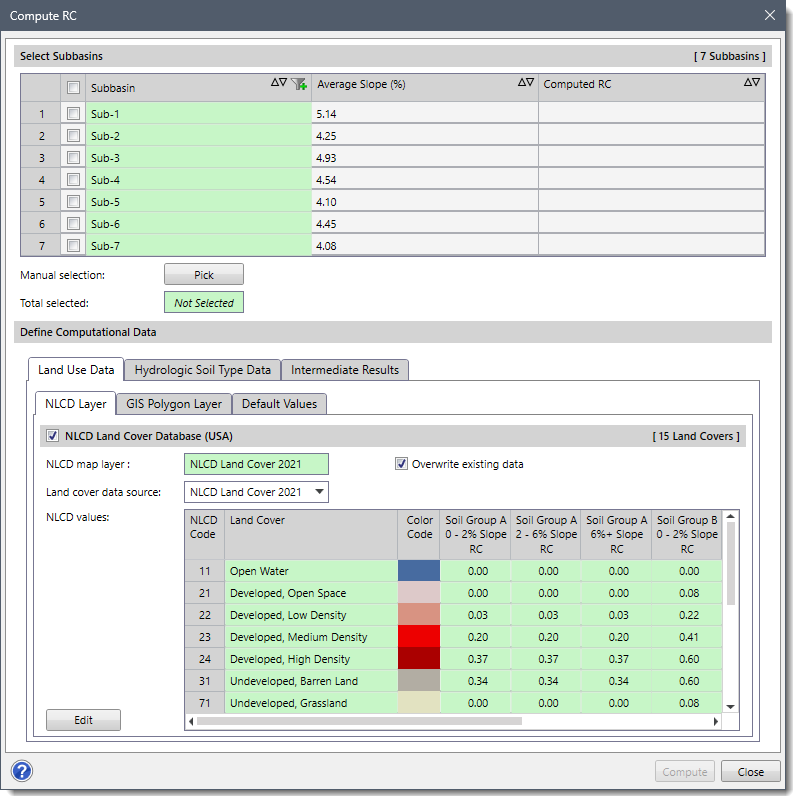
The following sections describe how to use the Compute RC command and interact with the above dialog box.
Selecting Subbasins
The Select Subbasins section allows the user to select the subbasins for which the runoff coefficient value is to be computed. If a subbasin is already selected on the Map View prior to running this command, the same subbasin will be shown selected within the given data grid table.
Alternatively, the user can click the [Pick] button to manually select the subbasins from the Map View. The Compute RC command will temporarily disappear, allowing the user to select the desired subbasins. Once finished, press the [Enter] key or right-click and choose Done from the displayed context menu.
The dialog box will be redisplayed and the total number of selected subbasins will be displayed in the Total selected read-only field, as shown below.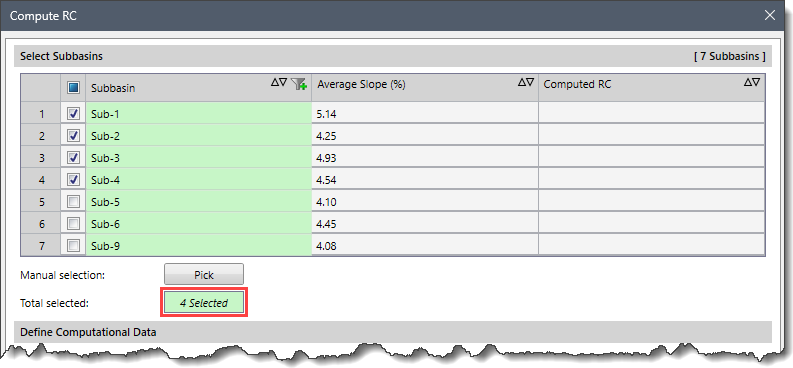
Note that the user can select multiple subbasins from the Map View prior to running the Compute RC command by holding the [Ctrl] key while selecting the desired subbasins.
Defining Computational Data
The Define Computational Data section allows the user to define the land cover data and hydrologic soil group data used for computing the runoff coefficient for the selected subbasins. This section contains three panels:
- Land Use Data
- Hydrologic Soil Type Data
- Intermediate Results
Land Use Data
The Land Use Data panel contains three subpanels, which are described below:
NLCD Layer
The NLCD Layer subpanel is used to determine land type with data from the National Land Cover Database (NLCD), which is represented by 75 ft cells throughout the USA. The NLCD map service is used to determine the runoff coefficient based upon the hydrologic soil group (i.e., A, B, C, D) as shown below.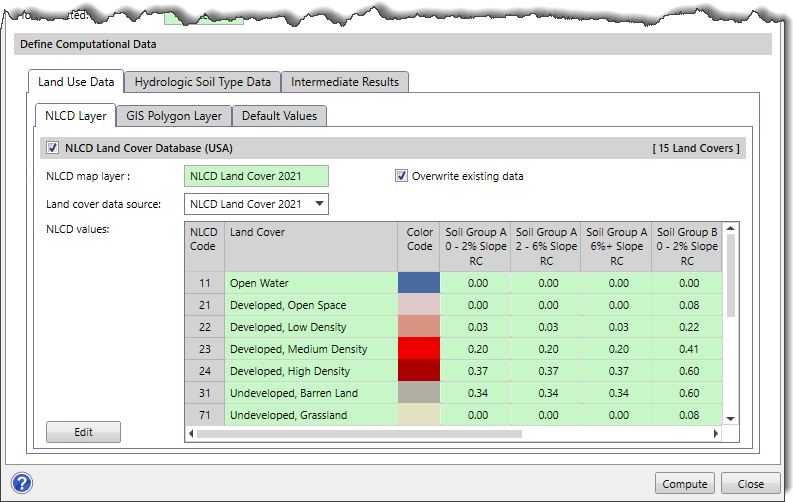
Notes:
- This subpanel will only be displayed for a project having an assigned Coordinate Reference System (CRS).
- For countries other than the USA, the software provides similar land cover databases. The content of this data panel will change to represent the one that is available for the project area. Currently, our software supports Africa, Australia, Canada, Europe, India, New Zealand, and the USA land cover database.
The Land cover data source dropdown combo box allows the user to select which land use data source to use for the newly created land cover layer. By default, the software selects the most recent land use data.
The following options are available in the Land cover data source dropdown combo box:
- NLCD Land Cover 2021
- NLCD Land Cover 2019
- NLCD Land Cover 2016
- NLCD Land Cover 2013
- NLCD Land Cover 2011
- NLCD Land Cover 2008
- NLCD Land Cover 2006
- NLCD Land Cover 2004
- NLCD Land Cover 2001
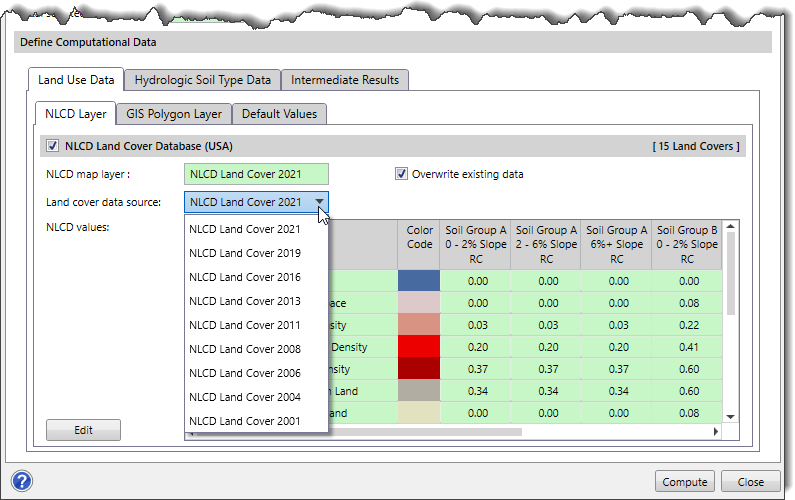
If the “Overwrite existing data” checkbox option is checked, then the new land cover data selected in the Land cover data source dropdown combo box will overwrite the existing land cover data (if one exists).
Additionally, the user can click the [Edit] button to display the NLCD Land Cover dialog box that provides an editable data grid, allowing the user to change the RC values of different hydrologic soil groups.
After editing the required cell values, the user can click the following buttons:
- [Default] – This button will restore the default RC values and close the dialog box.
- [Save] – This button will save the user changes and close the dialog box.
- [Cancel] – This button will discard any user changes and close the dialog box.
Note that the NLCD Layer subpanel will be replaced by other subpanels based on the modeling region, as described below:
| Region | Displayed Land Cover Layer | Land Cover Description |
|---|---|---|
| USA | NLCD Land Cover Database (USA) | Contains seamless land cover information from the national land cover database published in 2016 by the Multi-Resolution Land Characteristics (MRLC) Consortium. |
| Canada | Land Cover Database (Canada) | Contains a 30 m land cover map of Canada generated by Canada Centre for Remote Sensing (CCRS). |
| Africa | Land Cover Database (Africa) | Contains land cover map of Africa at 20 m based on 1 year of Sentinel-2A observations from December 2015 to December 2016. |
| Europe | CLC Land Cover Database (Europe) | Contains Corine Land Cover 2018 (CLC2018) datasets produced within the frame of the Copernicus Land Monitoring Service referring to land cover / land use status of year 2018. |
| India | LULC Land Cover Database (India) | Contains Land Use / Land Cover (LULC) for India on 1:250,000 scale and published under Bhuvan-Thematic Services of the National Remote Sensing Centre (NRSC), Indian Space Research Organization (ISRO). |
| Australia | DLCD Land Cover Database (Australia) | Contains the dynamic Land Cover Dataset of Australia i.e. the first nationally consistent and thematically comprehensive land cover reference for Australia. It is the result of a collaboration between Geoscience Australia and the Australian Bureau of Agriculture and Resource Economics and Sciences, and provides a base-line for identifying and reporting on change and trends in vegetation cover and extent. |
| New Zealand | LCDB Land Cover Database (New Zealand) | Contains the New Zealand Land Cover Database (LCDB), i.e. a multi-temporal, thematic classification of New Zealand’s land cover. |
GIS Polygon Layer
The GIS Polygon Layer subpanel is used for user-defined land use polygon data. The land use data can either directly assign the RC value for each polygon or provide a standard land use type for the software to cross reference.
When the user selects the Standardized land use type attribute field radio button option, then the Soil Group RC attribute field dropdown combo box entries become enabled. The Soil Group RC attribute field dropdown combo box entries show text, float, and integer fields contained within the selected GIS land use layer. Then, the software determines which RC value should be applied based upon the corresponding soil type and RC attribute field value.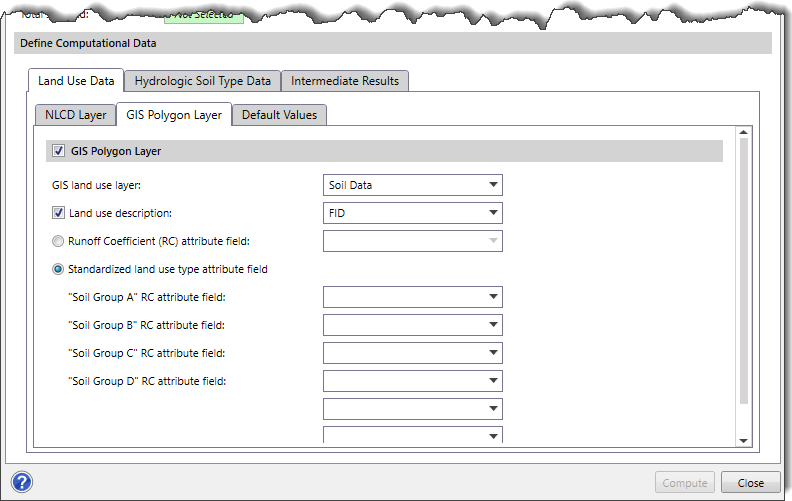
Default Values
The Default Values subpanel allows the user to either define the default RC value or leverage Use standardized land use RC values option for the software to cross-reference. The user can enter integer or float values into these default value fields.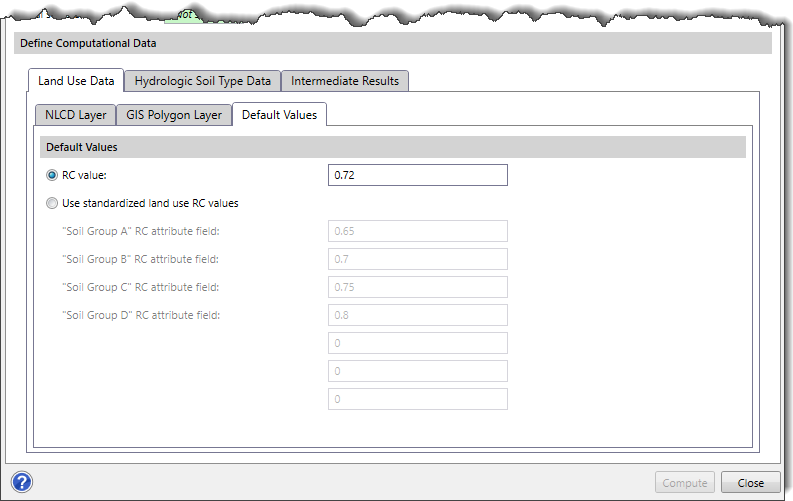
Hydrologic Soil Type Data
The Hydrologic Soil Type Data panel contains three subpanels, which are described below:
NRCS Layer
The NRCS Layer subpanel allows the user to utilize data from the NRCS Soil Survey Database for determining the hydrologic soil group data for the watershed region.
Note that for countries other than the USA, the software provides similar soil survey databases. The content of this data panel will change to represent the one that is available for the project area. Currently, our software supports Africa, Australia, Canada, Europe, India, New Zealand, and the USA land cover database.
The NRCS Layer subpanel will be replaced by other subpanels based on the modeling region, as described below:
| Region | Displayed Soil Group Data Layer | Soil Group Data Description |
|---|---|---|
| USA | NRCS Soil Survey Database (USA) | Contains the Soil Survey Geographic (SSURGO) data by the United States Department of Agriculture’s Natural Resources Conservation Service (NRCS). |
| Canada | SLC Soil Survey Database (Canada) | Contains the national scale thematic dataset displaying the classification of soils in terms of provincial Detailed Soil Surveys (DDS) polygons, Soil Landscape Polygons (SLCs), Soil Order, and Great Group. |
| Africa | Soil Survey Database (Africa) | Contains the harmonized soil data showing the soil classes at the continent scale produced for the Soil Atlas of Africa. |
| Europe | ESDB Soil Survey Database (Europe) | Contains the European Soil Database (ESDB), the harmonized soil database for Europe, also extending to Eurasia. |
| Global | Soil Survey Database (Global) | Contains the Hydrologic Soil Groups (HYSOGs250m) with worldwide coverage for curve number-based runoff modeling. This dataset from the Oak Ridge National Laboratory Distributed Active Archive Center (ORNLDAAC) provides a globally consistent, gridded dataset of hydrologic soil groups (HSGs) with a geographical resolution of 1/480 decimal degrees, corresponding to a projected resolution of approximately 250 x 250 meters. These data were developed to support USDA-based curve-number runoff modeling at regional and continental scales. |
GIS Polygon Layer
The GIS Polygon Layer subpanel is used for the user-defined soil map polygon data. The soil map data provides hydrologic soil group data for each defined polygon.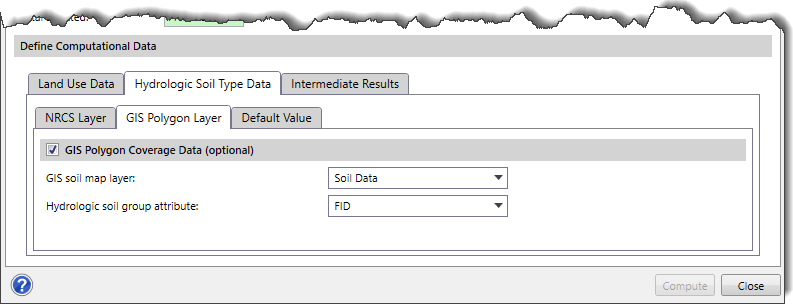
Default Value
The Default Value subpanel is used to define a default hydrologic soil type for the software to cross-reference, as shown below.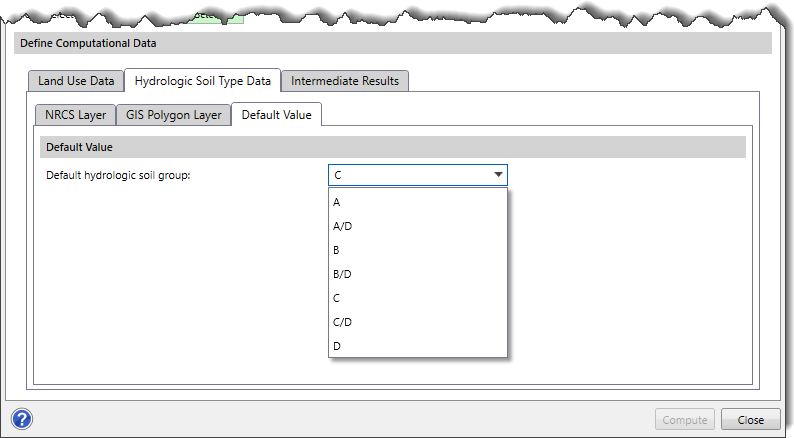
Intermediate Results
The Intermediate Results panel allows the user to compute the intermediate results of the selected subbasin(s) in a shapefile, save the results at the user-specified location and load the results in a project.
By default, the content of this panel is disabled (i.e., grayed out). Select the Compute Intermediate Results checkbox to enable the content of this panel.
Clicking the […] browse button adjacent to the Intermediate results shapefile path entry field allows the user to define the location where the intermediate computed results are to be saved.
Note that the Load intermediate results checkbox option must be checked to load the computed intermediate results in the specified project.
Computing Runoff Coefficient
After defining the data in the Compute RC dialog box, click the [Compute] button to compute the runoff coefficient for the selected subbasin(s).
Once the runoff coefficients are computed, the values will be shown in the Computed RC column, which can be further edited by the user, as shown below.
In addition, all stormwater methods that require runoff coefficients will have the data populated into their respective fields within the software.
In the Map Data Layers panel, the software provides a data legend for computed intermediate results of each subbasin that lists the land covers included within that layer. The user can expand the layer to view the data legend.
Click the […] button adjacent to the intermediate results computed for the subbasin(s) to display the GIS polygon properties dialog box. This allows the user to adjust the color and style of the polygon(s) according to the land and soil type. To learn more about the GIS polygon properties dialog box, refer to this article in our knowledge base.