
In GeoSTORM software, the Assign Terminal Outfall Elevations command allows the user to assign elevations to the selected terminal outfall(s). This command computes the elevation of an individual terminal outfall(s) based on the project’s terrain surface.
Follow the steps below to use the Assign Terminal Outfall Elevations command:
- From the Input ribbon menu, click the Terminal Outfalls dropdown menu and select the Assign Terminal Outfall Elevations command.
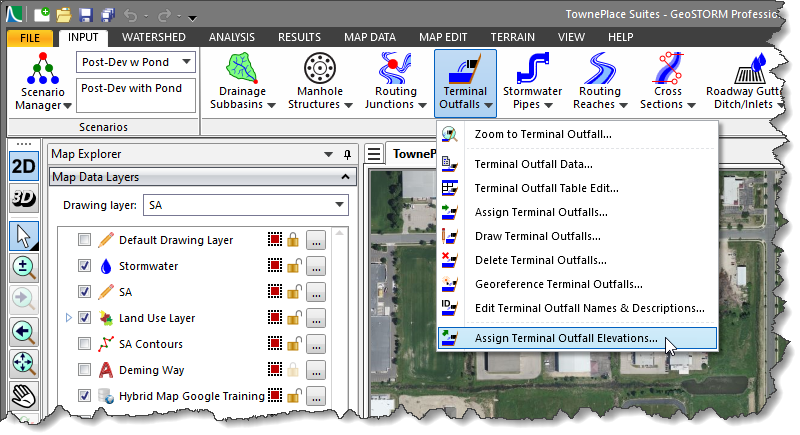
- The Assign Terminal Outfall Elevations dialog box will be displayed, as shown below.

The following sections describe how to use the Assign Terminal Outfall Elevations command and interact with the above dialog box.
Selecting Outfalls
The Select Outfalls section allows the user to select one or multiple terminal outfall(s) for elevation assignment. This section includes a table listing all terminal outfall(s) in the current project scenario, as shown below.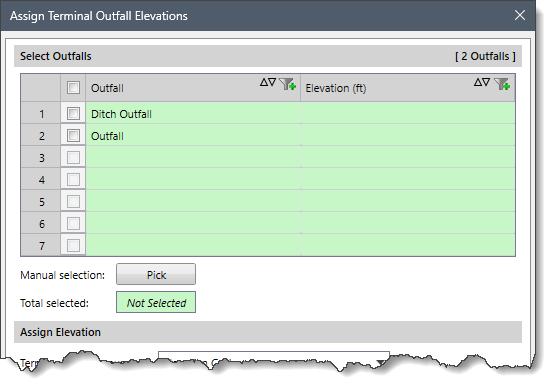
The user can select the terminal outfall(s) using any of the following methods for assigning elevations:
- Check the checkboxes corresponding to each terminal outfall in the Select Outfalls
- Click the [Pick] button, the Assign Terminal Outfall Elevations dialog box will temporarily disappear, and a prompt will be displayed on the status bar instructing the user to select the terminal outfall(s) from the Map View. After selecting the terminal outfall(s), press the [Enter] key or right-click and choose Done from the displayed context menu. The Assign Terminal Outfall Elevations dialog box will be redisplayed.
- Alternatively, press and hold down the [Ctrl] key while selecting the terminal outfall(s) directly from the Map View. When finished, open the Assign Terminal Outfall Elevations dialog box, and the selected terminal outfall(s) will be shown as selected/checked within the Select Outfalls
After selecting the terminal outfall(s), the total number of selected terminal outfall(s) will be displayed in the Total selected read-only field, as shown below.
Assign Elevation
This section allows the user to assign elevations to the terminal outfall(s) using a terrain model.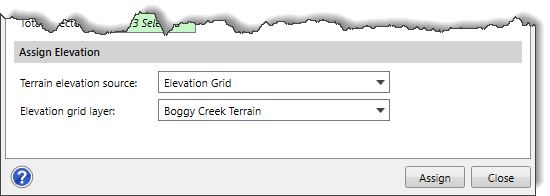
Terrain Elevation Source
Depending upon the terrain elevation source type selected, the contents of the Assign Elevation section changes to specify additional elevation data information.
The Terrain elevation source dropdown combo box supports the following surface types:
- Elevation Grid
- LandXML Data
- TIN surface
Elevation Grid
If the user selects Elevation Grid as the terrain elevation source, the contents of the Assign Elevation section changes, as shown below.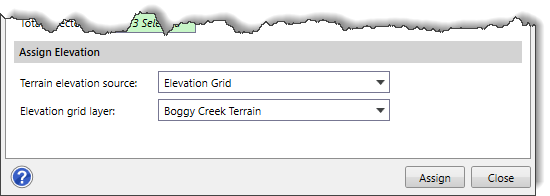
The following option is displayed when Elevation Grid is selected as the terrain elevation source:
- Elevation grid layer
This dropdown combo box allows the user to select the elevation grid layer available in the project.
LandXML Data
If the user selects LandXML Data as the terrain elevation source, the contents of the Assign Elevation section changes, as shown below.
The following options are displayed when LandXML Data is selected as the terrain elevation source:
- TIN surface layer
This dropdown combo box allows the user to select the TIN surface layer type.
- TIN surface
This dropdown combo box allows the user to select the TIN surface type.
TIN Surface
If the user selects TIN Surface as the terrain elevation source, the contents of the Assign Elevation section changes, as shown below.
The following options are displayed when TIN Surface is selected as the terrain elevation source:
- TIN surface layer
This dropdown combo box allows the user to select the TIN surface layer type.
- TIN surface
This dropdown combo box allows the user to select the TIN surface type.
Assigning Terminal Outfall Elevations
Once the data have been defined in the Assign Terminal Outfall Elevations dialog box, click the [Assign] button and the software will assign elevations to the selected terminal outfall(s).